Posts Tagged ‘Gnome’

Why modern Linux systems feel Slow and how to Speed it up. Common RAM, CPU, and performance Linux problems in 2026 explained

Monday, May 18th, 2026

For years Linux we the Linux users proudly mocked Windows for bloated resource usage and that was a reason for many enthusiasts like me to start in the Linux realm.
There used to be the good old times where, lightweight distributions running comfortably inside 128MB of RAM were once common, and old computers and the hackers good old ThinkPads series were perfect for becoming a computer professional.

Fast-forward trip to 2026 and many modern GNU / Linux desktop's resource hunger has topped UP and a typical GUI environment such as Gnome is consuming as minimum 2 GB of RAM and often  4GB of RAM immediately after enters through the Login manager and machine. So many of the old computers if even running for 7-8 years and served well once updated or reused with Linux on a fresh install  prformance feels really bad. There of course work arounds to that as there are distributions such PuppyLinux / Tiny Core Linux / Linux Lite / Lubutuntu and even multiple articles online suggesting on how to place an ordinary Debian on Ubuntu and optimize it to work better on older hardware but still this article might be of help not only for old school Linux fans who install on old harware but also for sysadmins who has to deploy and install brand new Linux distributions and want to squeeze best of performance from the machine and make it as minimimalistic as possible in order to reduce the number of problems that might occur for system management.

So What happened, to make Linux performance degrade so dramatically over last 15 years ?

Old Hardware feels Slower Even With Linux

People often install Linux expecting miracles on ancient hardware.

Modern workloads assume:

  • SSD storage
  • multiple CPU cores
  • AVX instructions
  • GPU acceleration
  • large memory pools

Even lightweight Linux distributions struggle when rendering modern web applications on decade-old CPUs.

A 2007 machine browsing modern JavaScript-heavy websites experiences a fundamentally different workload than it did originally.

Web site use became computationally expensive.


Modern Linux Is Carrying the Weight of the development of Tech and Internet industry

A contemporary Linux desktop is no longer just:

  • X11
  • a window manager
  • a browser
  • a terminal emulator

Modern systems now run dozens of background services (as people run into complexity more and more instead of minimalism). Even a basic Linux install often runs by default things such as:
telemetry collectors, hardware abstraction layers, sandboxing frameworks, package management daemons, web server management platforms, indexing systems, GPU compositors, browser engines that resemble miniature operating systems and even with some specific distros embedded containers.

A typical desktop session environment on Linux today often includes as a base a bunch of software that is not always necessery such as:

  • systemd
  • dbus-daemon
  • pipewire
  • wireplumber
  • NetworkManager
  • xdg-desktop-portal
  • gvfsd
  • tracker-miner
  • udisksd
  • polkitd
  • bluetoothd
  • ModemManager
  • cupsd
  • flatpak-session-helper

Many younger users won't  never notice the burden of having those services running all time on the hardware as hardware today is mostly powerful and modern PC and notebooks often ship with 16GB or even some gaiming machines have 32 GB of memory.

As the default amount of memory on a laptop PC has become so abundant as 16GB RAM has become  "normal / standard ",  so software developers stopped aggressively optimizing memory consumption, plus the inclusing of AI vibe coding today and the abundant resource makes things with program optimization even more bloated.

The result of all this is more and more software entropy (the tendency of software systems to become more disorganized, complex, and harder to maintain over time).

The older UNIX philosophy no longer remembered by newer developers is completely forgotten. The old unix thinking was "Do one thing well.",
the new is "use everything no matter the efficiency if that would save you time"

As a result modern desktop applications instead ship entire browser engines for  simple things as displaying buttons.
This is exactly where Linux desktop gets heavily loaded and cause for whole system to work sluggish even on newer hardware. 
Very large part of those ineffiicient developed is caused by Electron:

Electron Framework for building Desktop apps worsened Linux performance

One of the largest reasons modern Desktop Linux / Windows systems is Electron (a framework for building desktop applications using JavaScript, HTML, and CSS).

Electron bundles essentially with:

  • Chromium
  • Node.js
  • V8 JavaScript engine
  • application runtime
  • UI rendering engine

and this is used in …inside many of the third party applications, which unfurtunately has to be used also on Linux, few examples that has heavy electron use are:

  • Discord client
  • Slack client
  • VS Code
  • Element 
  • Spotify
  • Visual Studio Code
  • Discord
  • Signal Desktop
  • Postman
  • Countless App launchers part of extra packages that one needs to use on Linux Desktop

…are frequently separate Chromium instances or use large part of chromium libs pretending to be native applications.

1. Finding top resource hungry Apps on Linux

To get a list of most memory heavy Apps on a Linux system:

# ps aux –sort=-%mem | head


You may discover that “lightweight desktop apps” and background services are consuming much more RAM than imagined.

Measuring Real Resource Usage Properly

Many users misunderstand Linux memory reporting.

Linux aggressively uses RAM for:

  • filesystem cache
  • buffers
  • inode caching

Note! Unused RAM is wasted RAM.

# free -h

Focus on:

  • available memory
  • swap activity
  • sustained pressure

Better command tools to optimize OS include:

htop
btop
smem
iotop
vmstat

Systemd  Useful but running default unused services

Mentioning systemd still starts wars on Linux forums.

Reality is nuanced.

Systemd solved real problems:

  • dependency management
  • predictable service startup
  • cgroup integration
  • journal logging
  • parallel boot
  • service supervision

However, it also dramatically expanded the scope of PID 1 responsibilities.

Leading to many Linux-es to now launch numerous services laying around, not known by the users and never (intially needed).

If you want to check and optimize systemd ecosystem to improve performance

2. Check systemd OS boot chain and disable unnecessery services

# systemd-analyze blame

And inspect active systemd units:

# systemctl list-units –type=service

Many Linux distributions has by default setup of unused:

  • printer services on systems without printers
  • modem services on desktops without modems
  • Bluetooth stacks on machines without Bluetooth devices
  • indexing daemons nobody uses

Disable unnecessary services carefully:

sudo systemctl disable –now ModemManager
sudo systemctl disable –now bluetooth
sudo systemctl disable –now cups


This alone will reduce memory usage and boot time.
A common set of unused Apps on Desktop and servers goes like this:
 

# Printing system (disable if you never use printers)

# systemctl disable –now cups.service cups-browsed.service

# Bluetooth support (disable if you don’t use Bluetooth devices)

# systemctl disable –now bluetooth.service

# Mobile broadband / modem support (disable if no 4G / 5G dongles)

# systemctl disable –now ModemManager.service

# Network discovery (AirPrint, LAN service discovery; disable if not needed)

# systemctl disable –now avahi-daemon.service

# Location services for apps/browser geolocation (disable if not used)

# systemctl disable –now geoclue.service

# Ubuntu crash reporting services (safe to disable for privacy/no reporting)

# systemctl disable –now apport.service whoopsie.service

# Desktop search indexing (GNOME file search; disable if you don’t use fast search)

# systemctl disable –now tracker-miner-fs.service tracker-extract.service tracker-store.service


For deeper analysis check out systemd cg groups use:

# systemd-cgtop

Or inspect slab allocator usage:

slabtop


3. Avoid using Flatpak and Snap for extra Apps

Flatpak and Snap Increase Isolation, provides many modern Apps that are not default shipped by Debian / Ubuntu / Fedora OS  etc (Deb / RPM) repos and keeps packages easily at latest but also puts great worthless overhead on system.
 

a) Modern packaging systems like Flatpak and Snap (Pros) prioritize:

  • sandboxing
  • dependency isolation
  • reproducibility
  • cross-distribution compatibility

This is good for security, however it comes at a cost.

b) Use of Flatpak and Snap pack. managers downsides

Flatpak applications frequently duplicate:

  • runtimes
  • libraries
  • graphics stacks
  • helper services

Snap packages compress applications into loop-mounted filesystem images which increase startup overhead and general memory fragmentation.

Inspect mounted Snap filesystems

# mount | grep snap


Inspect Flatpak runtimes:

# flatpak list


Considering that, traditional native packages remain significantly leaner in many cases.

4. Use Minimalistic GUI Desktop environment to reduce resource and use of complexity on Linux

Being mimimalist nowadays in a world of abundancy is considered wrong. However minimalism has its well known provent benefits. 

Wayland Is Efficient,  but X11 env with Minimalist GUI is better

Wayland itself is not inherently bloated.

However, modern compositors increasingly rely on:

  • GPU acceleration
  • animation pipelines
  • texture buffering
  • fractional scaling
  • HDR rendering
  • Vulkan / OpenGL abstractions

This improves:

  • smoothness
  • latency
  • security
  • multi-monitor support

…but increases baseline GPU and memory usage and still for performance cautious desktop users it is most likely not the best option.

For example, try to compare CPU / Mem / Disk use of:

  • Openbox on X11
  • KDE Plasma on Wayland with effects enabled

The performance difference is dramatic.


If you want to be a Linux Minimalist (benefit) and get astonishingly low resource usage try:

  • dwm
  • i3
  • bspwm
  • Openbox
  • Wmaker
  • XFCE
  • IceWM

Switching to one of those Linux ecosystem instead of the default heavy GNOME or KDE permits even further optimizations on Graphical environment level,  if users intentionally choose it. The downsides of that is twitching it will take you usually longer but if you setup one and the same desktop with the basic minimalist environment and you keep using it for daily work / development for years, invested time is worth.

5. Use browser extensions, habits or a lightweight  browser. 

Web browser a common source of slowness 

Web Browsers, became nowadays a fully featured Operating Systems. On many machines they are the largest consumers of RAM on Linux systems and on old computers main source of slowness. On older PCs try to use other small browser alternatives

A single browser tab may include:

  • isolated sandbox process
  • JavaScript runtime
  • GPU process
  • extension subsystem
  • video decoder
  • site isolation sandbox
  • service workers

a) Inspect Chromium process trees

# ps -ef | grep chromium

b) Inspect Firefox process trees

about:processes


A few “simple” tabs can easily consume several gigabytes.

The modern web itself is bloated:

  • gigantic JavaScript frameworks
  • endless analytics
  • autoplay video
  • AI scripts
  • tracking engines
  • real-time rendering

Shamefully, many websites today consume more RAM than entire operating systems from the early 2000s.

If you have to work on a PC with 4 or 8 GB with Linux maybe you can try to use a GUI browser only when necessery and for general reading and stuff use a minimalist version of browsers such as using a text / console web  browser and ones that are capable to support ncurses and javascript partially, a good candidate for a real console maniac or an old school hacker will be some of below:

  • Lynx (lightest, pure text)
  • w3m (text browser but supports javascripts partially)
  • Links / Links2 (fast, ultra-lightweight web browser works in both text and gui modes)
    NetSurf (graphical web browser built from scratch with its own independent layout and rendering engine, performs poor with javascript)
  • Browsh (can be often used instead of fully functional browser but buggy)

xlinks2-graphical-mode-lightweight-browser-linux

c) Use Lightweight Browsing Habits

Extensions matter enormously.

Block:

  • ads
  • trackers
  • autoplay
  • unnecessary scripts

uBlock Origin (free and open source browser block extension) alone can dramatically reduce CPU and RAM consumption.

Final words; the modern computing efficiency degredal

What a paradox, Modern hardware is unbelievably powerful, yet modern software consumes resources at almost the same rate hardware improves.

This phenomenon is partially explained by:abstraction layers, developer convenience, use of cross-platform frameworks, increased security isolation, the web technologies heaviness and reduced optimization pressure.

Even though the degredal in perforamance on old hardware, Linux itself remains extremely efficient at the kernel level.

The bloat largely exists and widens though in:

  • userland
  • desktop ecosystems
  • browser-centric software culture
     

The computing as we know it changed.

What once was: terminal-centric, native, lightweight,locally optimized, inter-dependent

turned over  last 10 years: browser-centricm, all time cloud-connected, sandboxed, abstraction-heavy, outer dependent

The good news is that GNU / Linux still gives users freedom, even though the freedom has reduced.

Even though the performance reduced,  Linux still remains one of the few environments where users retain meaningful control over their data and system complexity in the AI, Clouds era


Make Laptop Sleep on LID (Monitor) close in Linux Debian and Ubuntu systemd Linux

Monday, June 22nd, 2020

make-laptop-auto-sleep-on-lid-close-in-Linux-Ubuntu-Debian-Linux


I need to make my laptop automatically sleep on LID Screen close but it doesn't why?

If have used your laptop for long years with Windows or any Windows user is used to the default beavrior of Windows to automatically sleep the computer on PC close. This default behavior of automatically sleep on LID Close has been Windows standard for many years
and the reason behind that usually laptop is used for mobility and working on a discharging battery so a LID screen close puts the laptop in (SLEEP) BATTERY SUSPEND MODE aiming to make the charged battery last longer. However often for Desktop use in the Office LID close 
trigger of laptop sleep mode is annoying and undesired I've blogged earlier on that issue and how to make laptop not to sleep on LID close on M$ Windows 10 here.

This bahavior was copied and was working in many of the Linux distributions for years however in Debian GNU / Linux and Ubuntu 16.X this feature is often not properly working due to a systemd bug. Of course closing the notebook LID screen without putting
the PC in sleep mode is not a bug but a very useful feature for those who use their laptop as a Desktop machine that is non-stop running, however for most ppl default behavior to auto-suspend the computer on Laptop Monitor close is desired.

Here is how to  force the close of the laptop lid to go to suspend/sleep mode and when open the lid, it wake it up.


1. First requirement is to make sure the laptop has installed the package pm-utils, if it is not there install it with:


# apt-get install –yes pm-utils


2. Next we need to edit logind.conf and append 3 variables


# vim /etc/systemd/logind.conf


Normally the file should have a bit of commented informative lines as well as a commented variables that could be enabled like so:


[Login]
#NAutoVTs=6
#ReserveVT=6
#KillUserProcesses=no
#KillOnlyUsers=
#KillExcludeUsers=root
#InhibitDelayMaxSec=5
#HandlePowerKey=poweroff
#HandleSuspendKey=suspend
#HandleHibernateKey=hibernate
#HandleLidSwitch=suspend
#HandleLidSwitchExternalPower=suspend
#HandleLidSwitchDocked=ignore
#PowerKeyIgnoreInhibited=no
#SuspendKeyIgnoreInhibited=no
#HibernateKeyIgnoreInhibited=no
#LidSwitchIgnoreInhibited=yes
#HoldoffTimeoutSec=30s
#IdleAction=ignore
#IdleActionSec=30min
#RuntimeDirectorySize=10%
#RemoveIPC=yes
#InhibitorsMax=8192
#SessionsMax=8192


These entries are usually the files that are used by default as a systemd settings.
Before starting make a copy just you happen to mess systemd.conf, e.g.:


cp -rpf /etc/systemd/logind.conf /etc/systemd/logind.conf_bak


To make the PC LID close active append in the end of file below 3 lines:


HandleSuspendKey=suspend
HandleLidSwitch=suspend
HandleLidSwitchDocked=suspend
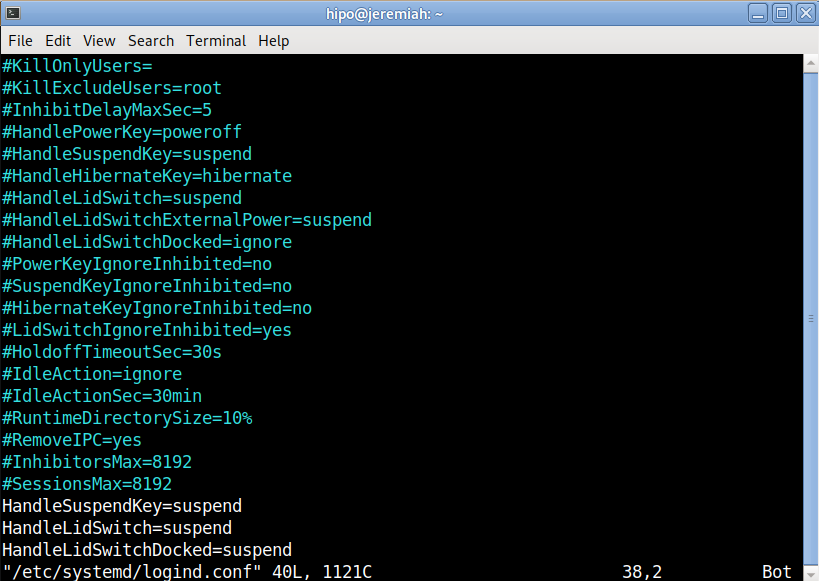
 

systemd-logind-conf-enable-suspend-sleep-on-laptop-lid-screen-close-linux

Save the file and to make systemd daemon reload restart the PC, even though theoretically systemd can be reloaded to digest its new /etc/systemd/logind.conf with:


# systemctl daemon-reexec


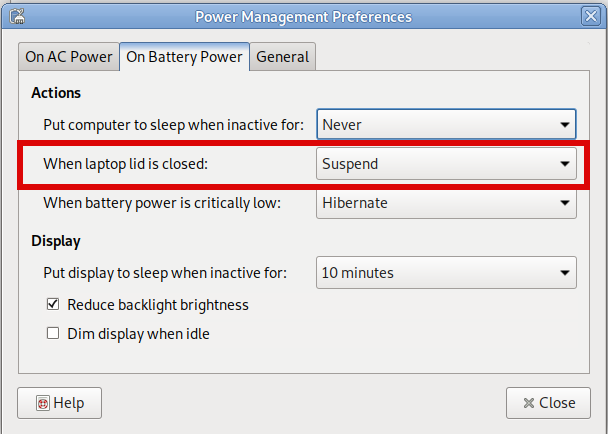
3. Assure yourself the Power Management LID setting of the Desktop Graphical User Interface are set to SUSPEND on close


I use MATE Desktop environment as it is simplistic and quite stable fork of GNOME 2.0, anyway depending on the GUI used on the Linux powered laptop e.g. GNOME / KDE Plasma / XFce etc. make sure the respective
 

Control Panel -> Power Management


settings are set to Force the Laptop Screen LID SUSPEND on Close.

Below is how this is done on MATE:
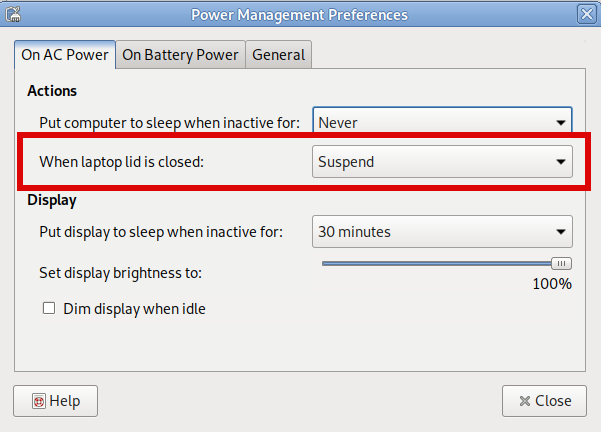
power-management-preferences-when-lid-is-closed-MATE-on-AC-power

power-management-preferences-when-lid-closed-on-battery-suspend

That's all folks, now close your Laptop and enjoy it going to sleep, open it up and get it awaked 🙂 Cheers ! 
 

Change GNOME lock time settings in Linux

Wednesday, September 26th, 2018

https://www.pc-freak.net/images/change-gnome-lock-time-settings-debian-linux-screenshot

In GNOME 3.X The screen lock time setting is set either to 1 minute 15 minutes or NEVER. 
So what if you would like to,

Set the gnome screen lock settings value to 30 minutes or one Hour

Here is how:

For 30 minutes lock screen setting:


linux:~$ gsettings set org.gnome.desktop.session idle-delay 1800


Set GNOME lock time to 1 hour


linux:~$ gsettings set org.gnome.desktop.session idle-delay 3600


The setting is set in seconds so quickest way to calculate is to divide by 60 (seconds), you can calculate easily the time you like with BC (arbitrary precision calculation language) like so:


linux:~$ echo '3600/60' | bc
60


Lets say you would like to set your screen to lock every 3 hours, the delay value to set in org.gnome.desktop.session would be:


linux:~$ echo '3600*3' | bc
10800


Once you set the value to a different than the 3 recognized ones would show in GNOME Control Center as Never (depending on the distro).
 

How to configure Nautilus (Linux application like Windows Explorer) to work with standard Windows button + E On Linux GNOME en Mate

Monday, October 9th, 2017

how-to-configure-nautilus-linux-applicatoin-to-act-like-windows-explorer-make-windows-button-work-in-GNOME-and-Mate
As an ex-Windows user I'm still addicted to Windows User brainwashing as an ex-victim of Windows 95 / 98 and XP:), so I tend to love very much and its still hard for me to forget some major Key Binding (Windows Key Combinations).

On every new Desktop Linux I install, I have the habit to configure few great key combination shortcuts that makes my digital life much easier.
I use usually as a graphical environment GNOME and recently switched to MATE (GNOME 2 fork, cause GNOME 3 is totally messed up and unworthy to me), that's why this article is targetting this two Linux GUI envs, I'll be glad to hear in article comments for any other useful key bindings and how to configure similar key bindings for other Major Linux graphical environments (Cinnamon, KDE Plasma, XFCE, LXDE).


1. Configuring Lock Screen (Win button + L), Open Explorer(Win button + E), View Desktop (Win + D) in MATE graphic env


———  WINDOWS BUTTON, OFTEN USED KEY SHORTCUTS ———

Windows + E – Open new Windows File Explorer 

Windows + L – Lock Computer

Windows + M – To minimize All Windows

Windows + D – Show Desktop (similar to Windows +M though it doesn't switch to Desktop)

Win – + / – To Maginfy Text and Windows

Shift + Win + Left/Right Arrow – (In Windows if you have multiple monitors connected to the same computer lets say Right Monitor and Left, that combination switches between left monitor and right monitor)


——————————————————————–


The list goes on but I'm not used to all of them, I'll stop here and continue on with how to remake some of my favourite Windows keybindings in Gnu / Linux

Either run it from Menus:
 

System -> Settings -> Hardware -> Keyboard Shortcuts


Or run command


$ mate-keybinding-properties


howto-gnome-mate-remap-shortcut-keybinding-keys-mate-keybinding-properties


After rebinding the Windows: 
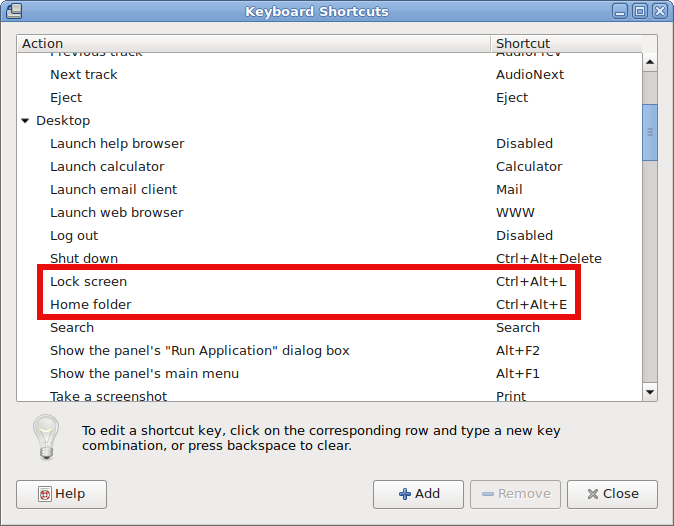
– Lock Screen and Open New Nautilus Explorer Window (Home folder) variable to be invoked with Windows button, the result
is as that:

howto-gnome-mate-remap-shortcut-keybinding-keys-mate-keybinding-properties


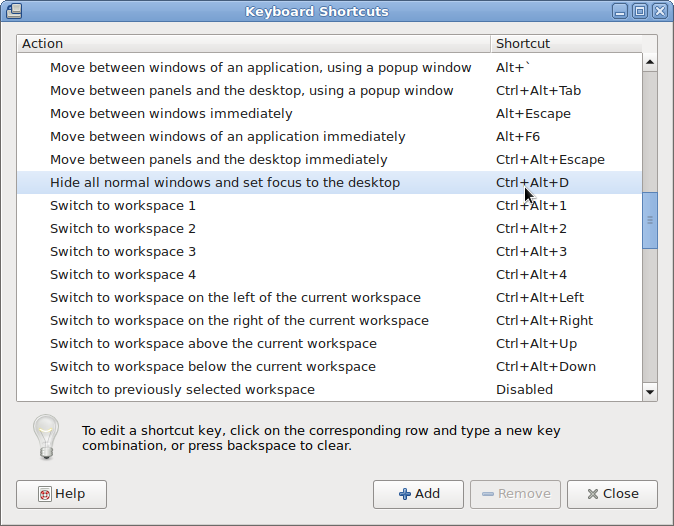
Scroll down Mate Keyboard shortcuts and you'll find

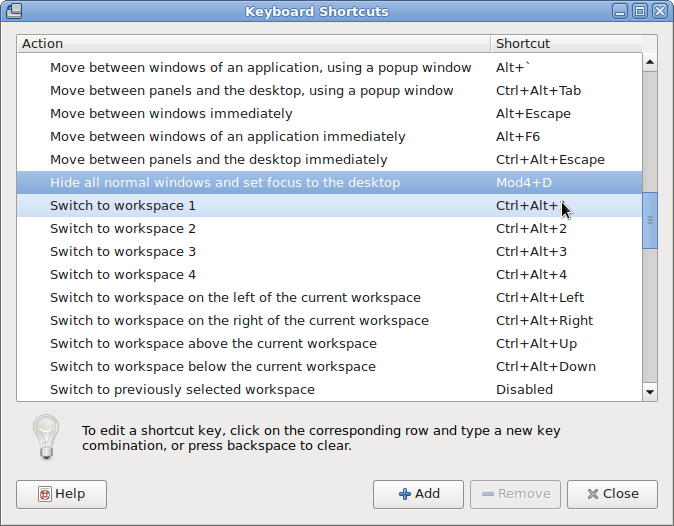
also how to configure Windows Button and D Key Combination, following 2 more screenshots showing how to do it note that MOD Key appears once you press Windows Keyboard Key + something (e.g. MATE recognizes MOD Key as Win Key):

Before the change to bind Win Key + D to work:

mate-how-to-make-desktop-view-open-with-standard-windows-button_and_d-combination-linux-debian

When configured Win Button + D looks like so:

mate-how-to-make-desktop-view-open-with-standard-windows-button_and_d-combination-linux-debian-1

2. Configuring Lock Screen (Win button + L), Open Explorer(Win button + E), View Desktop (Win + D) in GNOME

Usually in GNOME until > version 3.X.X (in older GNOME graphic environment access to KeyBinding Properties was done via:


System -> Preferences -> Keybord Shortcuts -> Add ->​


In fallback gnome with Metacity (if installed along with GNOME Desktop 3.2.X environment to access Key Bindings):

d

System->Apps->Metacity->global_keybindings  


Also it is possible to remap keys via dconf-editor, I've written a small article earlier explaining how to remap Screenshotting buttons with dconf-editor but the example could be easily adapted, so you can edit almost everything.

Besides that you can use a command to run the keyboard configuration (in older GNOMEs) via:


linux:~$ gnome-keybinding-properties


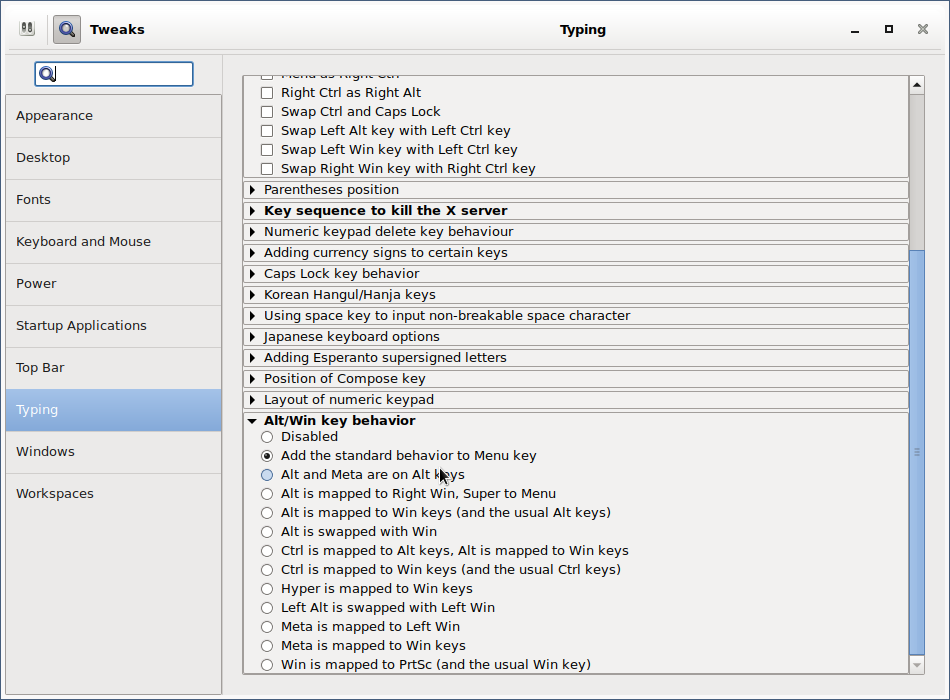
Just for information for those who might know, many Key Binding interesting options are available via gnome-tweak-tool, so if you don't have it yet install it and give it a try:


linux:~# apt-get install –yes gnome-tweak-tool


As you can see, there are plenty of options to make Win (key) to act like Alt (key):

linux:~# gnome-tweak-tool
 

gnome-tweak-tool-make-win-key-to-behave-like-alt-key-howto 


After configuring the changes enjoy your WINDOWS Button + L, WINDOWS + E and WINDOWS + D WORKING AGAIN HOORAY !!! 🙂 


3. Most used shortcuts in Gnome and Nautilus 
 

Below are most used shortcuts thanks to LinuxQuestions Forum for providing them

Howdy! I thought that it would be useful to post a practical selection of shortcut keys for GNOME (the Desktop Environment) and Nautilus (the File Manager) and some information about customizing shortcut keys in Ubuntu. I wrote it especially for Ubuntu beginners, but I hope it will prove useful for all. 


2.1 GNOME/Nautilus shortcut keys – Very useful for the keyboard maniax like me :):
 

Ctrl-H: show hidden files

Ctrl-N: new window

Ctrl-Shift-N: create new folder

Alt-Home : jump to home folder

Alt-Enter : file / folder properties

F9 : toggle side-pane

Alt-F1 : launch applications menu

Alt-F2 : launch "run application" dialogue

Ctrl-Alt – Right/Left arrow : move to the next virtual desktop

Ctrl-Alt-Shift – Right/Left arrow : take current window to the next virtual desktop

Ctrl-Alt-D: minimize all windows, and gives focus to the desktop. 

Alt-Tab: switch between windows. When you use these shortcut keys, a list of windows that you can select is displayed. Release the keys to select a window. 

Ctrl-Alt-Tab: switch the focus between the panels and the desktop. When you use these shortcut keys, a list of items that you can select is displayed. Release the keys to select an item. 

Ctrl-Alt-L: lock the screen (tested only in Ubuntu) 

Ctrl-L: shortcut for opening locations-by default the path is the home folder*
/ : same as Ctrl-L but has the root (/) as default path* (shortcut found on here)
* both shortcuts can be used while you are on the desktop (no window active)

Ctrl-T : move to trash (in Nautilus)
Quite dangerous key combination because many of us are used to press these keys in order to open a new tab. Because we all delete items using the Delete key, I recommend to deactivate this shortcut key. To do that, go to System » Preferences » Appearance » Interface. Select Editable menu shortcut keys and close the dialog box. Click on the Edit menu in the File Browser. Click the Empty Trash item (it has Ctrl-T as the keyboard shortcut) Press the Delete key to get rid of the shortcut.
You can find all GNOME shortcut keys here


2.2 How to create a custom hotkey to launch whatever application you want in GNOME
 

As an example, we will set a lock-screen shortcut.


Open "gconf-editor" as the user as you're logged in in GNOME (typing gconf-editor in the terminal or "Run Application").
 

Go to apps > metacity > keybinding_commands


Here we have a list of twelve slots for commands.


Double click on e.g. "run_command_1" 

In Key Value Type in the name of the application or command you want to launch (e.g. gnome-screensaver-command –lock).


Go to apps -> Metacity -> global_keybindings 

Double click on e.g. "run_command_1" 
Change the key value to whatever key combination you like (e.g. <Ctrl><Alt>L).Press "Ok".


2.3.How to create/change GNOME shortcuts


Click on System -> Preferences -> Keyboard Shortcuts


Click the action in the list and press Enter. 
Press the new key or key combination you want to assign to the action. (To clear a shortcut, press the Backspace key)


Hope it helps, Enjoy Life .;)

Quick shortcut to lock your Linux computer desktop (Few words on Linux screensavers)

Thursday, November 20th, 2014

quick-way-to-lock-desktop-linux-howto-key
Locking the PC while going for a coffee break, Lunch or toilet is longly used to secure physically your PC display from spying eyes or prevent you from  someone to install a spying software or leak private data from PC HDD to an USB drive.
People who are coming from the wonderful MS Windows OS   are certainly used to quick shortcut key combination to lock PC screen with:
 

Windows key + L


So how to do Lock Screen on Linux?

On Linux locking your Screen the Quick Shortcut is:
 

CTRL + ALT + L.


Locking the screen is done (depending on the Linux distribution) by using by either using historically famous XScreenSaver if non-gnome / KDE graphical environemnt is used or if in Linux Gnome GUI with  gnome-screensaver and on KDE desktop manager with kscreenlocker.


Exact command executed on CTRL + ALT + L keypress on GNOME is:
 

gnome-screensaver-command -l


On KDE to manually lock screen command is:

kscreenlocker

Nomatter whether with GNOME or KDE its worthy mention that xscreensaver is more Screensaver rich than kscreenlocker and gnome-screensaver as it includes about 200 different Screensavers making screen nice to watch when you come back from a lunch.

For people with Windows key keyboard who are too used to using Windows XP / 7 lockreen WIN + L key shortcut to make Windows (key) + L keys combination work on Linux with GNOME desktop:
 

System -> Preferences -> Keyboard Shortcuts

Make Win + L keys combination work on Linux with KDE desktop
 

  1.  "System Settings" (KDE menu).
  2. Choose "Keyboard & mouse" (on "General" tab).
  3. Choose "Global Keyboard Shortcuts" on the left.
  4. Choose "Run Command Interface" from "KDE component" dropdown list.
  5. Choose "Lock session".
  6. Select "Custom".
  7. Click on "None" (button changes to "Input…").
  8. Compose your desired sequence by pressing appropriate buttons on your keyboard.
  9. Click "Apply".


For other desktop environments like Window Maker you can use xmodmap command to bind Win + L keys

Screenshot expanded menus on GNOME / KDE in Linux and BSD desktop

Thursday, June 19th, 2014

take-screenshot-of-expanded-menu-window-in-linux-and-freebsd-howto

If you're using actively Linux or FreeBSD on Desktop PC and experimenting with software, taking personal notes, developing software for Linux, writting documentation, participating in free software community etc., you will certainly need use screenshot heavily.

Taking a screenshot in Linux is done in same way as in any modern operating system by using the Print Screen (PrtScr) button, however there are few Nuts & Bolts of Linux screenshotting, to take advantage of full power of screenshot creation (i.e. be able to do some screenshot customization) which are not offered by default screenshot utilities (GNOME – gnome-screenshot and KDE's KSnapshot)

Here are few useful Linux /BSD Screenshot Tips and Tricks:


If you have done screenshots of Linux running programs more than few times already, you have probably noticed the usual way to screenshot by pressing Print Screen (PrtScr) button to take snapshot of the expanded GNOME / KDE menu is not working. In that order of thought you probably wondered whether it is possible to take a screenshot of an expanded menus? As a Linux user, I've been asking myself this question too, and feeling irritated that  I cannot prepare screenshot of a GNOME running application expanded menu. I've found two ways (though there are probably many more to make screenshot of an expanded Linux menu). Here is how:
 

Create screenshot of running application expanded menus
 

1. Taking screenshot of expanded menu using the command line

As with everything in Linux, there aremultiple ways to make screenshot of expanded Linux menus.

  • Make timed screenshot of the screen scheduled to screenshot after a set number of seconds.

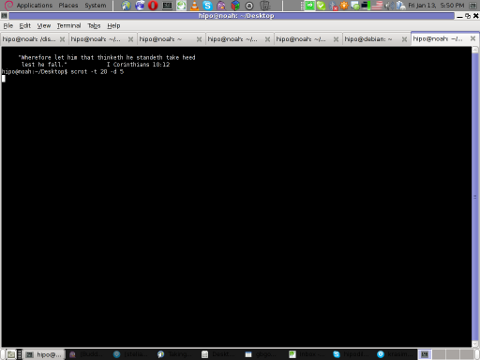
The quickest way for to screenshot expanded menu is to use gnome-panel-screenshot or ksnapshot from command line. It is interesting pressing Prt Sc kbd button in GNOME invokes gnome-screenshot and in KDE uses ksnapshot


gnome-panel-screenshot --delay 5


To not spend time running it from gnome-terminal (in GNOME desktop), press Alt+F2 (simultaneously) and use the Run Application command shortcut.

gnome-panel-screenshot-linux-screenshot-expanded-menus

This will instruct Screenshot utility to wait for 5 seconds before capturing your desktop this should be enough time for you to go to navigate to expanded menu which you want to get screenshotted.

gnome-panel-screenshot-linux-screenshot-expanded-menus1

  • Make timed screenshot of the screen in GUI with GIMP


trisquel-free-software-linux-screenshot-gimp-create-screenshot-with-timing-take-screenshot-of-expanded-menu-on-linux-bsd

(If you're wonderhing what kind of Linux is on screenshot – this is Trisquel – Run Free! GNU / Linux. It is a Spanish distribution focused on providing 100% free software in it – without proprietary firmware or software. Trisquel is based on Debian and uses the dpkg / apt-get package managers. Trisquel is a recommended Linux to use by Richard Stallman and The Free Software Foundation).
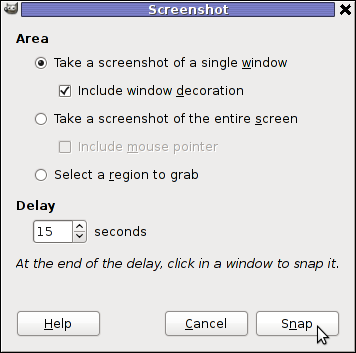
To make timed screenshot with GIMP use menus:


File -> Create -> Screenshot


linux-screenshot-gimp-create-screenshot-of-expanded-menus-in-gnome-kde-on-linux-bsd

Chosee whether you want to Take screenshot of the entire screen or a Region to Grab and set your wanted Delay

Screenshot will be prepared on $HOME/Desktop, after set time.

Use apt-get with Proxy howto – Set Proxy system-wide in Linux shell and Gnome

Friday, May 16th, 2014

linux-apt-get-configure-proxy-howto-set-proxy-systemwide-in-linux

I juset setup a VMWare Virtual Machine on my HP notebook and installed Debian 7.0 stable Wheezy. Though VMWare identified my Office Internet and configured automatically NAT, I couldn't access the internet from a browser until I remembered all HP traffic is going through a default set browser proxy.
After setting a proxy to Iceweasel, Internet pages started opening normally, however as every kind of traffic was also accessible via HP's proxy, package management with apt-get (apt-get update, apt-get install etc. were failing with errors):


# apt-get update

Ign cdrom://[Debian GNU/Linux 7.2.0 _Wheezy_ – Official i386 CD Binary-1 20131012-12:56] wheezy Release.gpg
Ign cdrom://[Debian GNU/Linux 7.2.0 _Wheezy_ – Official i386 CD Binary-1 20131012-12:56] wheezy Release
Ign cdrom://[Debian GNU/Linux 7.2.0 _Wheezy_ – Official i386 CD Binary-1 20131012-12:56] wheezy/main i386 Packages/DiffIndex
Ign cdrom://[Debian GNU/Linux 7.2.0 _Wheezy_ – Official i386 CD Binary-1 20131012-12:56] wheezy/main Translation-en_US
Err http://ftp.by.debian.org wheezy Release.gpg
  Could not connect to ftp.by.debian.org:80 (86.57.151.3). – connect (111: Connection refused)
Err http://ftp.by.debian.org wheezy-updates Release.gpg
  Unable to connect to ftp.by.debian.org:http:
Err http://security.debian.org wheezy/updates Release.gpg
  Cannot initiate the connection to security.debian.org:80 (2607:ea00:101:3c0b:207:e9ff:fe00:e595). – connect (101: Network is unreachable) [IP: 2607:ea00:101:3c0b:207:e9ff:fe00:e595 80]
Reading package lists…


This error is caused because apt-get is trying to directly access above http URLs and because port 80 is filtered out from HP Office, it fails in order to make it working I had to configure apt-get to use Proxy host – here is how:

a) Create /etc/apt/apt.conf.d/02proxy file (if not already existing)
and place inside:
 

Acquire::http::proxy::Proxy "https://web-proxy.cce.hp.com";
Acquire::ftp::proxy::Proxy "ftp://web-proxy.cce.hp.com";


To do it from console / gnome-terminal issue:
echo ''Acquire::http::Proxy "https://web-proxy.cce.hp.com:8088";' >> /etc/apt/apt.conf.d/02proxy
echo ''Acquire::ftp::Proxy "https://web-proxy.cce.hp.com:8088";' >> /etc/apt/apt.conf.d/02proxy

That's all now apt-get will tunnel all traffic via HTTP and FTP proxy host web-proxy.cce.hp.com and apt-get works again.

Talking about Proxyfing Linux's apt-get, its possible to also set proxy shell variables, which are red and understood by many console programs like Console browsers lynx, links, elinks  as well as wget and curl commands, e.g.:


export http_proxy=http://192.168.1.5:5187/
export https_proxy=$http_proxy
export ftp_proxy=$http_proxy
export rsync_proxy=$http_proxy
export no_proxy="localhost,127.0.0.1,localaddress,.localdomain.com"

For proxies protected with username and password export variables should look like so: echo -n "username:"
read -e username
echo -n "password:"
read -es password
export http_proxy="http://$username:$password@proxyserver:8080/"
export https_proxy=$http_proxy
export ftp_proxy=$http_proxy
export rsync_proxy=$http_proxy
export no_proxy="localhost,127.0.0.1,localaddress,.localdomain.com"

To make this Linux proxy settings system wide on Debian / Ubuntu there is the /etc/environment file add to it:
 

http_proxy=http://proxy.server.com:8080/
https_proxy=http://proxy.server.com:8080/
ftp_proxy=http://proxy.server.com:8080/
no_proxy="localhost,127.0.0.1,localaddress,.localdomain.com"
HTTP_PROXY=http://proxy.server.com:8080/
HTTPS_PROXY=http://proxy.server.com:8080/
FTP_PROXY=http://proxy.server.com:8080/
NO_PROXY="localhost,127.0.0.1,localaddress,.localdomain.com"


To make proxy global (systemwide) for most (non-Debian specific) Linux distributions shell environments create new file /etc/profile.d/proxy.sh and place something like:

function proxy(){
echo -n "username:"
read -e username
echo -n "password:"
read -es password
export http_proxy="http://$username:$password@proxyserver:8080/"
export https_proxy=$http_proxy
export ftp_proxy=$http_proxy
export rsync_proxy=$http_proxy
export no_proxy="localhost,127.0.0.1,localaddress,.localdomain.com"
echo -e "nProxy environment variable set."
}
function proxyoff(){
unset HTTP_PROXY
unset http_proxy
unset HTTPS_PROXY
unset https_proxy
unset FTP_PROXY
unset ftp_proxy
unset RSYNC_PROXY
unset rsync_proxy
echo -e "nProxy environment variable removed."
}

To set Global Proxy (make Proxy Systemwide) for a user in GNOME Desktop environment launch gnome-control-center

And go to Network -> Network Proxy

/images/gnome-configure-systemwide-proxy-howto-picture1

/images/gnome-configure-systemwide-proxy-howto-picture2

To make proxy settings also system wide for some GUI Gnome GTK3 applications

gsettings set org.gnome.system.proxy mode 'manual'
gsettings set org.gnome.system.proxy.http host 'your-proxy.server.com'
gsettings set org.gnome.system.proxy.http port 8080

How to disable GNOME popup notification in Debian Wheezy Linux

Friday, August 2nd, 2013

how to disable remove GNOME 2 / 3 popup e mail notification  Debian Ubuntu Linux screenshot

I found it very annoying to have a pop-up notification every time I receive a new email it is just pointless there especially, when I already use Thunderbird (IceDove) to fetch my email via pop3. This pop-up notification though planned to be useful messes with my Desktop and breaks the habit on how I'm used to old GNOME interface…. I remember same popup notification was present on older Fedora releases (back in time when I used Fedora Linux for my Desktop).

disable Gnome popup notification new email Debian GNU Linux Wheezy 7 screenshot

My logical guess was in order to disable popup notification in GNOME 3 I had to tamper with gconf-editor. In gconf-editor config database there is:

Apps -> Notification daemon

Problem it is not possible to turn it off. Only available change options are:

default-sound, popup_location, sound_enabled, and theme

After some time of try / fail attempts I found the solution on linuxquestions forum, its quite raw solution but it works, all I had to do is change permissions of /usr/lib/notification-daemon/notification-daemon;

debian:~# chmod 0000 /usr/lib/notification-daemon/notification-daemon

Another thing that is handy to disable is POP UP Window with warning that you have low disk space on Hard Drive.

The warinng for Disk space is very annoying and popups up on every GNOME boot. Actually the hard drive with Low disk space is and old mounted partition in NTFS and I only use it to read data.

Here is how to disable HDD Notification Warnings in GNOME:

debian:~# chmod 0000 /usr/lib/gnome-disk-utility/gdu-notification-daemon

Tracking multiple log files in real time in Linux console / terminal (MultiTail)

Monday, July 29th, 2013

Multitail multiple tail Debian GNU Linux viewing Apache access and error log in shared screen
Whether you have to administer Apache, Nginx or Lighttpd, or whatever other kind of daemon which interactively logs user requests or errors you probably already know well of tail command (tail -f /var/log/apache2/access.log) is something Webserver Linux admin can't live without. Sometimes however you have number of Virtualhost (domains) each configured to log site activity in separate log file. One solution to the problem is to use GNU Screen (screen – terminal emulator) to launch multiple screen session and launch separate tail -f /var/log/apache2/domain1/access.log , tail -f /var/log/apache2/domain2/access.log etc. This however is a bit of hack and except configuring screen to show multiple windows on one Virtual Terminal (tty or vty in gnome), you can't really see output simultaneously in one separated window.

Here is where multitail comes handy. MultiTail is tool to visualize in real time log records output of multiple logs (tails) in one shared terminal Window. MultiTail is written to use ncurses library used by a bunch of other useful tools like Midnight Command so output is colorful and very nice looking.

Here is MultiTail package description on Debian Linux:

linux:~# apt-cache show multitail|grep -i description -A 1
Description-en: view multiple logfiles windowed on console
 multitail lets you view one or multiple files like the original tail
—
Description-md5: 5e2f688efb214b063bdc418a705860a1
Tag: interface::text-mode, role::program, scope::utility, uitoolkit::ncurses,
root@noah:/home/hipo# apt-cache show multitail|grep -i description -A 1
Description-en: view multiple logfiles windowed on console
 multitail lets you view one or multiple files like the original tail
—
Description-md5: 5e2f688efb214b063bdc418a705860a1
Tag: interface::text-mode, role::program, scope::utility, uitoolkit::ncurses,
 

Multiple Tail is available across most Linux distributions to install on Debian / Ubuntu / Mint etc. Linux:

debian:~# apt-get install --yes multitail
...

On recent Fedora / RHEL / CentOS etc. RPM based Linuces to install:

[root@centos ~]# yum -y install multitail
...

On FreeBSD multitail is available to install from ports:

freebsd# cd /usr/ports/sysutils/multitail
freebsd# make install clean
...

Once installed to display records in multiple files lets say Apache domain name access.log and error.log

debian:~# multitail -f /var/log/apache2/access.log /var/log/apache2/error.log
…

It has very extensive help invoked by simply pressing h while running

multtail-viewing-in-gnome-shared-screen-debian-2-log-files-screenshot

Even better multitail is written to already have integrated color schemes for most popular Linux services log files

multitail multiple tail debian gnu linux logformat different color schemes screenshot
List of supported MulLog Color schemes as of time of writting article is:

acctail, acpitail, apache, apache_error, argus, asterisk, audit, bind, boinc, boinctail ,checkpoint, clamav, cscriptexample, dhcpd, errrpt, exim, httping, ii, inn, kerberos, lambamoo, liniptfw, log4j, mailscanner, motion, mpstat, mysql, nagtail, netscapeldap, netstat, nttpcache, ntpd, oracle, p0f, portsentry, postfix, pptpd, procmail, qmt-clamd, qmt-send, qmt-smtpd, qmt-sophie, qmt-spamassassin, rsstail, samba, sendmail, smartd, snort spamassassin, squid, ssh, strace, syslog, tcpdump, vmstat, vnetbr, websphere, wtmptail

To tell it what kind of log Color scheme to use from cmd line use:

debian:~# multitail -Csapache /var/log/apache2/access.log /var/log/apache2/error.log

multiple tail with Apache highlight on Debian Linux screenshot

Useful feature is to run command display in separate Windows while still following log output, i.e.:

[root@centos:~]# multitail /var/log/httpd.log -l "netstat -nat"
...

Multitail can also merge output from files in one Window, while in second window some other log or command output is displayed. To merge output from Apache access.log and error.log:

debian:~# multitail /var/log/apache2/access.log -I /var/log/apache2/error.log

When merging two log files output to show in one Window it is useful to display each file output in different color for the sake of readability

For example:
 

debian:~# multitail -ci green /var/log/apache/access.log -ci red -I /var/log/apache/error.log

multitail merged Apache access and error log on Debian Linux

To display output from 3 log files in 3 separate shared Windows in console use:

linux:~# multitail -s 2 /var/log/syslog /var/log/apache2/access.log /var/log/apache2/error.log

For some more useful examples, check out MultiTail's official page examples
There is plenty of other useful things to do with multitail, for more RTFM 🙂

SumatraPDF Adobe Acrobat Reader free software ( Secure ) Alternative

Friday, July 19th, 2013

Whether you're forced to use MS Windows but still want to use as much as possible Free Software – i.e. Stay away from Non-Free Adobe Acrobat Reader. There is Sumatra PDF – a good alternative that reads well most of PDFs. For rendering PDF Sumatra PDF usees muPDF library. SumatraPDF is minimalistic software it does exactly what it is meant for – reads PDF. Unfortunately from version 0.6 of Sumatra there is DRM implemented (Digital Right Managements) so it is not possible to copy from DRM-ed documents.
Sumatra opens  following formats: Open XML Paper Specification, DjVu, EPUB, XPS, CHM, CBZ and CBR, and MOBI files.
As of  time of writting official Sumatra PDF version is at ver. 2.3.2

sumatra pdfafter install thank you screenshot

I've made mirror of Sumatra PDF 2.3.2 installer here , Sumatra PDF zipped is here

Sumatra pdf reader screenshot ms windows 7
Sumatra PDF works on Windows XP, Vista, Win 7 & 7

  One of key advantages of Sumatra PDF over Adobe Acrobat Reader is you don't need to update it all the time and it is much less likely that Sumatra PDF is hit by security flaw in PDF format. 

For people who use Linux / BSD or some other Unix and want to stay free from proprietary Adobe Acrobat Reader two nice alternatives are default's GNOME PDF reader Evince and KDE's Okular