Archive for the ‘Everyday Life’ Category

Best Home Wi-Fi settings for Maximum Speed and Internet coverage in Europe

Tuesday, July 21st, 2026

best-home-wifi-settings-for-maximum-speed-and-internet-coverage-europe-simple-steps-to-improve-your-home-wifi-signal

A fast broadband subscription is only part of the equation to have excellent internet air connectivity configuration for a home / work Wi-Fi Internet Router.
Even if you pay for good stable gigabit fiber options connection, poor Wi-Fi configuration can reduce your real-world speeds by more than half which might make working with devices have annoying temporary slownesses or even disruptions, when exchanging data to internet.

Our modern homes are filled with smart TVs, streaming devices, gaming consoles, laptops, smartphones, and IoT devices – all competing to take over fastest and stablest connectivity to the wireless device bandwidth.
Thus optimizing Wi-Fi router connectivity settings is no longer optional but is kind oa  in year 2026.

This snall guide would covers most of the best practices for configuring a home Wi-Fi network for maximum speed, stability, and security across Europe.

1. Choose the Right Wi-Fi Standard

Your router determines the maximum performance of your wireless network.


Recommended standards:

  • Wi-Fi 6 (802.11ax): Best value for most homes
  • Wi-Fi 6E: Excellent if your devices support the new 6 GHz band
  • Wi-Fi 7: Future-proof and ideal for multi-gigabit internet connections

! Avoid, using older Wi-Fi 5 or Wi-Fi 4 equipment unless upgrading is not possible !

2. Use the Best Frequency Band

Modern routers typically broadcast multiple wireless bands.


2.4 GHz Advantages:

  • Longer range
  • Better wall penetration
  • Disadvantages:
  • Lower speeds
  • More interference
  • Congested in apartments


2.4GHz Ideal for:

  • Smart home devices
  • Printers
  • Cameras

5 GHz Advantages:


  • Higher throughput
  • Lower latency
  • Less interference
  • Ideal for:
  • Streaming
  • Gaming
  • Video conferencing
  • Workstations


6 GHz (Wi-Fi 6E / Wi-Fi 7) Advantages:


  • Extremely low interference
  • Highest available speeds
  • Very low latency


6Ghz Wifi is usual use is:

With most modern Devices, such as (IoT connected devices, Wifi Gaming PCs, High-performance laptops, For large files transfer), tech quipment that looking for best Internet connectivity via air.. 

3. Position Your Router Correctly

best-wifi-router-placement-location-position-your-wireless-router-correctly-for-optimial-internet-air-speed

Router placement has a greater impact than many people realize.

Best practices for Router Positioning:

  • Place the router near the center of your home.
  • Position it on a shelf or table rather than on the floor.
  • Avoid placing it inside cabinets.
  • Keep it away from large metal objects.
  • Maintain distance from microwaves and cordless phones.
  • Keep antennas vertical unless the manufacturer recommends otherwise.
  • In multi-story homes, position the router between floors whenever possible.

4. Select the Best Wireless Channel

Channel congestion is one of the biggest causes of slow Wi-Fi.

For Europe (European Union countries):

For 2.4 GHz Wifi;

Use signal spread only:

  • Channel 1
  • Channel 6
  • Channel 11


These channels minimize overlap.

For 5 GHz;


Enable automatic channel selection or manually choose a channel with low congestion using a Wi-Fi analyzer.

5. Use the Correct Channel Width

For 2.4 GHz WiFi


Use:
+ 20 MHz
Avoid:
– 40 MHz unless there are very few neighboring networks.

For 5 GHz

Recommended:
+ 80 MHz
+ Use 160 MHz only if:
+ Few neighboring networks exist
+ Your devices support it

For 6 GHz

Use:
160 MHz or wider when available.

6. Enable WPA3 Security


Best WPA3 selection:

WPA3-Personal


For older devices require Backwards compatibility (keep enabled):
WPA2/WPA3 Mixed Mode

Avoid:
– WEP
– WPA
– Open networks
– Strong security helps prevent unauthorized users from consuming bandwidth.


7. Separate IoT Devices in different network

Many smart home devices generate unnecessary wireless traffic.
Create seperate networks for:

  • Main networ
  • Guest network
  • IoT network

This improves performance and enhances security.

8. Enable OFDMA and MU-MIMO

Modern Wi-Fi 6 routers support technologies that improve efficiency.
OFDMA

Allows multiple devices to share wireless resources efficiently.
MU-MIMO
Enables simultaneous communication with multiple devices.

Both should remain enabled.

9. Update Router Firmware

Manufacturers regularly release updates that improve the Performance, Security, Stability, Compatibility.
As script kiddie "hackers" threaths raise seriously day by day, when possible always, do:

  • Enable automatic firmware updates whenever possible.

10. Use Quality of Service (QoS)


Use the router to QoS prioritizes important traffic
Usual candidates for higher priorty internet traffics configs are:

  • Streaming, Work VPN traffic
  • Gaming, Video calls


Se as Lower priority ones :

  • Downloads
  • Cloud automated backups, etc.

11. Disable Legacy Wi-Fi Modes


Older compatibility modes, has advantages for interoperability but does reduce network efficiency, so most people would like to disable it.

Disable wifi mode transmission:

– 802.11b
– 802.11g


For Performance use instead the newer transmissions:

+ 802.11n
+ 802.11ac
+ 802.11ax

12. Always Prefer Wired Connections for High-Bandwidth Devices

alwayes-prefer-wired-connections-for-high-bandwidth-devices-cable-network-connection-should-be-always-first-choice

Connect these devices via Ethernet whenever possible:

  • NAS systems (Storages), Desktop PCs (most important candidates for UTP connectivity)
  • Gaming consoles, Smart TVs, Streaming boxes (secondary but also important to not disrupt your fun time)


Note !:
 Every cable connected device would have possible impact on any other connected Wi-Fi devices such as Mobile phones.
Every wired device reduces wireless congestion!

13. Use Mesh Wi-Fi for large sized sq. meter homes

If your home exceeds approximately 150–200 m² or has multiple floors, consider a mesh Wi-Fi system instead of relying on a single router.


Benefits includes:

  • Better coverage
  • Seamless roaming
  • Higher overall speeds
  • Reduced dead zones

14. Monitor Network Usage


Many routers provide tools to identify bottlenecks. Some common ones are

  • Bandwidth-heavy devices, Weak connections


    Review these statistics as regular as possible to optimize your network and have decent internet connectivty.

  • Congested channels, Signal quality issues

15. Understand European Wi-Fi Regulations

European countries follow ETSI regulations for wireless spectrum.
Most routers sold in Europe automatically comply with regional requirements, including:

Permitted transmit power, DFS (Dynamic Frequency Selection), follow approved set wireless channels.

! Avoid changing the router's region setting, as this may violate local regulations and reduce compatibility. !

Example Configuration for a Modern European Home (Recommended Value Settings)
 

  1. Wi-Fi Standard    Wi-Fi 6 or newer
  2. Security    WPA3-Personal
  3. 2.4 GHz Channel    1, 6, or 11
  4. 2.4 GHz Width    20 MHz
  5. 5 GHz Width    80 MHz
  6. 6 GHz Width    160 MHz (if supported)
  7. Firmware    Automatic updates enabled
  8. QoS    Enabled
  9. OFDMA    Enabled
  10. MU-MIMO    Enabled
  11. Smart Connect    Enabled unless manual band control is preferred
  12. DNS    ISP, Cloudflare (1.1.1.1), or Google Public DNS (8.8.8.8)


Common mistakes to avoid


  • Placing the router inside a cabinet.
  • Using outdated firmware.
  • Running all devices on the 2.4 GHz band.
  • Selecting crowded wireless channels.
  • Leaving the default administrator password unchanged.
  • Using Wi-Fi extenders instead of a proper mesh system in large homes.
  • Connecting high-bandwidth devices wirelessly when Ethernet is available.

Conclusion

Optimizing a home Wi-Fi network involves more than purchasing a fast router. Proper placement, choosing the right frequency bands, selecting appropriate channels, keeping firmware updated, and enabling modern Wi-Fi features such as OFDMA and MU-MIMO can significantly improve speed, reliability, and coverage.
For most European households, a centrally located Wi-Fi 6 router configured with WPA3 security, 80 MHz channels on the 5 GHz band, and Ethernet connections for high-bandwidth devices provides an excellent balance of performance, security, and future readiness.

Missing /var/log/cron.log on Linux? Here’s Where cron logs are actually stored

Friday, July 10th, 2026

If you've tried to troubleshoot a scheduled cron job or task and discovered that /var/log/cron.log doesn't exist, don't panic. Contrary to what used to be the normal for GNU / Linux distributions few years ago and especially before systemd came on scene, this file is not present on every Linux distribution anymore.

The location of cron logs depends on your Linux distribution, the logging service in use, and how system is configured.

In this guide, we'll explain why /var/log/cron.log may be missing and show you where to find your cron logs instead.

Why is /var/log/cron.log Missing?

There isn't a universal standard for cron logging across Linux distributions.

Some systems write cron events to a dedicated log file, while others store them in the system journal or the general system log. Modern Linux distributions increasingly rely on systemd-journald, which means traditional log files may not exist at all.

Ubuntu and Debian (deb based distros)

On Ubuntu and Debian, cron messages are typically written to the system log instead of a dedicated cron log.

To search for cron entries, run:

# grep CRON /var/log/syslog

Or use systemd's journal:

# journalctl -u cron

If /var/log/cron.log is missing, this is usually expected behavior.

RHEL, CentOS 7 and Similar Distributions

Red Hat Enterprise Linux and CentOS 7 usually maintain a dedicated cron log:

/var/log/cron

View its contents with:

# cat /var/log/cron

Or monitor it in real time:

# tail -f /var/log/cron

Rocky Linux, AlmaLinux, Fedora, and other newer RHEL based (RPM distro) Versions

Newer enterprise distributions commonly use the systemd journal.

To view cron service logs:

# journalctl -u crond

Or filter by the CROND by systlog  identifier:

# journalctl SYSLOG_IDENTIFIER=CROND

Check that the Cron service is running

Before investigating log files, make sure the cron service is active.

On Ubuntu and Debian:

# systemctl status cron

On RHEL-based systems:

# systemctl status crond

If the service isn't running, scheduled jobs won't execute regardless of where logs are stored.

On systems using systemd-journald

Many modern Linux distributions no longer create separate log files for services.

Instead, use the journal:

# journalctl -xe | grep -i cron

Or view only cron-related messages:

# journalctl -u cron

Depending on your distribution, the service may be named cron or crond.

Check Your rsyslog Configuration

If you specifically want a /var/log/cron.log file, verify whether your logging configuration creates one.

Search the configuration:

# grep cron /etc/rsyslog.conf # grep cron /etc/rsyslog.d/*

Some systems include a rule such as:

cron.* /var/log/cron.log

If this rule doesn't exist, cron messages may be redirected to /var/log/syslog or handled entirely by systemd-journald.

After making changes, restart rsyslog:

# systemctl restart rsyslog

Verify That Cron Jobs Are Running

If you're unsure whether cron is functioning, create a simple test job like below.

Add to crontab:

* * * * * echo "cron works $(date)" >> /tmp/cron-test.log

Wait one minute, then check the file:

# cat /tmp/cron-test.log

If new entries appear, cron is working correctly even if a dedicated cron log file is absent.

Summary

The absence of /var/log/cron.log is usually not a problem – it simply reflects how your Linux distribution handles logging.

So to rephrase it:

Modern systemd-based systems: Use journalctl instead of expecting separate log files.

  • Ubuntu/Debian: /var/log/syslog or journalctl -u cron
  • CentOS/RHEL 7: /var/log/cron
  • Rocky Linux, AlmaLinux, Fedora, RHEL 8+: journalctl -u crond

When troubleshooting cron jobs, always verify that the cron service is running as process ( ps -ef | grep cron ), confirm where your distribution stores logs and check cron execution runs / logs fine in /var/log/cron.

How to Create the Latest Windows 10 / 11 Installation Media from Linux OS

Monday, April 20th, 2026

create-a-windows-installation-flash-drive-from-linux-logo-howto-create-windows-media-os-installer

Creating a Windows 10 installation USB from a Linux system is entirely possible and surprisingly straightforward once you know the few steps process and using few Linux tools. Whether you're preparing a dual-boot setup, fixing a broken Windows machine OS onplace, or re-installed Windows, installing fresh from scratch, is an useful skill every self-respecting sysadmin should be aware of.

Why Create Windows Installation Media from Linux ?

Even a hardcore Linux sysadmin / Desktop users need Windows for specific software, gaming, or troubleshooting, or for deployment of Windows installs for non-IT professionals, friends or company environments.
Having a Windows installable ISO by downloading and using Windows Media Creation Tool is an easy trivial task for those with Windows but is a problem especially for GNU / Linux users like me who don't own a computer with Microsoft Windows, but have Debian / Ubuntu / Fedora in place. 
Microsoft’s official media creation tool is made to only runs on Windows OS, fortunately there is a few ways to have an installable USB drive prepared even on Linux.

The main challenge lies in properly formatting the USB flash drive and handling large Windows image files, especially the install.wim, which can exceed FAT32 file size limits.

What You’ll Need

Before starting, make sure you have:

  • A USB drive (at least 8GB sized recommended)
  • A Linux system (Ubuntu, Fedora, Arch Linux etc.)
  • The latest Windows 10 ISO file (downloaded locally)

1. Download the Windows 10 ISO

Go to Microsoft’s official website and download the latest Windows 10 ISO. You can do this directly from Linux using your browser.

  1. Go to the Official Windows 10 Download Page.
  2. On Windows: Press F12 (Dev Tools), click the Device Toolbar icon (mobile/tablet icon), and refresh the page. This tricks Microsoft into thinking you are on a Mac or Linux machine.
  3. Select the edition and language, then click Confirm.
  4. Right-click the 64-bit Download button and select Copy link address.
  5. In your terminal, use wget. Note: You must wrap the URL in double quotes because it contains special characters:


Use wget with  a direct copy of download link like for example:

$ wget https://www.microsoft.com/software-download/windows10.iso -O windows10.iso

Make sure the ISO is fully and correctly downloaded before proceeding further.

2. Install Required Tools

On Debian / Ubuntu deb-based distros. You’ll need few utilities:

# apt update # apt install wimtools ntfs-3g p7zip-full

On Fedora:

# dnf install wimlib ntfs-3g p7zip

These tools help extract and handle Windows image files properly.

3. Prepare the USB Drive

Insert your USB drive and identify it:

# lsblk

Look for something like /dev/sdb (be careful, as this will erase all data on the drive).

Partition and Format

Use fdiskor parted:

# fdisk /dev/sdb

  • Create a new partition table (GPT or MBR)
  • Create one primary partition
  • Set type to NTFS or FAT32

Then format it:

# mkfs.ntfs -f /dev/sdb1


NTFS is recommended because it supports large files.

4. Mount ISO and USB

Create mount points:

mkdir ~/winiso mkdir ~/winusb

Mount the ISO:

# mount -o loop windows10.iso ~/winiso

Mount the USB:

# mount /dev/sdb1 ~/winusb

5. Copy Files of ISO to Flash drive

Copy all files from the ISO to the USB:

# rsync -avh –progress ~/winiso/ ~/winusb/

This may take several minutes.

6. Handle Large install.wim File (If Needed)

If you formatted your USB as FAT32 and encounter issues with large files:

Split the WIM file:

# wimlib-imagex split ~/winiso/sources/install.wim ~/winusb/sources/install.swm 4000

Then remove the original:

rm ~/winusb/sources/install.wim

This step ensures compatibility with FAT32 file size limits.

7. Safely Unmount

Once everything is copied, make sure to:

# umount ~/winiso # umount ~/winusb

Now your USB is ready.

! NB ! Ensure Boot Files Exist

Double-check this path exists (on the new created Flash stick):

/EFI/BOOT/bootx64.efi

If this file is missing, the USB will fail to boot Windows 11 OS Installer.

8. Boot from fresh created USB drive

Insert the USB flash drive into the target machine, reboot, and enter BIOS / UEFI (usually by pressing F2, F12, DEL, or ESC).

Select the USB drive as the boot device / Save settings, reboot and the Windows OS installer screen should appear.

9. Troubleshooting Tips and Common Pitfalls (Especially with Windows 11)

  • USB not booting ? – Ensure your system is set to boot in UEFI mode if your USB is GPT formatted.
  • Missing drivers ? – Try recreating the USB using NTFS instead of FAT32.
  • Secure Boot issues ? – You may need to disable Secure Boot in BIOS.

9.1. USB Not Booting

  • Try use FAT32 instead of NTFS
  • Ensure UEFI mode is enabled

9.2. “File Too Large” Error

  • Very likely you forgot to split install.wim (as prior described)

9.3. Installer Refuses to Continue

  • Windows 11 require:
    a.TPM 2.0
    b. Secure Boot

10. Alternative GUI Linux Tools to use WoeUSB-ng / Ventroy

If you prefer Linux GUI tools for preparation of Installation USB drive Media , consider downloading WoeUSB or Ventroy:

  • WoeUSB – specifically designed for creating Windows bootable USBs from Linux
  • Ventoy – allows you to copy multiple ISOs to a single USB and boot from a menu

10.1 Install WoeUSB-ng

Easiest and perhaps most straight forward way is to install it via git and pip python.

$ git clone https://github.com/WoeUSB/WoeUSB-ng.git

$ cd WoeUSB-ng

$ sudo pip3 install .

10.2. Install Ventroy and deploy Windows installer on USB Drive


a) Prepare the USB Drive in Linux

b) Add the Windows ISO 

c) Install Windows ISO

1. Download it : Get the ventoy-x.x.xx-linux.tar.gz file from the Ventoy website.

2. Extract : Open a terminal and extract: tar -xvf ventoy-*.tar.gz.

3. Locate USB: Run lsblk to identify your USB drive (e.g., /dev/sdb).

4. Install: Run the script (replace /dev/sdb with your drive):

# sudo ./Ventoy2Disk.sh -i /dev/sdb


Once installed, the USB will have a large partition named "Ventoy".


5. Copy, paste Windows ISO file: (Windows 10 or 11) onto this USB drive. 


6. Insert the USB,  into the target computer.

7. Reboot PC:  and enter the BIOS/boot menu (e.g., F2, F12) to boot from the USB.

Sum it up

Creating Windows 10 installation media from Linux might seem tricky at first, but with the right approach, it’s completely manageable, it is also a nice one if you need to create multiple flash drives, and you need to automate the process of Windows installable USB drive creation for multiple windows setups that needs to get reinstalled on place simultaneously.
Once you’ve done it once, it becomes a quick and reliable process you can reuse anytime.

Whether you're a Linux enthusiast or just working across systems, this method ensures you're never stuck without a Windows installer at hand, even without owing a Windows OS.

The Gospel of the Second Resurrection (John 20:19–26) Bright Monday Gospel reading interpretation

Sunday, April 12th, 2026

Resurrection-of-Christ-Bulgarian-Eastern_Orthodox-Christian-Miracle-making-icon
Christ is Risen ! Truly he is Risen ! 

Another year to celebrate Resurrection day, I great all my readers with the Holy and Glorious day of The Resurrection of Christ !
Happy Resurrection day, Happy Easter to All faithful Christians and all Technology Freaks out there who look for the Universal truth and meaning of life !

Happy Resurrection to those who are searching it and those who find it, as I tend to find more and more that more technological literate people came to become Christian and find the Light and truthfulness of Holy Orthodox Christian Faith !
 

In Orthodox Christianity, the Second Resurrection Service often called Agape Vespers is a deeply symbolic and joyful service celebrated on the afternoon or evening of Pascha, the feast of Christ’s Resurrection, an event that changed history forever and made the Time to be counted on Age before Christ and Age after him Anno Domini ( A.D. ) Christ's victory over death and importance of the Resurrection has become a turning stone for whole world and has one time forever changed the history to Bring the Light of Heaven on earth again after the fall of man in Eden's garden. 
In Orthodox Christian tradition the feast of Resurrection is being celebrated Staring from the Day of Pascha (The Resurrection of Christ) towards his Ascension on the Day of Ascension on the 40th Day. Many might not today, that the first 7 days Week of Pascha is actually a whole period of celebration like a day who marks The Resurrection and the whole week in Orthodox tradition is considered as one single day. The first 3 days when the Lord Jesus Christ raised to the death after being in Hell with his soul to Save and Save all the waiting souls of prophets and old testamental times of old righteous people and those who repented (on Holy Saturday) the Next day after Crucifix (on Holy Friday) are the Most glorious and important days of the whole 40 days period of the Resurrection till time the Lord Ascended to Heaven with his Glorious Resurrectied Body. 

The Paschal Church service of the Resurrection of Christ which is celebrated with serving Saint Basyl's Holy Liturgy in Orthodox Christian tradition always starts exactly at Midnight. In many traditions nowdays like also in Bulgarian tradition, the Holy Fire is brought by Plane to the Synodal Palace of the Church from hence it is distributed across local Pariches Churches to bring the Light of the Miracle of Jerusalem of Holy Fire that happen once and only for Eastern Orthodox Christians, when a Light of Heaven comes to light up the Candle of Jerusalem's Eastern Orthodox Christian patriarch as a eternal confirmation of the Truthfulness of the Resurrection of Christ (a God's sign for Unbelievers to think and study the Orthtoxy). The miracle of Holy Fire happened even this year in Jerusalem in the Holy Sepulcher Church (built on top of the Place of Resurrection of Christ). Thanks God even though humanity sinfulness (and the escalating wars) which by Miracle and God's grace and great Mercy has been temporary suspended for the World to mark the Feast of the Feast of The Resurrection. It is a clear miracle that this temporary peace in Ukraine and Russia as well as Israel and Iran happened exactly on the days of the Eastern Orthodox Christian resurrection, which is this year as most years one week later than the Roman Catholic pascha (as we at the Orthodox Church still do venerate righteously the rule of The first Church Council of Nicea.).

The reason to follow Easter differently for Eastern Orthodox Chrsitians from Western Roman Catholic Christians is often misunderstood and puts great confusion to explain especially to modern people from East and West faith that work together in corporations, thus I'll put a short explanation on why we Eastern Orthodox Christians celebrate Pascha often differently than Roman Catholics?:
There are 3 main reasons that sted from the Ecumenical council of Nicea:


  1. Separation from Jewish Timing: The Council mandated that Christians should no longer rely on Jewish calculations for the 14th of Nisan. The Emperor Constantine, in a letter following the council, argued that it was "unworthy" for Christians to follow the custom of those who had rejected Christ.
  2. Solar-Lunar Formula: To remain independent, the Council adopted the "Alexandrian method": Pascha must fall on the first Sunday after the first full moon occurring on or after the vernal equinox.
  3. Biblical Sequence: While the council's surviving canons do not explicitly state "after Passover," the Orthodox Church maintains that the Nicene intent was to preserve the Biblical sequence of events. Since the Resurrection happened after the Jewish Passover in the Gospels, the Orthodox calculation ensures Pascha never precedes or coincides with the start of the Jewish festival. 

On the next day after we celebrate the Feast of Resurrection (Velikden as called in Eastern tradition) is Bright Monday. The day is very special as the Night Vigil and Morning Service with Holy Liturgy ends up very late around 3, 3-30 A.M. And the service is created by Holy Fathers of the Church inspired by God as a way to experience for second time (on the same day)the Joy of the Resurrection, so the spiritual joy be even more multiplied and well undestood b the Church members.

The Bright Monday or Easter Monday in Eastern Orthodox Christian tradition is marked by what is often called the “Second Resurrection”service. 

The service is a continuation of the joy of Pascha, emphasizing the universal proclamation of Christ’s victory over death.

At the heart of this celebration is the Gospel reading from John 20:19–26, which recounts Christ’s first appearances to His disciples after the Resurrection. What is unique for the service is this is the only day in year when the One and Holy Universal Eastern Orthodox Church shows its universality and union and acceptance of all languages as a mean to proclaim the Good new of Salvation way the Holy Gospel introduced for everyone who believed in the name of the Jesus Christ as a Son of God and Savior of the World by Having introduced the reading of a Gospel reading in different nation languages ! 

Here is a selection of the Text reading as translated in different languages, might be helpful if you belong to one of those Churches abroad, to read the text on "Second Resurrection", bright monday Service:
 

English (King James Version)
John 20:19–26

Then the same day at evening, being the first day of the week, when the doors were shut where the disciples were assembled for fear of the Jews, came Jesus and stood in the midst, and saith unto them, Peace be unto you.
And when he had so said, he shewed unto them his hands and his side. Then were the disciples glad, when they saw the Lord.
Then said Jesus to them again, Peace be unto you: as my Father hath sent me, even so send I you.
And when he had said this, he breathed on them, and saith unto them, Receive ye the Holy Ghost:
Whose soever sins ye remit, they are remitted unto them; and whose soever sins ye retain, they are retained.
But Thomas, one of the twelve, called Didymus, was not with them when Jesus came.
The other disciples therefore said unto him, We have seen the Lord. But he said unto them, Except I shall see in his hands the print of the nails, and put my finger into the print of the nails, and thrust my hand into his side, I will not believe.
And after eight days again his disciples were within, and Thomas with them: then came Jesus, the doors being shut, and stood in the midst, and said, Peace be unto you.

Bulgarian (Synodal translation) 
Йоан 20:19–26

Вечерта в същия ден, първия на седмицата, когато вратите, дето бяха събрани учениците, бяха заключени от страх от юдеите, дойде Иисус, застана посред и им каза: Мир вам!

И като рече това, показа им ръцете и ребрата Си. Учениците се зарадваха, като видяха Господа.
Иисус пак им рече: Мир вам! Както Ме прати Отец, така и Аз ви пращам.
Като каза това, духна и им рече: Приемете Духа Светаго.
На които простите греховете, ще им се простят; на които задържите, ще се задържат.
А Тома, един от дванайсетте, наречен Близнак, не беше с тях, когато дойде Иисус.
Другите ученици му казваха: Видяхме Господа. А той им рече: Ако не видя на ръцете Му белега от гвоздеите и не туря пръста си в раните от гвоздеите и не туря ръката си в ребрата Му, няма да повярвам.
След осем дни учениците Му пак бяха вътре и Тома с тях. Дойде Иисус, когато вратите бяха заключени, застана посред и рече: Мир вам!

 Russian (Synodal) 
От Иоанна 20:19–26

В тот же первый день недели вечером, когда двери дома, где собирались ученики Его, были заперты из опасения от Иудеев, пришел Иисус, и стал посреди, и говорит им: мир вам!
Сказав это, Он показал им руки и ребра Свои. Ученики обрадовались, увидев Господа.
Иисус же сказал им вторично: мир вам! как послал Меня Отец, так и Я посылаю вас.
Сказав это, дунул, и говорит им: примите Духа Святаго.
Кому простите грехи, тому простятся; на ком оставите, на том останутся.
Фома же, один из двенадцати, называемый Близнец, не был тут с ними, когда приходил Иисус.
Другие ученики сказали ему: мы видели Господа. Но он сказал им: если не увижу на руках Его ран от гвоздей и не вложу перста моего в раны от гвоздей и не вложу руки моей в ребра Его, не поверю.
После восьми дней опять были в доме ученики Его, и Фома с ними. Пришел Иисус, когда двери были заперты, стал посреди их и сказал: мир вам!

Ἐκ τοῦ κατὰ Ἰωάννην ἁγίου Εὐαγγελίου τὸ ἀνάγνωσμα.
Greek (Κοινή / Patriarchal Text – Orthodox usage) 

Οὔσης οὖν ὀψίας τῇ ἡμέρᾳ ἐκείνῃ τῇ μιᾷ σαββάτων, καὶ τῶν θυρῶν κεκλεισμένων ὅπου ἦσαν οἱ μαθηταὶ συνηγμένοι διὰ τὸν φόβον τῶν Ἰουδαίων, ἦλθεν ὁ Ἰησοῦς καὶ ἔστη εἰς τὸ μέσον καὶ λέγει αὐτοῖς· Εἰρήνη ὑμῖν.
καὶ τοῦτο εἰπὼν ἔδειξεν αὐτοῖς τὰς χεῖρας καὶ τὴν πλευρὰν αὐτοῦ. ἐχάρησαν οὖν οἱ μαθηταὶ ἰδόντες τὸν Κύριον.
εἶπεν οὖν αὐτοῖς πάλιν ὁ Ἰησοῦς· Εἰρήνη ὑμῖν· καθὼς ἀπέσταλκέ με ὁ Πατήρ, κἀγὼ πέμπω ὑμᾶς.
καὶ τοῦτο εἰπὼν ἐνεφύσησε καὶ λέγει αὐτοῖς· Λάβετε Πνεῦμα Ἅγιον·
ἄν τινων ἀφῆτε τὰς ἁμαρτίας, ἀφίενται αὐτοῖς· ἄν τινων κρατῆτε, κεκράτηνται.
Θωμᾶς δὲ εἷς ἐκ τῶν δώδεκα, ὁ λεγόμενος Δίδυμος, οὐκ ἦν μετ’ αὐτῶν ὅτε ἦλθεν ὁ Ἰησοῦς.
ἔλεγον οὖν αὐτῷ οἱ ἄλλοι μαθηταί· Ἑωράκαμεν τὸν Κύριον. ὁ δὲ εἶπεν αὐτοῖς· Ἐὰν μὴ ἴδω ἐν ταῖς χερσὶν αὐτοῦ τὸν τύπον τῶν ἥλων καὶ βάλω τὸν δάκτυλόν μου εἰς τὸν τύπον τῶν ἥλων καὶ βάλω τὴν χεῖρά μου εἰς τὴν πλευρὰν αὐτοῦ, οὐ μὴ πιστεύσω.
καὶ μεθ’ ἡμέρας ὀκτὼ πάλιν ἦσαν ἔσω οἱ μαθηταὶ αὐτοῦ καὶ Θωμᾶς μετ’ αὐτῶν. ἔρχεται ὁ Ἰησοῦς τῶν θυρῶν κεκλεισμένων καὶ ἔστη εἰς τὸ μέσον καὶ εἶπεν· Εἰρήνη ὑμῖν.

 Serbian (Епископски / Orthodox usage)
Јован 20:19–26

А у вече тог првог дана седмице, кад су врата где беху ученици сабрани била затворена од страха од Јудејаца, дође Исус и стаде међу њих и рече им: Мир вам!
И ово рекавши, показа им руке и ребра Своја. Тада се обрадоваше ученици видевши Господа.
Тада им Исус опет рече: Мир вам! Као што је Отац послао Мене, и Ја шаљем вас.
И ово рекавши, дуну и рече им: Примите Духа Светога.
Којима опростите грехе, опраштају им се; којима задржите, задржани су.
А Тома, један од дванаесторице, звани Близанац, не беше с њима кад дође Исус.
Тада му други ученици говораху: Видели смо Господа. А он им рече: Ако не видим на рукама Његовим ране од клинова и не ставим прст свој у ране од клинова и не ставим руку своју у ребра Његова, нећу веровати.

И после осам дана опет беху унутра ученици Његови и Тома с њима. Дође Исус кад врата беху затворена, стаде међу њих и рече: Мир вам!

 Romanian (Biblia sinodală – Orthodox)
Ioan 20:19–26

Și fiind seară, în ziua aceea, cea dintâi a săptămânii, și ușile fiind încuiate unde erau ucenicii adunați de frica iudeilor, a venit Iisus și a stat în mijloc și le-a zis: Pace vouă!
Și zicând aceasta, le-a arătat mâinile și coasta Sa. Deci s-au bucurat ucenicii, văzând pe Domnul.
Și le-a zis iarăși Iisus: Pace vouă! Precum M-a trimis pe Mine Tatăl, vă trimit și Eu pe voi.
Și zicând aceasta, a suflat asupra lor și le-a zis: Luați Duh Sfânt.
Cărora veți ierta păcatele, le vor fi iertate; și cărora le veți ține, vor fi ținute.
Iar Toma, unul din cei doisprezece, numit Geamănul, nu era cu ei când a venit Iisus.
Deci ceilalți ucenici îi ziceau: Am văzut pe Domnul. Dar el le-a zis: Dacă nu voi vedea în mâinile Lui semnul cuielor și nu voi pune degetul meu în semnul cuielor și nu voi pune mâna mea în coasta Lui, nu voi crede.
Și după opt zile, ucenicii Lui erau iarăși înăuntru, și Toma împreună cu ei. A venit Iisus, ușile fiind încuiate, și a stat în mijloc și a zis: Pace vouă!


German (Luther tradition / Orthodox-used standard translation style)
Johannes 20,19–26

Und am Abend desselben ersten Tages der Woche, als die Türen verschlossen waren, wo die Jünger versammelt waren aus Furcht vor den Juden, kam Jesus und trat mitten unter sie und spricht zu ihnen: Friede sei mit euch!

Und als er das gesagt hatte, zeigte er ihnen die Hände und seine Seite. Da wurden die Jünger froh, dass sie den Herrn sahen.

Da sprach Jesus abermals zu ihnen: Friede sei mit euch! Gleichwie mich der Vater gesandt hat, so sende ich euch.

Und als er das gesagt hatte, hauchte er sie an und spricht zu ihnen: Empfangt den Heiligen Geist!

Welchen ihr die Sünden erlasst, denen sind sie erlassen; und welchen ihr sie behaltet, denen sind sie behalten.

Thomas aber, einer der Zwölf, der Zwilling genannt wird, war nicht bei ihnen, als Jesus kam.

Da sagten ihm die anderen Jünger: Wir haben den Herrn gesehen. Er aber sprach zu ihnen: Wenn ich nicht in seinen Händen die Nägelmale sehe und meinen Finger in die Nägelmale lege und meine Hand in seine Seite lege, so will ich nicht glauben.

Und nach acht Tagen waren seine Jünger abermals drinnen, und Thomas war bei ihnen. Kommt Jesus, als die Türen verschlossen waren, und tritt mitten unter sie und spricht: Friede sei mit euch!

Arabic (بطريركي / Orthodox liturgical usage)
إنجيل يوحنا 20:19–2

ولما كانت عشية ذلك اليوم، وهو أول الأسبوع، وكانت الأبواب مغلقة حيث كان التلاميذ مجتمعين خوفًا من اليهود، جاء يسوع ووقف في الوسط وقال لهم: سلام لكم.

ولما قال هذا أراهم يديه وجنبه، ففرح التلاميذ إذ رأوا الرب.

فقال لهم يسوع ثانية: سلام لكم. كما أرسلني الآب أرسلكم أنا أيضًا.

ولما قال هذا نفخ فيهم وقال لهم: اقبلوا الروح القدس.

من غفرتم خطاياه تُغفر له، ومن أمسكتم خطاياه أُمسكت.

أما توما، أحد الاثني عشر، الذي يُدعى التوأم، فلم يكن معهم حين جاء يسوع.

فقال له التلاميذ الآخرون: قد رأينا الرب. فقال لهم: إن لم أبصر في يديه أثر المسامير وأضع إصبعي في أثر المسامير وأضع يدي في جنبه لا أؤمن.

وبعد ثمانية أيام كان تلاميذه أيضًا داخلًا، وكان توما معهم. جاء يسوع والأبواب مغلقة، ووقف في الوسط وقال: سلام لكم!

Georgian (საქართველოს მართლმადიდებელი ეკლესია)
იოანე 20:19–26

და იყო მწუხრი იმ დღესა, კვირის პირველ დღეს, და კარნი დახშულნი იყვნენ, სადაც მოწაფენი იყვნენ შეკრებილნი იუდეველთა შიშისგან, მოვიდა იესო და დადგა მათ შორის და ჰრქუა მათ: მშვიდობა თქუენდა.
და ეს რომ თქვა, უჩვენა მათ ხელნი და გვერდი თვისი. და გაიხარეს მოწაფეებმა, იხილეს რა უფალი.
მაშინ კვლავ უთხრა მათ იესომ: მშვიდობა თქუენდა; როგორც მამამ მომავლინა მე, მეც თქვენ მოგავლინებთ.
და ეს რომ თქვა, შეუბერა მათ და უთხრა: მიიღეთ სული წმინდა.
ვისაც მიუტევებთ ცოდვებს, მიეტევებათ მათ; და ვისაც დაუკავებთ, დაუკავდებათ.
ხოლო თომა, ერთი თორმეტთაგანი, რომელსაც ეწოდებოდა ტყუპი, არ იყო მათთან, როცა მოვიდა იესო.
უთხრეს მას სხვა მოწაფეებმა: ვიხილეთ უფალი. ხოლო მან უთხრა მათ: თუ არ ვიხილავ მის ხელებზე ფრჩხილების ნიშანს და არ შევიტან ჩემს თითს ფრჩხილების ნიშანში და არ შევიტან ჩემს ხელს მის გვერდში, არ ვირწმუნებ.
და რვა დღის შემდეგ კვლავ იყვნენ შინ მისი მოწაფენი და თომაც მათთან. მოვიდა იესო, კარნი დახშულნი იყვნენ, დადგა მათ შორის და უთხრა: მშვიდობა თქუენდა.


Albanian (Orthodox Albanian Bible usage)
Gjoni 20:19–26

Dhe kur u bë mbrëmje në atë ditë, ditën e parë të javës, dhe dyert ishin të mbyllura ku ishin mbledhur dishepujt nga frika e judenjve, erdhi Jezusi dhe qëndroi në mes dhe u tha atyre: Paqe juve!
Dhe pasi tha këtë, u tregoi duart dhe brinjën e Tij. Atëherë dishepujt u gëzuan kur panë Zotin.
Dhe Jezusi u tha përsëri: Paqe juve! Sikurse më dërgoi Ati, ashtu ju dërgoj edhe unë juve.
Dhe pasi tha këtë, fryu mbi ta dhe u tha: Merrni Frymën e Shenjtë.
Kujt t’ia falni mëkatet, do t’u falen; kujt t’ia mbani, do t’u mbeten.
Por Thomai, një nga të dymbëdhjetët, i quajtur Binjaku, nuk ishte me ta kur erdhi Jezusi.
Dishepujt e tjerë i thoshin: E pamë Zotin. Por ai u tha: Nëse nuk shoh në duart e Tij shenjat e gozhdëve dhe nuk vë gishtin tim në shenjat e gozhdëve dhe nuk vë dorën time në brinjën e Tij, nuk do të besoj.
Dhe pas tetë ditësh, dishepujt e Tij ishin përsëri brenda dhe Thomai me ta. Erdhi Jezusi, kur dyert ishin të mbyllura, dhe qëndroi në mes dhe tha: Paqe juve!

Czech (Český ekumenický / Orthodox-used translation style)
Jan 20,19–26

Když byl večer onoho dne, prvního dne v týdnu, a dveře, kde byli učedníci shromážděni ze strachu před Židy, byly zavřeny, přišel Ježíš, postavil se doprostřed a řekl jim: Pokoj vám!

A když to řekl, ukázal jim ruce a svůj bok. Učedníci se zaradovali, když viděli Pána.
Ježíš jim znovu řekl: Pokoj vám! Jako Otec poslal mne, tak já posílám vás.
A když to řekl, dechl na ně a řekl jim: Přijměte Ducha Svatého.
Komu odpustíte hříchy, budou mu odpuštěny; komu je zadržíte, budou zadrženy.
Tomáš, jeden z dvanácti, zvaný Didymos, nebyl s nimi, když přišel Ježíš.
Ostatní učedníci mu říkali: Viděli jsme Pána. Ale on jim řekl: Jestliže neuvidím na jeho rukou jizvy po hřebech a nevložím svůj prst do jizev po hřebech a nevložím svou ruku do jeho boku, neuvěřím.
A po osmi dnech byli jeho učedníci opět uvnitř a Tomáš s nimi. Přišel Ježíš, když byly dveře zavřeny, postavil se doprostřed a řekl: Pokoj vám!

Slovak (Orthodox-used / liturgical style)
Ján 20,19–26

Keď bol večer toho prvého dňa v týždni a dvere, kde boli učeníci zhromaždení zo strachu pred Židmi, boli zavreté, prišiel Ježiš, postavil sa doprostred a povedal im: Pokoj vám!
A keď to povedal, ukázal im ruky a svoj bok. Učeníci sa zaradovali, keď videli Pána.
Ježiš im znova povedal: Pokoj vám! Ako mňa poslal Otec, aj ja posielam vás.
A keď to povedal, dýchol na nich a povedal im: Prijmite Ducha Svätého.
Komu odpustíte hriechy, budú mu odpustené; komu ich zadržíte, budú zadržané.
Tomáš, jeden z dvanástich, zvaný Didymus, nebol s nimi, keď prišiel Ježiš.
Ostatní učeníci mu hovorili: Videli sme Pána. Ale on im povedal: Ak neuvidím na jeho rukách stopy po klincoch a nevložím svoj prst do stôp po klincoch a nevložím svoju ruku do jeho boku, neuverím.
A po ôsmich dňoch boli jeho učeníci znova vnútri a Tomáš s nimi. Prišiel Ježiš, keď boli dvere zatvorené, postavil sa doprostred a povedal: Pokoj vám!

The Meaning of the Passage

This Gospel takes place on the evening of the Resurrection:

“Peace be with you.” (John 20:19)

The disciples are gathered in fear, behind closed doors. Yet Christ appears among them not as a ghost, but in His glorified body. His greeting, “Peace be with you,” is not merely comforting, it is transformative. It signals reconciliation between God and humanity.

Christ then shows His wounds, proving that the Crucified One is truly the Risen One.

The Gift of the Holy Spirit

One of the most profound moments in this passage is when Christ breathes on the disciples:

“Receive the Holy Spirit.” (John 20:22)

This act recalls the creation of Adam, when God breathed life into humanity. Here, the Risen Christ inaugurates a new creation—restoring and renewing mankind.

He also grants the apostles authority:

“If you forgive the sins of any, they are forgiven…” (John 20:23)

This becomes the foundation of the Church’s sacramental life.

The Absence of Thomas

Thomas is not present during this first appearance. His absence becomes spiritually significant, he represents all who struggle with doubt.

When told of the Resurrection, Thomas responds:

“Unless I see… I will not believe.” (John 20:25)

This honest doubt sets the stage for the next encounter (read the following Sunday), where faith is deepened through experience.

Why It Is Called the “Second Resurrection Gospel” ?

This Gospel reading done in multiple languages during Easter Monday services, is very adequate in international Church communities such as Orthodox Church pariches in Western Europe and America where, there are church members from virtually every nationality. 
Those reading is conduceted in Church Pariches by people whos native language is the language of reading or by anyone in the Church community that can speak or read the language. Thus the Church assemblyy shows clearly to the World:

1. The universality of the Resurrection for All Mankind and a reference to the Primal Language of Edem which in New Testamental times after Christ is the Language of Love and virtues as given by Christ.
2. The spreading of the Gospel to all nations (for which the apostles and every Christian has been called by the Saviour
The unity of the Church across cultures and tongues
3. The unity of the Church across cultures and tongues and the one saving truth that if practiced as prescribed will lead humanity and each individual to Christs faith and salvation.

Closing words
 

Hopefully this article was interseting for tech guys and some diversity from the boredom of tech stuff. I hope it shed some light love, faith, hope and peace and understanding for anyone who searches for the Truth.

I will close it with the Great and glorious and spiritually rich Paschal Sermon of Saint John Crysostom, that is being red on the Easter Service (at some Churches it is practice to read this sermon over the first three days Church services of Pasche).

The Catechetical Sermon of St. John Chrysostom reading Matins of Pascha.

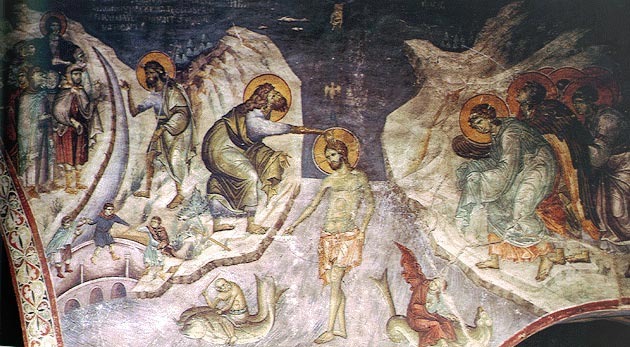
The_Descent-of-Jesus-Christ-in-Hades-to-save-all-in-Hell-saint-Ekaterina-monastery-from-years-around-1500s

The descent to Hades of Christ – Saint Ekaterina Monastery ancient of Resurrection

If any man be devout and love God, let him enjoy this fair and radiant triumphal feast.
If any man be a wise servant, let him rejoicing enter into the joy of his Lord.
If any have labored long in fasting, let him now receive his recompense.
If any have wrought from the first hour, let him today receive his just reward.
If any have come at the third hour, let him with thankfulness keep the feast.
If any have arrived at the sixth hour, let him have no misgivings; because he shall in nowise be deprived thereof.
If any have delayed until the ninth hour, let him draw near, fearing nothing.
If any have tarried even until the eleventh hour, let him, also, be not alarmed at his tardiness; for the Lord, who is jealous of his honor, will accept the last even as the first; He gives rest unto him who comes at the eleventh hour, even as unto him who has wrought from the first hour.

And He shows mercy upon the last, and cares for the first; and to the one He gives, and upon the other He bestows gifts.
And He both accepts the deeds, and welcomes the intention, and honors the acts and praises the offering.
Wherefore, enter you all into the joy of your Lord; and receive your reward, both the first, and likewise the second.
You rich and poor together, hold high festival. You sober and you heedless, honor the day.
Rejoice today, both you who have fasted and you who have disregarded the fast.
The table is full-laden; feast ye all sumptuously.
The calf is fatted; let no one go hungry away.

Enjoy ye all the feast of faith: Receive ye all the riches of loving-kindness.
Let no one bewail his poverty, for the universal kingdom has been revealed.
Let no one weep for his iniquities, for pardon has shown forth from the grave.
Let no one fear death, for the Savior’s death has set us free.
He that was held prisoner of it has annihilated it. By descending into Hell, He made Hell captive.
He embittered it when it tasted of His flesh.
And Isaiah, foretelling this, did cry: Hell, said he, was embittered, when it encountered Thee in the lower regions.
It was embittered, for it was abolished. It was embittered, for it was mocked.
It was embittered, for it was slain. It was embittered, for it was overthrown.
It was embittered, for it was fettered in chains.
It took a body, and met God face to face.
It took earth, and encountered Heaven.
It took that which was seen, and fell upon the unseen.

O Death, where is your sting? O Hell, where is your victory?
Christ is risen, and you are overthrown.
Christ is risen, and the demons are fallen.
Christ is risen, and the angels rejoice.
Christ is risen, and life reigns.
Christ is risen, and not one dead remains in the grave.
For Christ, being risen from the dead, is become the first fruits of those who have fallen asleep.
To Him be glory and dominion unto ages of ages.
Amen.

Automatically Re-plug all USB devices on system resume on Debian Linux using systemd

Thursday, March 26th, 2026

automatically-replug-all-usb-devices-on-system-resume-on-Debian-Ubuntu-Linux
Lets say you’re like me and you have an old but gold USB device like USB joystick Maxfire G-08XU (i've described how to configure Joystick / Gamepad on Debian Ubuntu easily), an USB flash drive stick or even some obscure USB keyboard model, that are not among the most compatible device on earth for linux. The result is in device plug and Sleeping the system or Hibernating it for a while (when go to bed) you end up with USB device being undetected by the system. Once you recover the Laptop / PC from being in Sleep mode / hibernate, the device becomes undetected by system, even though, even though the Linux kernel recognizes in lsusb. That weirdity continues until you do the manual hard workaround, which is to manually unplug the device cable and replug it again.
Though Linux has advanced much with this stuff over last years still this problems can occur every now and then. Thanksfully there is a quick fix to that. You can create a small script that reloads all the USB devices on PC
want the script to run automatically after your Debian laptop wakes up from suspend/hibernate. On Linux, the way to do this is using systemd sleep hooks. Here’s how to do it properly by using a small script + systemd.

1. Create a systemd sleep script

Create a new directory and file:

# mkdir -p /etc/systemd/system-sleep

# vim /etc/systemd/system-sleep/usb-replug.sh

Add this content:

#!/bin/bash
# Only run on resume (wake up)
case "$1" in
    post)
        # Replace '1-3' with your USB bus-port ID
        echo '1-3' | tee /sys/bus/usb/drivers/usb/unbind
        sleep 2
        echo '1-3' | tee /sys/bus/usb/drivers/usb/bind
        ;;
esac


If 


If you need script logging use instead this small script:


#!/bin/bash

case $1/$2 in
pre/*)
# before suspend: you can put commands here if needed
;;
post/*)
# after resume: run your USB replug commands
echo "$(date) – Running USB replug script" >> /var/log/usb-replug.log
# Example command: trigger USB rescan
for bus in /sys/bus/usb/devices/*/authorized; do
echo 0 | sudo tee $bus
echo 1 | sudo tee $bus
done
;;
esac

2. Make it executable and reload systemd services

# chmod +x /etc/systemd/system-sleep/usb-replug.sh

Once you’ve created the script in /etc/systemd/system-sleep/ and made it executable, systemd will automatically call it on suspend/resume.

To make sure everything is recognized, you can:

  1. Reload systemd units (optional but recommended)

# systemctl daemon-reload
  1. Test it manually by suspending and resuming your machine

# systemctl suspend

After resuming, your script should run automatically and you should see the missing devices that you had to physically unplug and plug back to normal.
Hooray ! 🙂

3. How it works (systemd respawn)

  • systemd runs scripts in /etc/systemd/system-sleep/ on suspend and resume.

  • $1 is either pre (before sleep) or post (after wake).

  • The script unbinds and rebinds your USB device right after the system resumes.

Tip: You can also use usbreset instead of unbind/bind if you prefer, just replace the echo lines with:

# usbreset /dev/bus/usb/001/005

Alternatively you can use one time a simple one liner script that does the job like this:
 

# cat replug_usbs_linux.sh
#!/bin/bash

# one liner script to replug all USB devices like you have physically replugged all USBs useful if for example some of USB devices stuck after linux computer sleep

# for example my old maxfire g-08 usb joystick does mess up and i have to physically replug it (to work around this i simply run this script

d=$(lsusb -t | grep -m1 'Driver=' | sed -E 's|.*Port ([0-9]+):.*Bus ([0-9]+).*|\2-\1|') && echo $d | sudo tee /sys/bus/usb/drivers/usb/unbind && sleep 2 && echo $d | sudo tee /sys/bus/usb/drivers/usb/bind


Using GeoIP on Linux: Country-Based Filtering, Logging, and Traffic Control

Friday, January 16th, 2026

geoip-on-linux-country-based-filtering-logging-traffic-control-logo

GeoIP is one of those technologies that quietly sits in the background of many systems, yet it can be extremely powerful when used correctly. Whether you want to block traffic from specific countries, analyze access logs, or add geographic context to security events, GeoIP can be a valuable addition to your Linux toolbox.

In this article, we’ll go deeper and look at real GeoIP usage examples for:

  • Log analysis
  • Firewalls
  • Apache HTTP Server
  • HAProxy

All examples are based on typical GNU/Linux server environments.

What Is GeoIP? 

GeoIP maps an IP address to geographic data such as:

  • Country
  • City
  • ASN / ISP (depending on database)

Most modern systems use MaxMind GeoLite2 databases (

.mmdb

format).

Keep in Mind ! :
GeoIP data is approximate. VPNs, proxies, mobile networks, and CGNAT reduce accuracy. GeoIP should be treated as a heuristic, not a guarantee.

1. Installing GeoIP Databases on Linux deb based distro

On Debian / Ubuntu:

#

apt install geoipupdate

Configure

/etc/GeoIP.conf

with your MaxMind license key and run:  

# geoipupdate

Databases are usually stored in:

/usr/share/GeoIP/

2. GeoIP for Log Analysis (to get idea of where does your traffic origins from)

GeoIP with Apache HTTP Server

Apache can use GeoIP in two main ways:

  1. To do IP origin Logging 

  2. Do Access control based on IP origin

An altenartive GeoIP common use is to post-processing logs to find out attempts to breach your security.

Lets say you want to

Find top attacking countries against your SSHd service.

# grep "Failed password" /var/log/auth.log | \
awk '{print $(NF-3)}' | \
while read ip; do geoiplookup $ip; done |
\ sort | uniq -c | sort -nr


This command will provide you a visibility on attack sources georaphical Country origin

3. Installing Apache GeoIP Module

For legacy GeoIP (older systems):

# apt install libapache2-mod-geoip

For modern systems, GeoIP2 is preferred:

# apt install libapache2-mod-geoip2

Enable the module:

# a2enmod geoip2
# systemctl reload apache2

4. Configure GeoIP Logging in Apache (basic config)

Add country code to access logs:

LogFormat "%h %l %u %t \"%r\" %>s %b %{GEOIP_COUNTRY_CODE}e" geoip
CustomLog /var/log/apache2/access.log geoip

This allows you to analyze traffic by country later without blocking users.

5. Country-Based Filter Blocking in Apache based on IP origin

Example: allow only selected countries:

<IfModule mod_geoip2.c>
SetEnvIf GEOIP_COUNTRY_CODE ^(BG|DE)$ AllowCountry
Deny from all
Allow from env=AllowCountry
</IfModule>

Use this carefully. Blocking at the web server layer is better than firewall-level blocking, but still risky if you have global users.

6. Apply GeoIP to Apache Virtual Host

You can apply GeoIP rules per site:

<VirtualHost *:80>
ServerName example.com
<IfModule mod_geoip2.c>
SetEnvIf GEOIP_COUNTRY_CODE CN BlockCountry >
Deny from env=BlockCountry
</IfModule>
</VirtualHost>

This is useful when only specific applications need filtering.

Firewall vs Application Layer GeoIP (Pros and Cons)

Layer

Pros

Cons

Firewall

Early blocking

Hard to debug

Apache

Flexible per-site rules

App overhead

HAProxy

Centralized control

Requires careful config

Logs only

Safest

No blocking

7. Apply GeoIP to HAProxy

HAProxy is an excellent place to apply GeoIP logic because:

  • It sits in front of applications
  • ​Rules are fast and explicit
  • Logging is centralized

a. Preparing GeoIP Filtering to HAProxy service

HAProxy supports GeoIP2 via Lua or native ACLs using

.mmdb

Example directory:

/usr/share/GeoIP/GeoLite2-Country.mmdb

b. GeoIP-Based Access Control Lists ( ACLs ) in HAProxy

Basic country-based blocking:

frontend http_in
bind *:80

acl from_china src -m geoip CN
acl from_russia src -m geoip RU

http-request deny if from_china
http-request deny if from_russia

default_backend web_servers

This blocks traffic early, before it hits Apache or nginx.

c. GeoIP-Based Routing across different haproxy backends

Instead of blocking, you can route traffic differently:


acl eu_users src -m geoip DE FR NL
use_backend eu_backend if eu_users
default_backend global_backend

This is useful for:

  • Geo-based load balancing
  • Regional content
  • Legal compliance separation

d. GeoIP Logging config for HAProxy

Add country code to logs:

log-format "%ci:%cp [%t] %ft %b %s %TR/%Tw/%Tc/%Tr/%Ta %ST %B %CC"

(%CC = country code)

This makes traffic analysis extremely efficient.

Keep in Mind !

Use HAProxy or web server level for enforcement, and firewall GeoIP only when absolutely necessary.

8. Fail2ban + GeoIP: Smarter Bans, Better Context

Fail2ban is excellent at reacting to abusive behavior, but by default it only sees IP addresses, not where they come from. Adding GeoIP allows you to:

  • Tag bans with country information
  • Apply different ban policies per region
  • Detect unusual behavior patterns

a. GeoIP-Enriched Fail2ban Logs

Fail2ban itself doesn’t natively evaluate GeoIP rules, but you can enrich logs post-ban.

Example action script (

/etc/fail2ban/action.d/geoip-notify.conf

):


[Definition]
actionban = echo "Banned from $(geoiplookup | cut -d: -f2)" >> /var/log/fail2ban-geoip.log
Enable it in a jail:
[sshd]
enabled = true
action = iptables[name=SSH] geoip-notify

Enable it in a jail:

[sshd]

enabled = true action = iptables[name=SSH] geoip-notify

Resulting log entry:

Banned 185.220.101.1 from Germany

This provides visibility without changing ban logic — a safe first step.


b. Use GeoIP-Aware Ban Policies 

You can also adjust ban times based on country.

Example strategy:

  • Short ban for local country
  • Longer ban for known high-noise regions

This is usually implemented via multiple jails and post-processing scripts rather than direct GeoIP matching inside Fail2ban.

Best practice:
Let Fail2ban do behavior detection — let GeoIP provide context, not decisions.

9. GeoIP with nftables (Linux Modern Firewall Layer)

iptables +

xt_geoip

is considered legacy. On modern systems, nftables is the preferred approach.

a. Using GeoIP Sets in nftables

nftables does not natively include GeoIP, but you can integrate GeoIP via generated IP sets.

Workflow:

  1. Convert GeoIP country IP ranges into nftables sets

  2. Load them dynamically

Example set definition:


table inet filter {
set geo_block {
type ipv4_addr
flags interval
}
}

Populate the set using a script:

nft add element inet filter geo_block { 1.2.3.0/24, 5.6.0.0/16 }

Then apply it:


chain input {
type filter hook input priority 0;
ip saddr @geo_block drop
}

b. Automating GeoIP ->  nftables

Typical automation pipeline:

GeoLite2 → country CSV → IP ranges → nftables set

Run this daily via cron.

Warning:

  • Large country sets = memory usage
  • Firewall reloads must be atomic
  • Test on non-production systems first

10. GeoIP Dashboard: Turning Logs into Insight

Blocking is optional — insight is mandatory.

a. Simple GeoIP Log Dashboard (CLI-Based)

Apache example:

# awk '{print $NF}' /var/log/apache2/access.log | \
sort | uniq -c | sort -nr

Where $NF contains country code.

Sample Result:

1243 US

987 DE

422 FR

310 CN

This already tells a story.

b. Visual Dashboard with ELK / Grafana

For larger environments:

HAProxy / Apache -> JSON logs Enrich logs with GeoIP

Send to:

  • ELK Stack
  • Loki + Grafana
  • Graylog

Metrics you want:

  • Requests per country
  • Errors per country
  • Bans per country
  • Login failures per country

This helps distinguish:

  • Marketing traffic
  • Legit users
  • Background Internet noise

11.  Create a Layered GeoIP Strategy

A sane, production-ready model using GeoIP would include something like:

  1. Logging first
    Apache / HAProxy logs with country codes

  2. Behavior detection
    Fail2ban reacts to abuse

  3. Traffic shaping
    HAProxy routes or rate-limits

  4. Firewall last
    nftables drops only obvious garbage

GeoIP is strongest when it supports decisions, not when it makes them alone.

12. Best Practices to consider

  • Prefer visibility over blocking
  • Avoid blanket country bans
  • Always log before denying

Combine GeoIP with:

  • Fail2ban
  • Rate limits
  • CAPTCHA or MFA
  • Keep GeoIP databases (regularly) updated
  • Test rules with real IPs before deploying

13. Common Mistakes to Avoid

Blocking entire continents Using GeoIP as authentication Applying firewall GeoIP without logs Forgetting database updates Assuming GeoIP accuracy

Close up

GeoIP is not a silver bullet against vampire attacks – but when used thoughtfully, it becomes a powerful signal enhancer and can give you a much broader understanding on what is going on inside your network traffic.

Whether you’re using it to filter out segment of evil intruders based on logs, routing traffic intelligently, or filtering obvious abusea, GeoIP fits naturally into a layered security model and is used across corporations and middle and even small sized businesses nowadays.

Used conservatively, GeoIP follows the classic Unix philosophy:

Small datasets, Simple rules, Real-world effectiveness, combined with rest of tools it gives info and ways to protect better your networks and server infra.

How to Run Your Own Windows Domain Authentication on Linux

Thursday, October 2nd, 2025

samba-active-directory-win-tux-logo


Run Your Own Domain Authentication on Linux

Running your own domain authentication system on Linux can significantly enhance security and manageability in your IT environment. Whether you're setting up centralized login for a small network or a more complex domain environment, Linux provides powerful tools to become your own domain controller using open-source software.

In this guide, we’ll walk you through setting up Samba as an Active Directory (AD) Domain Controller on a Linux server.
These tutorial should work fine on Debian 12 (Bookworm), though it should work with minor modifications on pretty much most of recent Debs and deb based distros.

What is Domain Authentication?

Domain authentication allows users to log in to any authorized machine within a network using the same set of credentials. It provides centralized management of:

  • Users and groups
  • Computer accounts
  • Group policies
  • File and printer sharing
  • Access control

Microsoft's Active Directory is the most well-known implementation, but you can achieve similar functionality using Samba on Linux.

Pre-requirements

  • A fresh Linux installation (Ubuntu Server 22.04 LTS or Debian 12 recommended)
  • Static IP address
  • Root or sudo access
  • Domain name (e.g., mydomain.local)
 

1. Update System and Set proper Hostname

# apt update && sudo apt upgrade -y

# hostnamectl set-hostname dc1.mydomain.local


Add the hostname to /etc/hosts:

# vim /etc/hosts

Add the local network IP the SMB Domain controller will have locally on the machine:

192.168.1.100  dc1.mydomain.local dc1


2. Install Samba and Required Packages

# apt install samba krb5-config krb5-user winbind smbclient dnsutils -y

During the installation, you may be prompted for Kerberos configuration:

  • Default realm: MYDOMAIN.LOCAL
  • KDC: dc1.mydomain.local
  • Admin server: dc1.mydomain.local


samba-active-directory-raw-illustration


3. Provision Samba as a Domain Controller

First, stop any running Samba services:
 

# systemctl stop smbd nmbd winbind

# systemctl disable smbd nmbd winbind

Move default config:

# mv /etc/samba/smb.conf /etc/samba/smb.conf.bak

Now provision the domain:

# samba-tool domain provision –use-rfc2307 –interactive

Answer prompts:

  • Realm: MYDOMAIN.LOCAL
  • Domain: MYDOMAIN
  • Server role: dc
  • DNS backend: SAMBA_INTERNAL
  • Admin password: (choose a strong one)

Once done, configure Kerberos using the samba krb5.conf template file:

# mv /etc/krb5.conf /etc/krb5.conf.bak

# cp /var/lib/samba/private/krb5.conf /etc/


4. Start and Enable Samba AD Services

# systemctl unmask samba-ad-dc

# systemctl enable samba-ad-dc –now

Verify it’s working by running:

# samba-tool domain level show

Check Kerberos authentication is OK:

# kinit administrator

# klist

You should see a valid Kerberos ticket.

5. Configure DNS (Optional but Recommended)

If using SAMBA_INTERNAL DNS backend:

Check DNS resolution is OK:

# host -t A dc1.mydomain.local

# host -t SRV _kerberos._udp.mydomain.local

If you want clients to resolve domain names, configure them to use the Samba DC's IP as their DNS server.

6. Add Users and Join Client Machines

Add a new user:

# samba-tool user add your.samba.user

Join a Windows client:

  1. Go to System Properties → Computer Name → Change settings
  2. Click Domain, enter MYDOMAIN
  3. Authenticate with Administrator and the password you set
  4. Reboot

7. Managing the Domain

You can manage users, groups, and policies simply via commands or GUI interface or LDAP tools:

  • samba-tool (CLI)
  • RSAT tools on Windows (for GUI management)
  • via LDAP tools (if you have to stick to RFC2307)

Example commands:

# samba-tool user list

# samba-tool group list

# samba-tool user setpassword your.samba.user

8. Managing Samba AD Samba Linux Domain easily with UI
 

You can manage a Samba domain (especially when it's running as an Active Directory Domain Controller) via a web interface — but not directly through Samba itself, since it doesn't come with a built-in web UI.

Instead, you can integrate Samba with third-party web-based tools that provide management interfaces for:

  • Users and groups
  • Computer accounts
  • LDAP directory entries
  • Domain policies (to a limited extent)

Popular Web Interfaces to Manage a Samba Domain

Here are the most reliable options:

8.1. [Cockpit + 389 Directory Server or FreeIPA (for LDAP-based domains)]

  • Cockpit is a modern web admin interface for Linux servers.
  • When paired with FreeIPA, you can manage users, groups, policies, and more.
  • However, this is more suited for FreeIPA-based domains, not Samba AD.

✅ Great for: Linux-native domains
❌ Not compatible with Windows-style Samba AD


8.2. [LDAP Account Manager (LAM)] – RECOMMENDED FOR SAMBA + AD

Website: https://www.ldap-account-manager.org/

LDAP Account Manager (LAM) is one of the best tools to manage a Samba domain via LDAP, especially when:

  • You use Samba in AD DC mode with RFC2307 extensions (for Unix attributes)
  • Or, you're using Samba as a member server with an external LDAP backend

Features:

  • Web-based GUI to manage:


    • Users and groups
    • Samba-specific attributes (like SID, RID, home directories)
    • POSIX and Windows-compatible accounts
  • Can bind directly to the Samba LDAP directory

Authentication: Admin binds via LDAP (either over plain or TLS)

✅ Works with Samba AD (with some config)
✅ Handles Samba3/4 user schemas
✅ Active development and documentation


8.3. Samba Web Administration Tool (SWAT) ❌ Deprecated

SWAT was the original web interface for Samba but:

  • It was deprecated and removed from Samba after version 4.1
  • It's no longer secure or maintained
  • Not suitable for Samba AD DC environments

Recommendation: Do not use SWAT

8.4. Webmin (Partial Support)

  • Webmin is a general Linux web admin tool
  • It has a Samba module, but:


    • Designed for traditional Samba file sharing (not AD/DC mode)
    • Cannot manage Samba AD users/groups
    • Doesn’t interact with samba-tool or the AD schema

✅ Works for standalone Samba file servers
❌ Not suitable for Samba AD DCs

Can You really Use RSAT Instead ?

If you want full Active Directory-style control (like Group Policy, OU structure, DNS, etc.), the best GUI tool is actually RSAT (Remote Server Administration Tools) on Windows
but for that of course you will have to have an own Windows Server setup especailly for it.

  • Connects to your Samba AD DC
  • Fully supports:


    • Users and groups
    • Group Policy Objects (GPO)
    • DNS management (if using internal Samba DNS)

Install RSAT on a Windows machine and run dsa.msc (Active Directory Users and Computers).

✅ Officially supported
✅ Full compatibility with Samba AD
❌ Requires a Windows machine

Summary: Web UI for Samba Domain Management


Tool

Works with Samba AD DC?

Features

Notes

LDAP Account Manager (LAM)

Yes

User/group management

Best web option

Cockpit + FreeIPA

❌ No (not Samba AD)

Excellent for FreeIPA domains

Not compatible with Samba AD

Webmin

❌ Not fully

File shares only

No AD/DC management

RSAT (Windows)

✅ Yes

Full AD management

Not web-based

Recommendation

If you're running a Samba AD DC and want a web-based interface:

  • Use LAM (LDAP Account Manager) for basic account management
  • Use RSAT tools on Windows for full domain administration
  • Avoid SWAT and Webmin for this purpose

Security Considerations

  • Ensure firewall allows relevant ports (e.g., 53, 88, 389, 445, etc.) with Iptables / firewalld or whatever firewall solution you have present on the server and in the Network in which you hosted the server
  • Keep the system updated
  • Use secure passwords and rotate them regularly
  • Consider setting up replication if high availability is needed

Conclusion

Running your own domain authentication system on Linux using Samba is a powerful way to control user access in a centralized manner. It’s ideal for small to mid-sized networks, homelabs, or even enterprise environments looking for a cost-effective alternative to Windows Server.

With Samba acting as your domain controller, you can enjoy the benefits of centralized authentication, integrated DNS, and a high degree of compatibility with Windows clients — all while staying in the open-source ecosystem.


References

  • Samba Wiki: Setting up Samba as an AD Domain Controller
  • man samba-tool
  • man smb.conf


Notes and things to consider:

/var/lib/samba/private/krb5.conf file is generated only after you provision Samba as an Active Directory (AD) Domain Controller using:

# samba-tool domain provision

After provisioning, Samba creates a custom Kerberos config at:

/var/lib/samba/private/krb5.conf


This is true for both Debian and Ubuntu because it's handled by the Samba package itself, not the distro.

Why use that krb5.conf instead of Debian's default?

Well because:

The default /etc/krb5.conf on Debian isn't tailored for Samba AD.
The one Samba generates includes correct realm, KDC, and admin server settings.
It avoids subtle issues like failed kinit or broken Kerberos trust.

So you copy it over Debian’s default:


Gotchas on Debian to be aware of

Do not install samba via tasksel (like tasksel's “Samba file server” role), as it sets up a traditional SMB server, not AD.

Only use samba-tool domain provision if you're setting up AD DC.

Debian sometimes separates systemd services (e.g., samba-ad-dc might not be enabled by default). So make sure to enable samba-ad-dc instead of smbd/nmbd.


What is oddjobd and How to Use It Instead of sudo to run limited privileged execution of scripts requiring admin

Tuesday, September 30th, 2025

oddjobd-sudoers-linux-elevate-script-running-linux

In Linux environments, managing privileged operations for unprivileged users is a critical task. Traditionally, tools like sudo have been used to allow users to execute specific commands with elevated privileges. However, in more secure or fine-tuned environments — such as enterprise networks or identity-managed systems — oddjobd offers a more controlled, D-Bus-driven alternative.

This article explains what oddjobd is, how it works, and when you might prefer it over sudo, complete with real-world examples.

What is oddjobd?

oddjobd is a system service (daemon) that runs in the background and allows limited, controlled execution of privileged tasks on behalf of unprivileged users.

Key Features:

  • Allows secure execution of predefined scripts or programs as root (or another user).
  • Communicates over D-Bus for fine-grained access control.
  • Uses Polkit (PolicyKit) to manage who can run which tasks.
  • Commonly used in FreeIPA, SSSD, and LDAP-based environments.
  • Configuration files live in: /etc/oddjobd.conf.d/

How It Works

  • System administrators define specific jobs (scripts or commands) in config files.
  • These jobs are exposed via D-Bus.
  • Unprivileged users (or applications) can request jobs to be executed.
  • Access is granted or denied by Polkit rules, not passwords.
  • No full shell or terminal access is granted — just the job.
 

oddjobd vs sudo

Feature

sudo

oddjobd

Control granularity

Medium (commands)

High (methods, scripts only)

Interactive shell

Yes

No

Config complexity

Simple (/etc/sudoers)

Moderate (conf.d + Polkit)

Uses system user password

Yes

Optional (can be passwordless via Polkit)

Security

Medium

High (no shell, strict policy control)

D-Bus compatible

No

Yes

Ideal for

Power users

Controlled environments (e.g., FreeIPA)

Typical Use Cases for oddjobd


1. Automatically Creating Home Directories


Problem: LDAP/FreeIPA users don’t have home directories created on login.

Solution: Enable oddjobd to create them via oddjob-mkhomedir.

# authconfig –enablemkhomedir –update

On login, PAM calls oddjobd, which creates the home directory as root.
 

2.  Restarting a Service without sudo

Let's say you want a user to restart Apache, but not give them full sudo rights.

a. Create a script

# /usr/local/bin/restart_apache.sh

#!/bin/bash

systemctl restart apache2

echo "Apache restarted by oddjob at $(date)"

chmod +x /usr/local/bin/restart_apache.sh

b. Create Oddjob config
 

# /etc/oddjobd.conf.d/restart_apache.conf

[restart_apache]

program = /usr/local/bin/restart_apache.sh

user = root

c. Polkit rule


// /etc/polkit-1/rules.d/60-restart-apache.rules

polkit.addRule(function(action, subject) {

    if (action.id == "org.freedesktop.oddjob.restart_apache" &&

        subject.isInGroup("apacheadmins")) {

        return polkit.Result.YES;

    }

});


d. Add user to group

# groupadd apacheadmins

# usermod -aG apacheadmins alice


e. Restart and test

# systemctl restart oddjobd


# As user "alice":

oddjob_request restart_apache


Only the defined method runs — no sudo shell access, no arbitrary commands.
 

3. GUI-friendly Device Control


Use Case: A user wants to reset a USB device via a button in a GUI app.

  • Define the method in oddjobd.
  • Use Polkit for GUI D-Bus permission.
  • The app can call the method securely, without sudo.

Advantages of oddjobd

More Secure Than sudo:

  • No interactive shell or terminal.
  • No command-line injection risks.
  • Can’t “escape” to a shell like with sudo bash.

Granular Control:

  • Limit tasks to a specific script or even script arguments.

D-Bus and GUI Friendly:

  • Apps can call privileged methods without shell hacks.

Policy-Based Authorization (Polkit):

  • Fine-grained user/group access control.
  • No password prompts if not desired.

Enterprise-Ready:

  • Works well with LDAP, FreeIPA, and centralized login environments.

Oddjobd Limitations / Downsides

Limitation

Description

Learning Curve

More complex to set up than sudo

Configuration Overhead

Requires writing config files and Polkit rules

Debugging

Issues may be harder to trace than sudo logs

Not for Ad-hoc Commands

Only predefined jobs can be run

Not Installed by Default

Often needs to be manually installed (oddjob, oddjob-mkhomedir)

When to Use oddjobd Instead of sudo

Use oddjobd when you:

  • Need to allow users or apps to run very specific privileged operations.
  • Want to avoid giving full shell access via sudo.
  • Are working in a managed enterprise environment.
  • Need GUI or D-Bus-based privilege escalation.
  • Require scripted access to root tasks without exposing credentials.

Conclusion

oddjobd is a powerful tool for securely handling privileged operations in Linux, especially where tight access control and automation are required. While sudo is simple and flexible, oddjobd shines in structured, security-conscious environments — particularly those using FreeIPA, LDAP, or automated tools.

If you need a more scriptable, policy-driven, and safer alternative to sudo for specific tasks, oddjobd is well worth exploring.

Father Archimandrite Ivan of Novi Han, Protector of Poor and Homeless passed away to Christ

Tuesday, September 16th, 2025

Father Ivan with his shepherd stick

On September 14, the 80-year-old Archimandrite Joan (John) , known simply as Father Ivan from Novi Khan.
Father Ivan
was well known in Bulgarian society as the only Monk father of the Fatherless. and a great benefactor who dedicated his life to the sick, poor, needy and, the homeless people in Bulgaria.

The Requiem service  will be consecrated on September 16 from 12:00 pm in the church "The Holy Trinity" in Novi Khan (a Church situated in the improvised homeless shelter organized in an old Monastery (Saint Nicholas) by Father Ivan himself. by Bishop John of Branitsky, former Vicar Bishop of Patriarch Daniel.

Father Ivan Dimitrov Ivanov was born on March 31, 1945. in the Bulgarian village of Blagovo, Montana region. He received his basic and secondary education in the High Professional School "Peter Beron" in city of Sofia. Next He attended a university degree from the Theological Academy "St. Clement of Ohrid" (which was re-established in the distant year 1981)  already in grown age after working different other jobs. He merried and with his wife Todorka Grigorova Ivanova had two sons – Ivaylo and Grigor. On October 19, 1981 he was ordained a deacon, and on 26 October same year – ordained for a  priest by Metropolitan Filaret of Vidin. Since 1987 he was appointed as a priest at the Church "Holy Trinity" in the town of Novi Han, region of Elin Pelin. In year 2011 he has been consecrated as monk the name Ioan by the Bishop of Devol Theodosij (Theodosius). In 2015 in Montana he was promoted to archimandrite dignity by Vidin Metropolitan Dometian.

Along with his pastoral work, he devotes all his strength to caring for the poor. His selfless service remains misunderstood by many, and for a long time he does not receive support from the leadership of the Bulgarian Orthodox Church. In 2014, His Holiness Patriarch Neophyte of Bulgaria came to visit the “Holy Trinity” shelter in Novi Han. In addition to food and gifts, he also gave a sign of empathy with the great priest’s work.

Otec_Ivan_Novi-Han-s-patriarh-Neofit

Father Ivan began his work in  the distanct 1993, short after the fall of Communism regime in Bulgaria when he restored the abandoned building of the monastery "Holy Trinity" in Novi Han. He revived the liturgical life in the monastery church (that was abondoned for many years due to the dictatorship regime in Bulgaria) and created the shelter "Saint Nicholas", in which he sheltered a dozen homeless people. Gradually, the orphanage expanded and it housed mainly women and children deprived of home and protection, but also found shelter for the elderly and homeless. The priest gave pregnant girls left without any financial support and shelter, the opportunity to give birth to their children and take care of them in the shelter for free. Several generations of children were born and raised under the care of Father Ivan. Today, some of them were the first to express their grief over the death of the father on social networks.

otec_Ivan-with-his-children

Even though his genuine kindness and great good deeds Father Ivan has suffered a lot from people who hate the light of Christ, being a victim of various life hardships, road incidents, and a lot of health issues, which he endevoured with stoicism. He has multiple times has shared when we met that many people being pushed by the devil has done him a lot of badness. 
As a mean to finance the homeless people Father Ivan with the help of his orpans, take care about animals such as chickens, cows, sheeps.
Not on a signle occasion animals belonging to him and his shelter has been stolen.
He fought many battles in his life time but never lost hope neither he fall in spirit always counting on the help of the Almighty, like the ancient saints.
Father Ivans deed for that hard times can be compared to the great deeds of the ancients and for the Bulgarian society his meaning and inspiration was similar
to the old testamental important of Moses who led the people.
His servence of a priest was always given for the good example and people respected him and loved him for his deeds in Bulgaria over the last 40 years.

Otec_Ivan-stuck-with-a-knife

In 2013, the father bought several houses in the Montana village of Yakimovo, where he housed also homeless families and their children (the houses hosting homless families reached about 80+ houses ! which accomodated about 180 people, together with the people in the orphanage in Novi Han they were more than 250+ people).

The last years of his life he spend living in his small living Room (monastic Cell) in the Saint Nicolas Monastery in prayer and last spiritual cares for his many children.

Father Ivan of Novi Han and his son Grigorij

The priest's work is continued by his son (who also took the path of his father) Fr. Grigoriy, who now takes care of the orphanages. Fr. Ivan remains in our recent church history as an example of complete dedication to the service of his neighbors, without seeking reward or gratitude. Something unique and unrepeatable fhat inspired many to be more merciful and benevolent for the poor and needy and by this he incarnated the example of Christ who teached us to always have the poor and needy with us and in our hearts. Generous to the life's misfortunes of his "children", Fr. Ivan set an example of a servant of Christ, whose love "does not seek its own… bears all things, believes all things, hopes all things, endures all things" (1 Cor. 13:5-7).

I had the blessing to meet father Ivan of Novi Han a couple of times together with Bishop Ierotey Agathopolski (who used to be in the past under the spiritual guidance of Father Ivan). And my personal impressions are that father Ivan was a highly spiritual person and true monk. I had the chance one time in the distant 2011 to meet him in Novi Khan afer a pilgrimage to Holy Mount Athos we have been guests to Father Ivan in the monastery for a night and even had the chance to be and serve as a ipodeacon on a Holy Liturgy led by Father Ivan. I still remember how much he worried about the children God has sent him for care and how much he worried if financially he can make it to give a good life to all the new inhabitants who recently come to his shelter. 

The Children and old homeless people for whom Father Ivan of Novi Han took care

I remember he had to buy some food for the shelter and I wanted to help him to carry the stuff and we were to the SuperMarket together to buy food and goods for the children.
Father Ivan had a great temper and a great sense of humor even though he has been already aging and his spirit was lifted even though the hardships both with suffering heavy form of diabetes and other multitude of physical infirmity.

 
Film Sparks (Movie about the Shleter of Saint Nicolas created by Father Ivan of Novi Han)


Father Ivan and his Children an Interview Movie by Fr Ivan


Movie about The Life Story hardships of Father Ivan of Novi Khan and what made him decide to serve the sick, the poor and the lonely

Father Archimandrite Ivan one worthy Bulgarian

In above interview, father Ivan talks about how he decided to become a priest and how he promised God that he will make an orphanage home. He was accused during the communistic times in Bulgaria for being a priest only to serve as a spy for the West. He was kept in Montana Police station interrogated for 7 months in a small dark police carcer (small police room for prisoners), trying and the police tried to brain wash him that he is guilty for things he is not for all the time being asked the same questions again and again with a light lamp infront of his eye sight. He tells in short in the interview, how he managed to restore the Holy Trinity monastery, after a lot of hardships and miracles of God who helped me to do so. On multiple times his orphanage house has been tried to be (closed) and even destroyed by the local people of Novi Han unsuccesful. He has a lot of abusers who tried to run the deeds of his life the oprphanage but God by his great grace and his powers did not allow this to happen! But right on the contrary helped him and the children and provided him everything he needs to fulfill the dead of his life to help the salvation of tens of thousands to find his path to God and multitudes of people to physically survive a life of horror for years. He put a multitude of lost souls for whom noone cared back on the track of life and by his mercifulness he preached the Gospel not only words but in deeds.

Let God forgive him, Have mercy on his Soul and Forgive him if he sinned as a man and Receive him in his heavenly kingdom ! And Let us have his prayers to Christ ! Amen