Posts Tagged ‘microsoft windows’

Running multiple skype accounts in parallel on Windows XP and 7 / Run Skype client twice or more on Windows

Saturday, May 4th, 2013

Whether you tried running simultaneously more than 1 Skype clients by clicking twice on Skype Desktop icon or invoking Skype via Windows Start menu; You already have figured out that Skype on Windows is set-up by defaykt to only support one logged in Skype user.
In case you wonder why on earth someone might need to run in parallel few Skype accounts on one Windows PC, possible scenario is;;;

You work for a company and just for clarity you have to communicate with clients from one skype name and with another skype name to communicate to company management. 

In Linux in Skype version this is not so and thus for people like me who come from Linux it is rather uneasy to not be able to login in second Skype instance, whether you go to a friend who already keeps logged in with his Skype user …

Thus this triggered me to research a bit if simulatenous user login is possible?
Yes it is possible and very easy, to do so the user has to run manually Skype from command line like so:

On 32bit PC hardware with 32 bit of Microsoft Windows issue in win cmd.exe (command prompt) from:

START -> RUN -> cmd.exe

cd C:\Program Files\Skype\Phone\

C:\Program Files\Skype\Skype /secondary

or to directly paste in command prompt:

“C:\Program Files\Skype\Phone\Skype.exe” /secondary

If you are on a 64bit machine run in cmd prompt:

“C:\Program Files (x86)\Skype\Phone\Skype.exe” /secondary

To easily run few instances of Skype in parallel, you can make shortcuts on Desktop. pointing to any of both above commands.

That's all now you can login as many skype users as you like on 1 Win PC. All parallel logged in users can receive and write messages. However you should bear in mind that situation with answering Skype calls is a bit complicated as you cannot speak in parallel through different logged in skype users. Anyhow whether you have to react on Skype voice / video calls incoming in similar or same time from 2 skype accounts, you can use – Set Skype Call on Hold functionality and hence keep voice video in parallel with different skype accounts.

Share this on

How to install / update Wine windows emulator 1.4 on Debian Squeeze Linux

Monday, April 29th, 2013

wine linux ms windows emulator logo with microsoft windows
Debian Squeeze
Linux depending on RC release comes with a Version of WINE Windows emulator 0.9.8 or wine 1.0.1-3.1. This wine version is very out of date already and many of the new win software working well with newer wine releases doesn't work. We all know the down-side of Debian stable releases you always stay a bit outdated.

Thanksfully there is an easy way to upgrade to newer wine version and hence have more Windows software properly running on Squeeze. To do so you need to add custom following wine custom deb repository:

deb http://main.mepis-deb.org/mepiscr/repo/ mepis85cr main

i.e.

debian:~# echo 'deb http://main.mepis-deb.org/mepiscr/repo/ mepis85cr main' >> /etc/apt/sources.list

Then update wine with apt-get:

debian:~# apt-get update
....
debian:~# apt-get --yes install wine ....
The following NEW packages will be installed:
fonts-droid ttf-droid ttf-umefont ttf-unfonts-core wine-gecko
The following packages will be upgraded: wine
1 upgraded, 5 newly installed, 10 to remove and 86 not upgraded.
Need to get 135 MB of archives.

debian:~# dpkg -l |grep -i wine

rc libwine 1.0.1-3.1 Windows API implementation – library
ii playonlinux 3.7.6-1 front-end for Wine
ii wine 1.4-1mcr8.5+1 Windows Compatibility Layer (Binary Emulator and Library)
rc wine-bin 1.0.1-3.1 Windows API implementation – binary loader
ii wine-gecko 1.4.0-1mcr85+2 Microsoft Windows
Compatibility Layer (Web Browser)

That's all enjoy :)

Share this on

How to configure VIVACOM 3g USB ( internet ) modem HUAWEI Mobile broadband E173 on Debian and Ubuntu GNU / Linux

Wednesday, July 4th, 2012

I've been given a HUAWEI Mobile Broadband E173 USB 3g model. The USB modem contains a flash USB Storage segment storing a little install program dedicated to make the modem work fine on Microsoft Windows XP / Vista / 7 and probably other M$ OSes. I'm a long time DebianGNU / Linux user and as a free software enthusiast I ofcourse wanted to be able to use Vivacom's 3G USB Modem on my Linux powered notebook.

Thanksfully as I've red on Vivacom's website the modem supports Linux OS :)

For those unaware in Bulgaria there are currently 3 major GSM network providers providing 3G internet this are;;;
 

  • VIVACOM – The ex Government ran national company BTC (Bulgarian Telecommunication Company)
  • M-Tel – The first GSM network provider that entered Bulgaria around year 1995
  • GLOBUL – The 3rd and last GSM mobile and net provider entered last and not so much used by Bulgarians today

Until today I had no experience in running any 3G modems on Linux, neither I had used the 3 networks 3G internet to determine which one is best, however I've been given for temporal use a VIVACOM 3G internet modem today so I proceeded to try installing it on my Debian host.

My Linux system is a bit strangely configured as I use wicd network connection manager -( wicd-gtk ) to manage wireless and LAN connections instead of the standard installed GNOME network manager – available through package ( network-manager-gnome ).

The reason I use wicd is not that it is so much better than GNOME network manger but rather for historical reasons because few years past I had impression it works better in connecting me to wireless networks. Another reason why I choosed wicd back then was the nice looking stats …

I tried plugging in the Vivacom USB 3G modem stick and checked in wicd to see if I can see a possibility to connect to the mobile opeartor 3G network but unfortunately nothing appeared.

Though the 3G adsl modem was unavailable straing in wicd, checking about it in the list of attached USB devices I could see it detected, e.g.:

noah:~# lsusb |grep -i huawei
Bus 001 Device 007: ID 12d1:1c05 Huawei Technologies Co., Ltd.

This was at least a good sign pointing me to the thoughts that the modem is probably gonna work.

I did a quick Google search to see if other people succeded running the device on a Linux host and came across a few blog posts in Bulgarian explaining a "success story" on Ubuntu Linux through using a tweakened shell script – sakis3g. For more on how the script works and script download check out Sakis3g

Here is a quote from sakis3g's website describing the script:
 

It automagically setups your USB or Bluetooth™ modem, and may even detect operator settings.
You should try it when anything else fails!

Sakis3g has different versions designed for for plenty of spacific hware architectures i.e. for (i386, amd64, armv4t, armv5t).
There is also a version of the script which by the way contains a combination of bash shell scripting instruction and some binary exec data.

To run sakis3g on my laptop I did:

1. Download sakis3g

My notebook architecture is 64 bit so I download and used the amd64 version of the script;;;

hipo@noah:~$ mkdir sakis3g
hipo@noah:~$ cd sakis3g
hipo@noah:~/sakis3g$ wget http://www.sakis3g.org/versions/latest/amd64/sakis3g.gz

I've made also a mirror of sakis3g i386, 64 bit and all architecture the mirrors just in case it disappears in future. The mirror versions of sakis3g are here:

a. sakis3g i386 b. sakis3g amd64 c. sakis3g all architectures source

2. Unarchive and make it executable

After downloading it as it is in gzip I had to do the usual de-gzipping and making the file executable;;;

hipo@noah:~/sakis3g$ /bin/gzip -d sakis3g.gz
hipo@noah:~/sakis3g$ chmod +x sakis3g

The script is then ready to run by either clicking twice on it or (as I prefer for debugging reasons to run it in terminal):

hipo@noah:~$ ./sakis3g

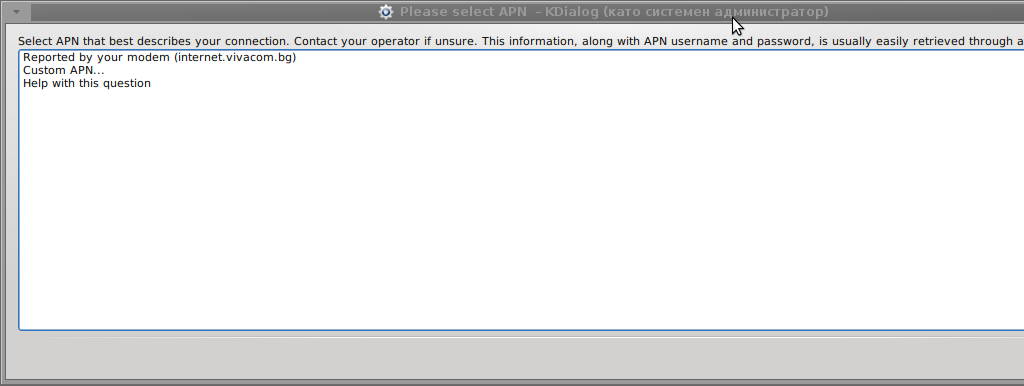
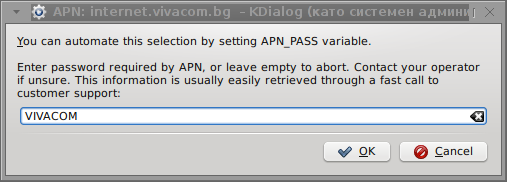
Something that I have wondered a bit was the dialog where I had to fill in some data of some variable APN abbreviation for – (Access Point Name)

The APN host for VIVACOM mobile internet is;;;
APN: internet.vivacom.bg

I've used the Windows configuration progrma to gather also the following data that I thought might be important for configuring the 3G adsl modem on the Linux host;;;

Auth: *99#
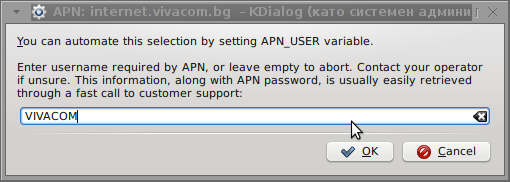
User: VIVACOM
pass: VIVACOM

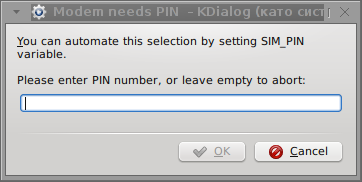
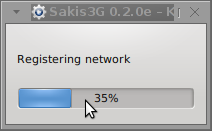
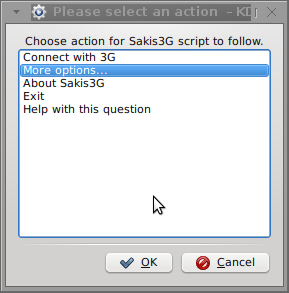
Here are all the configuration screenshots I've taken from sakis3g and all the data that I filled in.
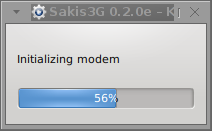
Next the following tiny window appeared on screen:
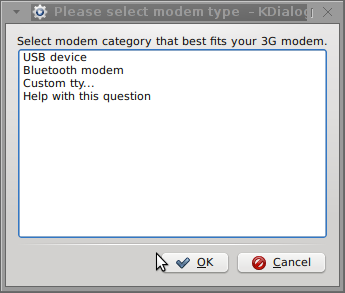
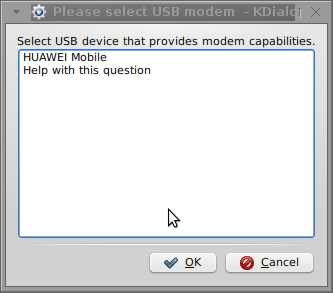
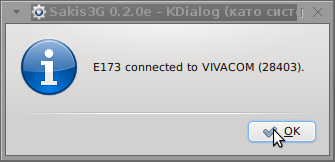
Sakis3g configure usb modem kdialog shot 1 VIVACOM USB Modem Sakis 3g Shot 2 sakis 3g usb modem vivacom connect screenshot 2 vivacom 3g modem linux sakis3g enter pin dialog shot 4 Sending pin screenshot 5 sakis3g APN Dialog sakis3g screenshot 6sakis3g Internet Linux VIVACOM screenshot 7sakis3g Debian GNU Linux VIVACOM 3g Internet screenshot 8sakis3g initializing modem screenshot 9sakis3g successful connect to VIVACOM mobile 3g usb adls modem shot 10

Well that's all folks, now sakis3g succesfully connected to the I_net via an (PPP) VPN connection tunnel here is data from ifconfig command showing the succesful 3G connection to VIVACOM;;;

noah:~# /sbin/ifconfig ppp0
ppp0 Link encap:Point-to-Point Protocol
inet addr:10.58.146.232 P-t-P:10.64.64.64 Mask:255.255.255.255
UP POINTOPOINT RUNNING NOARP MULTICAST MTU:1500 Metric:1
RX packets:2066 errors:1 dropped:0 overruns:0 frame:0
TX packets:1609 errors:0 dropped:0 overruns:0 carrier:0
collisions:0 txqueuelen:3
RX bytes:2232058 (2.1 MiB) TX bytes:341693 (333.6 KiB)

The internet via the 3G connection is not blazing fast but good enough to check your mail or read some webpages. VIVACOM currently has different (traffic limited packages) for their 3G internet, I'm not sure which package exactly is the 3G USB stick modem but probably the "quick" internet connection that is now would slow down once the traffic limit is reached …
Hope this post helps someone to configure 3G internet on VIVACOM in Debian and Ubuntu Linux. Though I've tested sakis3g on Debian it should work with no hassles on any other GNU Linux distribution that has bash installed.
Share this on

Create PNG, JPG, GIF pictures / images from PDF on Linux

Saturday, February 25th, 2012

I've received a PDF file with a plan for development of a bundle of projects, My task was to evaluate this plan and give feeback on the 44 pages PDF document.

Since don't know of program to directly be able edit PDF files on GNU / Linux ?, my initial idea was to open and convert the PDF to ODT / DOC with OpenOffice (Libre Office) and then edit the ODT file.
Unfortunately Open Office oowrite program was unable to open / visualize the PDF file. My assumption is OO failure to open the PDF is because the PDF was generated on Microsoft Windows with Adobe illustrator or smth.

The idea that came to my mind as alternative, way to edit the PDF file was to convert it in pictures edit and then convert the pictures to PDF.
In other words to follow these 3 steps:
1. Convert the PDF document to multiple images
2. Edit each of the images with GIMP or Inkscape
3. Convert back all images to a single PDF file

Some time ago, I've written an article how to create PDF file from many image files in JPEG, PNG or GIF on Linux

. This prior article was exactly describing how to complete Step 3.Therefore all left was to find a way to convert the PDF file to multiple JPEG / PNG / GIF images.

convert command to convert PDF document to multiple pictures which you can take from my earlier article is:

$ convert *.jpg outputpdffile.pdf
Actually in Step 1 I was aiming to do the opposite of what I've previously done.

Hence, in order to convert the singe Project.PDF file to multiple PNG images, I just switched convert IN / OUT arguments order.

hipo@noah:~/project-pdf-to-images$ convert Project.pdf Project.png
...

I've done the PDF to pictures conversion on my notebook running Debian Squeeze (6.0.2) GNU / Linux.Convertion of the PDF file to 44 images, took 25 seconds on my dual core 1.8 Ghz / 2GB RAM Thinkpad r61.
Afterwards, I've had at hand 44 PNG files generated, e.g.:

hipo@noah:~/project-pdf-to-images$ ls -al Project-*.png |wc -l
44

convert was also smart enough to produce correct file naming. The output file names were:
Project-1.png
Project-2.png
etc.

Nicely each number (-1.png) was corresponding to the respective PDF page. For instance Project-10.png was corresponding to page 10 of the Projects.PDF file

Rather ironically, after convertion of the PDF to pictures, while opening the Project-1.png, I've noticed The GIMP – (The GNU Image Manipulation Program) is capable of directly reading PDF files. GIMP has both the option to open files in layers or separate images ;)
Anyways even if GIMP is used to modify the different PDF pages as layers, once completed GIMP doesn't have the ability to save the file as PDF and therefore once saved the file if merging of layers is done the resulting picture becomes ONE BIG MESS.
Therefore it seems my the 3 steps way e.g.:

1. convertion PDF to pictures
2. picture edit with GIMP or Inkscape
3. convertion of pictures back to PDF

is still the only way to "modify PDF" in Linux or BSDs. I will be glad to hear if someone has come up with a better solution?


Share this on

How to fix “Out of Range” resolution problems with NVIDIA Riva TNT2 Model 64/Model 64Pro with BENQ FP61E

Friday, January 20th, 2012

Today I had a task to change an old CRT Monitor to LCD BENQ Model FP61E on a computer running Microsoft Windows XP SP3.

Changing phyiscally the monitors and restarting the computer to load with the new BENQ monitor ended up with the LCD Monitor showing a blank screen with error:

Out of Range

making the computer completely unusable.

Thanksfully in Windows Safe Mode the monitor was able to display the screen properly, so I had an option to operate somehow on the pc

My guess was that the Out of Range monitor problems were caused by an incorrect (monitor unsupported resolution).

Therefore what I tried as a fix to make it work was:

1. Enter Windows Safe Mode and change (lower the resolution) to 640×480, and restart the PC.
Unfortunately using this classical way to fix such issues failed… so I thought of some options.
2. Disable the video card NVIDIA Riva TNT2 Model 64 driver and check if this will make any difference.

I come up with the idea the Out of Range LCD issues might be caused by the Video card driver cause I've noticed in safe mode a standard VESA like VGA Driver shipped with Windows worked just fine.
To Disable the currently loaded NVIDIA Riva TNT2 Model 64/ Model 64Pro I used:

System -> Device Manager -> Hardware (Tab) -> Display Adapters

Clicking on Display Adapters the NVIDIA Riva TNT2 Model 64 appears using the option menu on it one can choose to disable the driver.

Further on restart Windows, to test if the XP will load properly with disabled NVidia video drivers.
Onwards it was clear the whole Out of Range issues were caused by some kind of conflict between the LCD BENQ FP61E Monitor and the NVIDIA Riva TNT2 Model 64

Often latest video drivers solves hardware incompitability issues and fix many bugs, upgrading the driver to latest is always a good idea.

3. Therefore I Upgraded the NVIDIA Riva TNT2 64 driver (using Safe Mode) to the latest available from Nvidia's official site.

Weirdly Upgrading NVidia Riva TNT2 drivers to the latest did not fix the Out of Range blank screen error.
After a bit of thinking on what to do to make the Monitor work fine with the Nvidia driver, I thought of completely uninstalling the Nvidia drivers and installing them again might be a fix.
In my previous experience with Windows at many occasions, uninstalling a driver failing to properly work and installing it again with a working version was a good fix.

4. Uninstall the NVIDIA Riva TNT2 Model and Install the latest driver.

Uninstalling and Installing the Video driver had to be done in Windows Safe Mode again, in normal mode the windows was not displaying anything.

After The driver installation program completes the installation it requires a restart. After the restart the Video driver gets loaded fine and Windows loaded up in Normal mode as usual ;)

Share this on

How to install VirtualBox Virtual Machine to run Windows XP on Ubuntu Linux (11.10)

Tuesday, January 17th, 2012

My beloved sister was complaining games were failing to properly be played with wine emulator , therefore I decided to be kind and help her by installing a Windows XP to run inside a Virtual Machine.My previous install experiments with running MS Windows XP on Linux was on Debian using QEMU virtualmachine emulator.
However as Qemu is a bit less interactive and slower virtualmachine for running Windows (though I prefer it for being completely free software), this time I decided to install the Windows OS with Virtualbox.

My hope was using VirtualBox would be a way easier but I was wrong… I've faced few troubles and I thought many people who initially try to install Virtualbox VM to run Windows on Ubuntu and other Debian based Linux distros will probably experience the same problems as mine, so here is how this article was born.

Here is what I did to have a VirtualBox OS emulator to run Windows XP SP2 on Ubuntu 11.10 Linux

1. Install Virtualbox required packages with apt

root@ubuntu:~# apt-get install virtualbox virtualbox-dkms virtualbox-guest-dkms root@ubuntu:~# apt-get install virtualbox-ose-dkms virtualbox-guest-utils virtualbox-guest-x11
...

If you prefer more GUI or lazy to type commands, the Software Package Manager can also be used to straight install the same packages.
virtualbox-dkms virtualbox-guest-dkms packages are the two which are absolutely necessery in order to enable VirtualBox to support installing Microsoft Windows XP. DKMS modules are also necessery to be able to emulate some other proprietary (non-free) operating systems.
The DKMS packages provide a source for building Vbox guest (OS) additional kernel modules. They also require the kernel source to be install otherwise they fail to compile.

Failing to build the DKMS modules will give you error every time you try to create new VirtualMachine container for installing a fresh Windows XP.
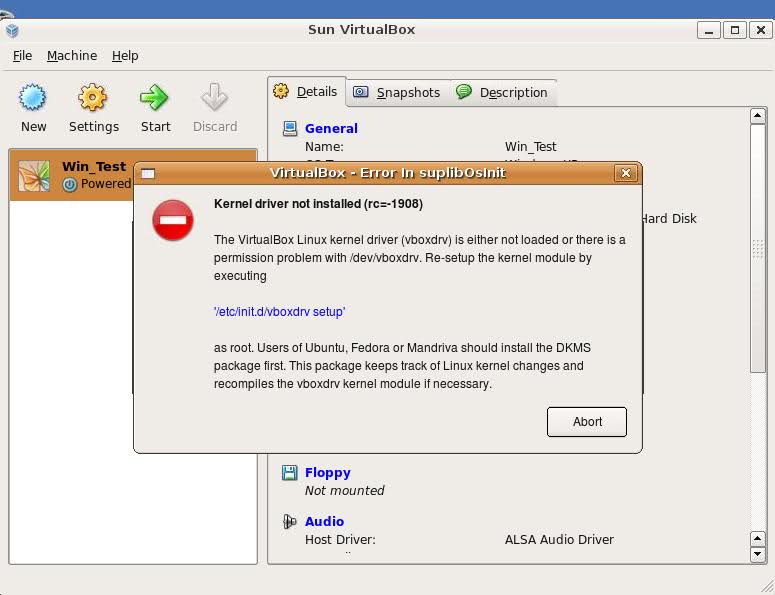
The error happens if the two packages do not properly build the vboxdrv extra Vbox kernel module while the Windows XP installer is loaded from a CD or ISO. The error to pop up is:

Kernel driver not installed (rc=-1908)

The VirtualBox Linux kernel driver (vboxdrv) is either not loaded or there is a permission problem with /dev/vboxdrv. Please reinstall the kernel module by executing

VirtualBox vboxdrv not loaded error Ubuntu Screen

To fix the error:

2. Install latest Kernel source that corresponds to your current kernel version

root@ubuntu:~# apt-get install linux-headers-`uname -r`
...

Next its necessery to rebuild the DKMS modules using dpkg-reconfigure:

3. Rebuild VirtualBox DKMS deb packages

root@ubuntu:~# dpkg-reconfigure virtualbox-dkms
...
root@ubuntu:~# dpkg-reconfigure virtualbox-guest-dkms
...
root@ubuntu:~# dpkg-reconfigure virtualbox-ose-dkms
...

Hopefully the copilation of vboxdrv kernel module should complete succesfully.
To test if all is fine just load the module:

4. Load vboxdrv virtualbox kernel module

root@ubuntu:~# modprobe vboxdrv
root@ubuntu:~#

If you get some error during loading, this means vboxdrv failed to properly compile, try read thoroughfully what the error is and fix it) ;) .

As a next step the vboxdrv has to be set to load on every system boot.

5. Set vboxdrv to load on every Ubuntu boot

root@ubuntu:~# echo 'vboxdrv' >> /etc/modules

I am not sure if this step is required, it could be /etc/init.d/virtualbox init script automatically loads the module, anyways putting it to load on boot would do no harm, so better do it.

That's all now, you can launch VirtualBox and use the New button to initiate a new Virtual Machine, I will skip explaining how to do the configurations for a Windows XP as most of the configurations offered by default would simply work without any tampering.

After booting the Windows XP installer I simply followed the usual steps to install Windows and all went smoothly.
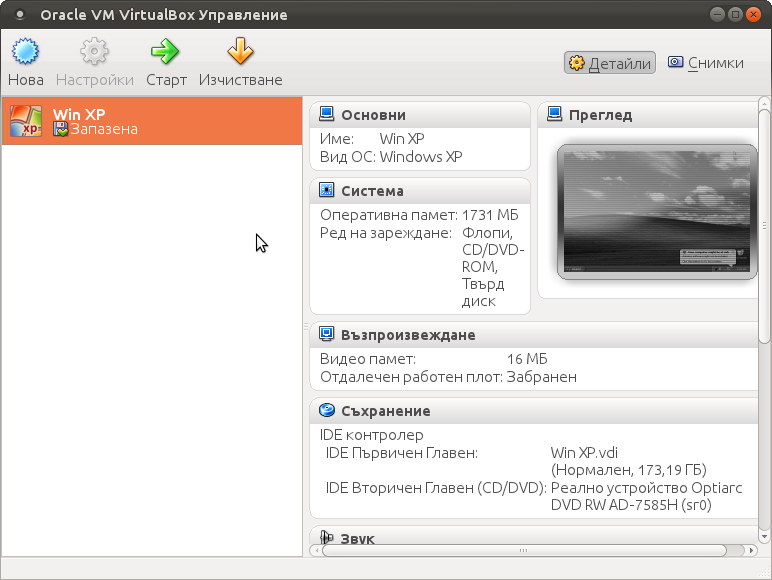
Below you see a screenshot showing the installed Windows XP Virtualbox saved VM session. The screenshot letters are in Bulgarian as my sisters default lanaguage for Ubuntu is bulgarian ;)

VirtualBox installed MS Windows VM screenshot

I hope this article helps someone out there. Please drop me a comment if you experience any troubles with it. Cya :)

Share this on

How to configure and enable Xen Linux dedicated server’s Virtual machines Internet to work / Enable multipe real IPs and one MAC only in (SolusVM) through NAT routed and iptables

Saturday, June 4th, 2011

Xen Linux Virtual Machine Logo

I’ve been hired as a consultant recently to solve a small task on a newly bought Xen based dedicated server.
The server had installed on itself SolusVM

The server was a good hard-iron machine running with CentOS Linux with enabled Xen virtualization support.
The Data Center (DC) has provided the client with 4 IP public addresses, whether the machine was assigned to possess only one MAC address!

The original idea was the dedicated server is supposed to use 4 of the IP addresses assigned by the DC whether only one of the IPs has an external internet connected ethernet interface with assigned MAC address.

In that case using Xen’s bridging capabilities was pretty much impossible and therefore Xen’s routing mode has to be used, plus an Iptables Network Address Translation or an IP MASQUERADE .

In overall the server would have contained 3 virtual machines inside the Xen installed with 3 copies of:

  • Microsoft Windows 2008

The scenario I had to deal with is pretty much explained in Xen’s Networking wiki Two Way Routed Network

In this article I will describe as thoroughfully as I can how I configured the server to be able to use the 3 qemu virtual machines (running inside the Xen) with their respective real interner visible public IP addresses.

1. Enable Proxyarp for the eth0 interface

To enable proxyarp for eth0 on boot time and in real time on the server issue the commands:

[root@centos ~]# echo 1 > /proc/sys/net/ipv4/conf/eth0/proxy_arp[root@centos ~]# echo 'net.ipv4.conf.all.proxy_arp = 1' >> /etc/sysctl.conf

2. Enable IP packet forwarding for eth interfaces

This is important pre-requirement in order to make the iptables NAT to work.

[root@centos ~]# echo 'net.ipv4.ip_forward = 1' >> /etc/sysctl.conf
[root@centos ~]# echo 'net.ipv6.conf.all.forwarding=1' >> /etc/sysctl.conf

If you get errors during execution of /etc/init.d/xendomains , like for example:

[root@centos ~]# /etc/init.d/xendomains restart
/etc/xen/scripts/network-route: line 29: /proc/sys/net/ipv4/conf/eth0/proxy_arp: No such file or directory
/etc/xen/scripts/network-route: line 29: /proc/sys/net/ipv6/conf/eth0/proxy_arp: No such file or directory

in order to get rid of the message you will have to edit /etc/xen/scripts/network-route and comment out the lines:

echo 1 >/proc/sys/net/ipv4/conf/${netdev}/proxy_arp
echo 1 > /proc/sys/net/ipv6/conf/eth0/proxy_arp
e.g.
#echo 1 >/proc/sys/net/ipv4/conf/${netdev}/proxy_arp
#echo 1 > /proc/sys/net/ipv6/conf/eth0/proxy_arp

3. Edit /etc/xen/xend-config.sxp, disable ethernet bridging and enable eth0 routing (route mode) and NAT for Xen’s routed mode

Make absolutely sure that in /etc/xen/xend-config.sxp the lines related to bridging are commented.
The lines you need to comment out are:

(network-script network-bridge)
(vif-script vif-bridge)

make them look like:

#(network-script network-bridge)
#(vif-script vif-bridge)br />

Now as bridging is disabled let’s enable Xen routed network traffic as an bridged networking alternative.

Find the commented (network-script network-route) and (vif-script vif-route) lines and uncomment them:

#(network-script network-route)
#(vif-script vif-route)

The above commented lines should become:

(network-script network-route)
(vif-script vif-route)

Next step is to enable NAT for routed traffic in Xen (necessery to make routed mode work).
Below commented two lines in /etc/xen/xend-config.sxp, should be uncommented e.g.:

#(network-script network-nat)
#(vif-script vif-nat)

Should become:

(network-script network-nat)
(vif-script vif-nat)

4. Restart Xen control daemon and reload installed Xen’s Virtual Machines installed domains

To do so invoke the commands:

[root@centos ~]# /etc/init.d/xend
[root@centos ~]# /etc/init.d/xendomains restart

This two commands will probably take about 7 to 10 minutes (at least they took this serious amount of time in my case).
If you think this time is too much to speed-up the procedure of restarting Xen and qemu attached virtual machines, restart the whole Linux server, e.g.:

[root@centos ~]# restart

5. Configure iptables NAT rules on the CentOS host

After the server boots up, you will have to initiate the following ifconfig & iptables rules in order to make the Iptables NAT to work out:

echo > > /proc/sys/net/ipv4/conf/tap1.0/proxy_arp
/sbin/ifconfig eth0:1 11.22.33.44 netmask 255.255.252.0
/sbin/ifconfig eth0:2 22.33.44.55 netmask 255.255.252.0
/sbin/ifconfig eth0:3 33.44.55.66 netmask 255.255.252.0

/sbin/iptables -t nat -A PREROUTING -d 11.22.33.44 -i eth0 -j DNAT --to-destination 192.168.1.2
/sbin/iptables -t nat -A PREROUTING -d 22.33.44.55 -i eth0 -j DNAT --to-destination 192.168.1.3
/sbin/iptables -t nat -A PREROUTING -d 33.44.55.66 -i eth0 -j DNAT --to-destination 192.168.1.4
/sbin/iptables -t nat -A POSTROUTING -s 192.168.1.2 -o eth0 -j SNAT --to-source 11.22.33.44
/sbin/iptables -t nat -A POSTROUTING -s 192.168.1.3 -o eth0 -j SNAT --to-source 22.33.44.55
/sbin/iptables -t nat -A POSTROUTING -s 192.168.1.4 -o eth0 -j SNAT --to-source 33.44.55.66

In the above ifconfig and iptables rules the IP addresses:

11.22.33.44, 22.33.44.55, 33.44.55.66 are real IP addresses visible from the Internet.
In the above rules eth0:1, eth0:2 and eth0:3 are virtual ips assigned to the main eth0 interface.

This ifconfig and iptables setup assumes that the 3 Windows virtual machines running inside the Xen dedicated server will be configured to use (local) private network IP addresses:

192.168.1.2, 192.168.1.3 and 192.168.1.4

You will have also to substitute the 11.22.33.44, 22.33.44.55 and 33.44.55.66 with your real IP addreses.

To store the iptables rules permanently on the fedora you can use the iptables-save command:

[root@centos ~]# /sbin/iptables-save

However I personally did not use this approach to save my inserserted iptable rules for later boots but I use my small script set_ips.sh to add virtual interfaces and iptables rules via the /etc/rc.local invokation:

If you like the way I have integrated my virtual eths initiation and iptables kernel firewall inclusion, download my script and set it to run in /etc/rc.local, like so:

[root@centos ~]# cd /usr/sbin
[root@centos sbin]# wget http://www.pc-freak.net/bshscr/set_ips.sh
...
[root@centos ~]# chmod +x /usr/sbin/set_ips.sh
[root@centos ~]# mv set_ips.sh /usr/sbin
[root@centos ~]# echo '/usr/sbin/set_ips.sh' >> /etc/rc.local

Note that you will have to modify my set_ips.sh script to substitute the 11.22.33.44, 22.33.44.55 and 33.44.55.66 with your real IP address.

So far so good, one might think that all this should be enough for the Virtual Machines Windows hosts to be able to connect to the Internet and Internet requests to the virtual machines to arrive, but no it’s not!!

6. Debugging Limited Connectivity Windows LAN troubles on the Xen dedicated server

Even though the iptables rules were correct and the vif route and vif nat was enabled inside the Xen node, as well as everything was correctly configured in the Windows 2008 host Virtual machines, the virtual machines’s LAN cards were not able to connect properly to connect to the internet and the Windows LAN interface kept constantly showing Limited Connectivity! , neither a ping was available to the gateway configured for the Windows VM host (which in my case was: 192.168.1.1).

You see the error with Limited connectivity inside the Windows on below’s screenshot:

Limited Connectivty Windows error Lan Interface, status screenshot

Here is also a screenshot of my VNC connection to the Virtual machine with the correct IP settings – (TCP/IPv4) Properties Window:

Windows Xen Network Connections Windows VNC TCP/IPv4 Properties Window

This kind of Limited Connectivity VM Windows error was really strange and hard to diagnose, thus I started investigating what is wrong with this whole situation and why is not able the Virtualized Windows to connect properly to the Internet, through the Iptables NAT inbound and outbound traffic redirection.

To diagnose the problem, I started up with listing the exact network interfaces showing to be on the Xen Dedicated server:


[root@centos ~]# /sbin/ifconfig |grep -i 'Link encap' -A 1
eth0 Link encap:Ethernet HWaddr 00:19:99:9C:08:3A
inet addr:111.22.33.55 Bcast:111.22.33.255
Mask:255.255.252.0
--
eth0:1 Link encap:Ethernet HWaddr 00:19:99:9C:08:3A
inet addr:11.22.33.44 Bcast:11.22.33.255
Mask:255.255.252.0
--
eth0:2 Link encap:Ethernet HWaddr 00:19:99:9C:08:3A
inet addr:22.33.44.55 Bcast:22.33.44.255
Mask:255.255.252.0
--
eth0:3 Link encap:Ethernet HWaddr 00:19:99:9C:08:3A
inet addr:33.44.55.66 Bcast:33.44.55.255
Mask:255.255.252.0
--
lo Link encap:Local Loopback
inet addr:127.0.0.1 Mask:255.0.0.0
--
tap1.0 Link encap:Ethernet HWaddr FA:07:EF:CA:13:31
--
vifvm101.0 Link encap:Ethernet HWaddr FE:FF:FF:FF:FF:FF
inet addr:111.22.33.55 Bcast:111.22.33.55
Mask:255.255.255.255

I started debugging the issue, using the expelling logic.
In the output concerning my interfaces via ifconfig on eth0, I have my primary server IP address 111.22.33.55 , this one is working for sure as I was currently connected to the server through it.

The other virtual IP addresses assigned on the virtual network interfaces eth0:1, eth0:2 and eth0:3 were also assigned correctly as I was able to ping this ips from my Desktop machine from the Internet.

The lo , interface was also properly configured as I could ping without a problem the loopback ip – 127.0.0.1

The rest of the interfaces displayed by my ifconfig output were: tap1.0, vifvm101.0

After a bit of ressearch, I’ve figured out that they’re virtual interfaces and they belong to the Xen domains which are running qemu virtual machines with the Windows host.

I used tcpdump to debug what kind of traffic does flow through the tap1.0 and vifvm101.0 interfaces, like so

[root@centos ~]# tcpdump -i vifvm101.0
tcpdump: verbose output suppressed, use -v or -vv for full protocol decode
listening on vifvm101.0, link-type EN10MB (Ethernet), capture size 96 bytes
^C
0 packets captured
0 packets received by filter
0 packets dropped by kernel
[root@centos ~]# tcpdump -i tap1.0
cpdump: verbose output suppressed, use -v or -vv for full protocol decode
listening on tap1.0, link-type EN10MB (Ethernet), capture size 96 bytes
^C
08:55:52.490249 IP 229.197.34.95.customer.cdi.no.15685 > 192.168.1.2.12857: UDP, length 42

I’ve figured out as it’s also observable in above’s two tcpdump commands output, that nothing flows through the vifvm101.0 interface, and that there was some traffic passing by tap1.0 interface.

7. Solving the Limited Connectivy Windows Internet network connection problems

As below’s ifconfig output reveals, there is no IP address assigned to tap1.0 interface, using some guidelines and suggestions from guys in irc.freenode.net’s #netfilter irc channel, I’ve decided to give a go to set up an IP address of 192.168.1.1 to tap1.0 .

I choose for a reason as this IP address is configured to be my Gateway’s IP Address inside the Emulated Windows 2008 hosts

To assign the 192.168.1.1 to tap1.0, I issued:

[root@centos ~]# /sbin/ifconfig tap1.0 192.168.1.1 netmask 255.255.255.0
To test if there is difference I logged in to the Virtual Machine host with gtkvncviewer (which by the way is a very nice VNC client for Gnome) and noticed there was an established connection to the internet inside the Virtual Machine ;)

I issued a ping to google which was also returned and opened a browser to really test if everything is fine with the Internet.
Thanks God! I could browse and everything was fine ;)

8. Making tap1.0 192.168.1.1 (VM hosts gateway to be set automatically, each time server reboots)

After rebooting the server the tap1.0 assignmend of 192.168.1.1 disappeared thus I had to make the 192.168.1.1, be assigned automatically each time the CentoS server boots.

To give it a try, I decided to place /sbin/ifconfig tap1.0 192.168.1.1 netmask 255.255.255.0 into /etc/rc.local, but this worked not as the tap1.0 interface got initialized a while after all the xendomains gets initialized.

I tried few times to set some kind of sleep time interval with the sleep , right before the /sbin/ifconfig tap1.0 … ip initialization but this did not worked out, so I finally completely abandoned this methodology and make the tap1.0 get initialized with an IP through a cron daemon.
For that purpose I’ve created a script to be invoked, every two minutes via cron which checked if the tap1.0 interface is up and if not issues the ifconfig command to initialize the interface and assign the 192.168.1.1 IP to it.

Here is my set_tap_1_iface.sh shell script

To set it up on your host in /usr/sbin issue:

[root@centos ~]# cd /usr/sbin/
[root@centos sbin]# wget http://www.pc-freak.net/bshscr/set_tap_1_iface.sh
...
In order to set it on cron to make the tap1.0 initialization automatically every two minutes use the cmd:

[root@centos ~]# crontab -u root -e

After the cronedit opens up, place the set_tap_1_iface.sh cron invokation rules:

*/2 * * * * /usr/sbin/set_tap_1_iface.sh >/dev/null 2>&1

and save.

That’s all now your Xen dedicated and the installed virtual machines with their public internet IPs will work ;)
If this article helped you to configure your NAT routing in Xen drop me a thanks message, buy me a beer or hire me! Cheers ;)

Share this on