Posts Tagged ‘manager’

How to configure VIVACOM 3g USB ( internet ) modem HUAWEI Mobile broadband E173 on Debian and Ubuntu GNU / Linux

Wednesday, July 4th, 2012

I've been given a HUAWEI Mobile Broadband E173 USB 3g model. The USB modem contains a flash USB Storage segment storing a little install program dedicated to make the modem work fine on Microsoft Windows XP / Vista / 7 and probably other M$ OSes. I'm a long time DebianGNU / Linux user and as a free software enthusiast I ofcourse wanted to be able to use Vivacom's 3G USB Modem on my Linux powered notebook.

Thanksfully as I've red on Vivacom's website the modem supports Linux OS :)

For those unaware in Bulgaria there are currently 3 major GSM network providers providing 3G internet this are;;;
 

  • VIVACOM – The ex Government ran national company BTC (Bulgarian Telecommunication Company)
  • M-Tel – The first GSM network provider that entered Bulgaria around year 1995
  • GLOBUL – The 3rd and last GSM mobile and net provider entered last and not so much used by Bulgarians today

Until today I had no experience in running any 3G modems on Linux, neither I had used the 3 networks 3G internet to determine which one is best, however I've been given for temporal use a VIVACOM 3G internet modem today so I proceeded to try installing it on my Debian host.

My Linux system is a bit strangely configured as I use wicd network connection manager -( wicd-gtk ) to manage wireless and LAN connections instead of the standard installed GNOME network manager – available through package ( network-manager-gnome ).

The reason I use wicd is not that it is so much better than GNOME network manger but rather for historical reasons because few years past I had impression it works better in connecting me to wireless networks. Another reason why I choosed wicd back then was the nice looking stats …

I tried plugging in the Vivacom USB 3G modem stick and checked in wicd to see if I can see a possibility to connect to the mobile opeartor 3G network but unfortunately nothing appeared.

Though the 3G adsl modem was unavailable straing in wicd, checking about it in the list of attached USB devices I could see it detected, e.g.:

noah:~# lsusb |grep -i huawei
Bus 001 Device 007: ID 12d1:1c05 Huawei Technologies Co., Ltd.

This was at least a good sign pointing me to the thoughts that the modem is probably gonna work.

I did a quick Google search to see if other people succeded running the device on a Linux host and came across a few blog posts in Bulgarian explaining a "success story" on Ubuntu Linux through using a tweakened shell script – sakis3g. For more on how the script works and script download check out Sakis3g

Here is a quote from sakis3g's website describing the script:
 

It automagically setups your USB or Bluetooth™ modem, and may even detect operator settings.
You should try it when anything else fails!

Sakis3g has different versions designed for for plenty of spacific hware architectures i.e. for (i386, amd64, armv4t, armv5t).
There is also a version of the script which by the way contains a combination of bash shell scripting instruction and some binary exec data.

To run sakis3g on my laptop I did:

1. Download sakis3g

My notebook architecture is 64 bit so I download and used the amd64 version of the script;;;

hipo@noah:~$ mkdir sakis3g
hipo@noah:~$ cd sakis3g
hipo@noah:~/sakis3g$ wget http://www.sakis3g.org/versions/latest/amd64/sakis3g.gz

I've made also a mirror of sakis3g i386, 64 bit and all architecture the mirrors just in case it disappears in future. The mirror versions of sakis3g are here:

a. sakis3g i386 b. sakis3g amd64 c. sakis3g all architectures source

2. Unarchive and make it executable

After downloading it as it is in gzip I had to do the usual de-gzipping and making the file executable;;;

hipo@noah:~/sakis3g$ /bin/gzip -d sakis3g.gz
hipo@noah:~/sakis3g$ chmod +x sakis3g

The script is then ready to run by either clicking twice on it or (as I prefer for debugging reasons to run it in terminal):

hipo@noah:~$ ./sakis3g

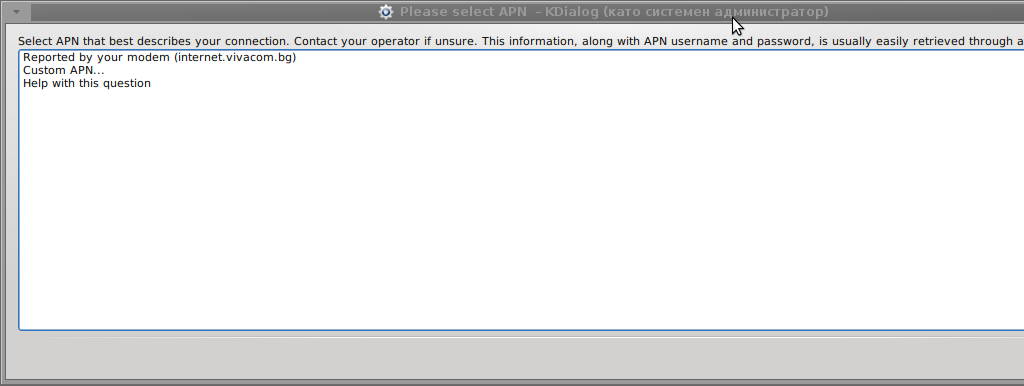
Something that I have wondered a bit was the dialog where I had to fill in some data of some variable APN abbreviation for – (Access Point Name)

The APN host for VIVACOM mobile internet is;;;
APN: internet.vivacom.bg

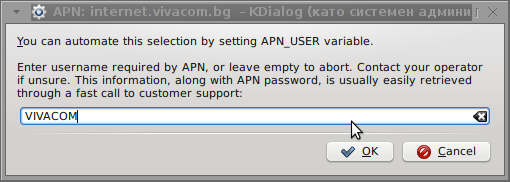
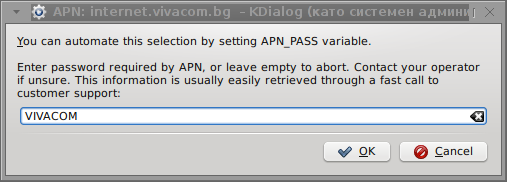
I've used the Windows configuration progrma to gather also the following data that I thought might be important for configuring the 3G adsl modem on the Linux host;;;

Auth: *99#
User: VIVACOM
pass: VIVACOM

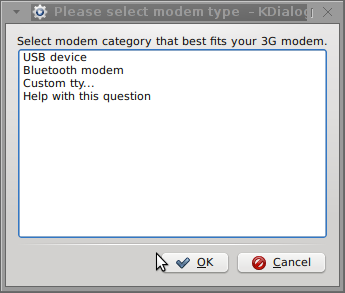
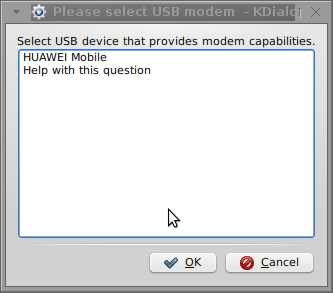
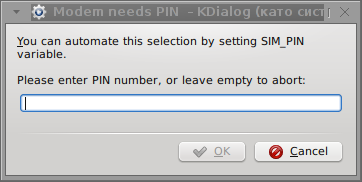
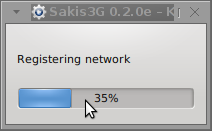
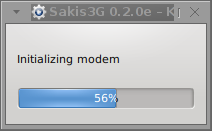
Here are all the configuration screenshots I've taken from sakis3g and all the data that I filled in.
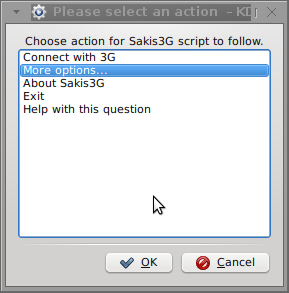
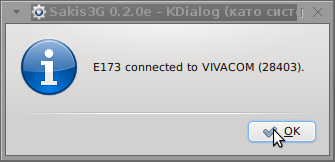
Next the following tiny window appeared on screen:

Sakis3g configure usb modem kdialog shot 1 VIVACOM USB Modem Sakis 3g Shot 2 sakis 3g usb modem vivacom connect screenshot 2 vivacom 3g modem linux sakis3g enter pin dialog shot 4 Sending pin screenshot 5 sakis3g APN Dialog sakis3g screenshot 6sakis3g Internet Linux VIVACOM screenshot 7sakis3g Debian GNU Linux VIVACOM 3g Internet screenshot 8sakis3g initializing modem screenshot 9sakis3g successful connect to VIVACOM mobile 3g usb adls modem shot 10

Well that's all folks, now sakis3g succesfully connected to the I_net via an (PPP) VPN connection tunnel here is data from ifconfig command showing the succesful 3G connection to VIVACOM;;;

noah:~# /sbin/ifconfig ppp0
ppp0 Link encap:Point-to-Point Protocol
inet addr:10.58.146.232 P-t-P:10.64.64.64 Mask:255.255.255.255
UP POINTOPOINT RUNNING NOARP MULTICAST MTU:1500 Metric:1
RX packets:2066 errors:1 dropped:0 overruns:0 frame:0
TX packets:1609 errors:0 dropped:0 overruns:0 carrier:0
collisions:0 txqueuelen:3
RX bytes:2232058 (2.1 MiB) TX bytes:341693 (333.6 KiB)

The internet via the 3G connection is not blazing fast but good enough to check your mail or read some webpages. VIVACOM currently has different (traffic limited packages) for their 3G internet, I'm not sure which package exactly is the 3G USB stick modem but probably the "quick" internet connection that is now would slow down once the traffic limit is reached …
Hope this post helps someone to configure 3G internet on VIVACOM in Debian and Ubuntu Linux. Though I've tested sakis3g on Debian it should work with no hassles on any other GNU Linux distribution that has bash installed.

Share this on

How to make screenshots on Slackware Linux with XFCE graphical environment

Thursday, February 23rd, 2012

1. Install the slackware binary package xfce4-screenshooter.

For the latest Slackware Linux release which as of time of writting is 13.37 xfce4-screenshooter-1.7.9-i486-3sl.txz can be download from here

Install of xfce4-screenshooter-1.7.9-i486-3sl.txz is done with slackware's usual installpkg package manager command:

bash-4.1# /sbin/installpkg xfce4-screenshooter-1.7.9-i486-3sl.txz

By the way, I haven't used slackware for a long time so in the mean time since Slackware 13, the default slackware packages format .tgz is now substituted with the newer .txz (better compressed .txz). The old .tgz was simply a tar archive with DEFLATE gzip. The newer .txz packages bundled with newer slackware releases are using the LZMA2 (XZ) chain algorithm for compression. LZMA implies higher compression than even bzip2 and this is the reason why Patrick Volkerding – the one man army man behind Slackware decided to use it.
The reason Vollerding choose using .txz is slackware network distribution will load up less the networks and will take less time for downloading extra slackware packages via the internet. The .txz also reduces slackware main CD size so more packages can be contained in the same 700MB sized slack install CD.

Anyways now back to the installation of xfce-screenshooter.

Once installed to runit use the Xfce menus:

Xfce Menu -> Accesories -> Screenshot

Next you will see the xfce-screenshooter program to pop-up:

To take a snapshot of the screen use:

Entire Screen -> Save

XFCE screenshooter Slackware Linux take a screenshot dialog

XFCE screenshooter Slackware Linux action Save
 

Share this on

How to make a mirror of website on GNU / Linux with wget / Few tips on wget site mirroring

Wednesday, February 22nd, 2012

Everyone who used Linux is probably familiar with wget or has used this handy download console tools at least thousand of times. Not so many Desktop GNU / Linux users like Ubuntu and Fedora Linux users had tried using wget to do something more than single files download.
Actually wget is not so popular as it used to be in earlier linux days. I've noticed the tendency for newer Linux users to prefer using curl (I don't know why).

With all said I'm sure there is plenty of Linux users curious on how a website mirror can be made through wget.
This article will briefly suggest few ways to do website mirroring on linux / bsd as wget is both available on those two free operating systems.

1. Most Simple exact mirror copy of website

The most basic use of wget's mirror capabilities is by using wget's -mirror argument:

# wget -m http://website-to-mirror.com/sub-directory/

Creating a mirror like this is not a very good practice, as the links of the mirrored pages will still link to external URLs. In other words link URL will not pointing to your local copy and therefore if you're not connected to the internet and try to browse random links of the webpage you will end up with many links which are not opening because you don't have internet connection.

2. Mirroring with rewritting links to point to localhost and in between download page delay

Making mirror with wget can put an heavy load on the remote server as it fetches the files as quick as the bandwidth allows it. On heavy servers rapid downloads with wget can significantly reduce the download server responce time. Even on a some high-loaded servers it can cause the server to hang completely.
Hence mirroring pages with wget without explicity setting delay in between each page download, could be considered by remote server as a kind of DoS – (denial of service) attack. Even some site administrators have already set firewall rules or web server modules configured like Apache mod_security which filter requests to IPs which are doing too frequent HTTP GET /POST requests to the web server.
To make wget delay with a 10 seconds download between mirrored pages use:

# wget -mk -w 10 -np --random-wait http://website-to-mirror.com/sub-directory/

The -mk stands for -m/-mirror and -k / shortcut argument for –convert-links (make links point locally), –random-wait tells wget to make random waits between o and 10 seconds between each page download request.
3. Mirror / retrieve website sub directory ignoring robots.txt "mirror restrictions"Some websites has a robots.txt which restricts content download with clients like wget, curl or even prohibits, crawlers to download their website pages completely.

/robots.txt restrictions are not a problem as wget has an option to disable robots.txt checking when downloading.
Getting around the robots.txt restrictions with wget is possible through -e robots=off option.
For instance if you want to make a local mirror copy of the whole sub-directory with all links and do it with a delay of 10 seconds between each consequential page request without reading at all the robots.txt allow/forbid rules:

# wget -mk -w 10 -np -e robots=off --random-wait http://website-to-mirror.com/sub-directory/

4. Mirror website which is prohibiting Download managers like flashget, getright, go!zilla etc.

Sometimes when try to use wget to make a mirror copy of an entire site domain subdirectory or the root site domain, you get an error similar to:

Sorry, but the download manager you are using to view this site is not supported.
We do not support use of such download managers as flashget, go!zilla, or getright

This message is produced by the site dynamic generation language PHP / ASP / JSP etc. used, as the website code is written to check on the browser UserAgent sent.
wget's default sent UserAgent to the remote webserver is:
Wget/1.11.4

As this is not a common desktop browser useragent many webmasters configure their websites to only accept well known established desktop browser useragents sent by client browsers.
Here are few typical user agents which identify a desktop browser:
 

  • Mozilla/5.0 (Windows NT 6.1; rv:6.0) Gecko/20110814 Firefox/6.0
  • Mozilla/5.0 (X11; Linux i686; rv:6.0) Gecko/20100101 Firefox/6.0
  • Mozilla/6.0 (Macintosh; I; Intel Mac OS X 11_7_9; de-LI; rv:1.9b4) Gecko/2012010317 Firefox/10.0a4
  • Mozilla/5.0 (Windows NT 6.1; Win64; x64; rv:2.2a1pre) Gecko/20110324 Firefox/4.2a1pre

etc. etc.

If you're trying to mirror a website which has implied some kind of useragent restriction based on some "valid" useragent, wget has the -U option enabling you to fake the useragent.

If you get the Sorry but the download manager you are using to view this site is not supported , fake / change wget's UserAgent with cmd:

# wget -mk -w 10 -np -e robots=off \
--random-wait
--referer="http://www.google.com" \--user-agent="Mozilla/5.0 (Windows; U; Windows NT 5.1; en-US; rv:1.8.1.6) Gecko/20070725 Firefox/2.0.0.6" \--header="Accept:text/xml,application/xml,application/xhtml+xml,text/html;q=0.9,text/plain;q=0.8,image/png,*/*;q=0.5" \--header="Accept-Language: en-us,en;q=0.5" \--header="Accept-Encoding: gzip,deflate" \--header="Accept-Charset: ISO-8859-1,utf-8;q=0.7,*;q=0.7" \--header="Keep-Alive: 300"

For the sake of some wget anonimity – to make wget permanently hide its user agent and pretend like a Mozilla Firefox running on MS Windows XP use .wgetrc like this in home directory.

5. Make a complete mirror of a website under a domain name

To retrieve complete working copy of a site with wget a good way is like so:

# wget -rkpNl5 -w 10 --random-wait www.website-to-mirror.com

Where the arguments meaning is:
-r – Retrieve recursively
-k – Convert the links in documents to make them suitable for local viewing
-p – Download everything (inline images, sounds and referenced stylesheets etc.)
-N – Turn on time-stamping
-l5 – Specify recursion maximum depth level of 5

6. Make a dynamic pages static site mirror, by converting CGI, ASP, PHP etc. to HTML for offline browsing

It is often websites pages are ending in a .php / .asp / .cgi … extensions. An example of what I mean is for instance the URL http://php.net/manual/en/tutorial.php. You see the url page is tutorial.php once mirrored with wget the local copy will also end up in .php and therefore will not be suitable for local browsing as .php extension is not understood how to interpret by the local browser.
Therefore to copy website with a non-html extension and make it offline browsable in HTML there is the –html-extension option e.g.:

# wget -mk -w 10 -np -e robots=off \
--random-wait \
--convert-links http://www.website-to-mirror.com

A good practice in mirror making is to set a download limit rate. Setting such rate is both good for UP and DOWN side (the local host where downloading and remote server). download-limit is also useful when mirroring websites consisting of many enormous files (documental movies, some music etc.).
To set a download limit to add –limit-rate= option. Passing by to wget –limit-rate=200K would limit download speed to 200KB.

Other useful thing to assure wget has made an accurate mirror is wget logging. To use it pass -o ./my_mirror.log to wget.
 

Share this on

How to make GNOME 3 Desktop icons to work as in GNOME 2 on Debian GNU / Linux

Saturday, February 4th, 2012

If you're using Debian GNU/Linux wheezy/sid, you have already figured out GNOME3 settings to start GNOME in Classic mode (like in GNOME 2), starts gnome in a mode where the desktop is not showing the usual Computer, Home, Trash etc.

Besides that in that strange back-compitability Classic GNOME mode its impossible to add any program as a link in desktop like in the good old GNOME 2.

Thanksfully this abusive behaviour of the backwards compitability mode is easily fixable by two simple steps, here they are:

1. Install gnome-tweak-tool – (Tool to adjust advanced configuration settings for GNOME

root@debian:~# apt-get install gnome-tweak-tool

2. Start gnome-tweak tool

Press ALT+F2 and run gnome-tweak-tool or run it via xterm / gnome-terminal:

moonman@Moon:~$ gnome-tweak-tool

Change in Desktop, Have file manager handle the desktop the settings to ON

gnome-tweek-tool Debian GNU Linux wheezy sid screenshot

gnome-tweak-tool Debian wheezy/Sid GNU Linux screenshot handle desktop on

Once the Screenshot Handle Desktop is set to ON, further drag and dropping any application to the Desktop will be working.
Something really irritating is that launching applications in GNOME 3 does not work properly if you just press ALT+F2 and type in lets say gnome-terminal , to work around this weirdity you will have to install gnome-shell package.

Share this on

How to start a process in background and keep it running after the console / terminal is closed on Linux and FreeBSD

Tuesday, November 29th, 2011

The classical way to keep a process running in background after log out of a shell is using screen
Anyways using screen is not the only way to detach a running process , GNU / Linux and BSDs (Free, Open, Net BSDs) had a command nohup which aim is to run a command immune to hangups, with output to a non-tty

Let's say one wants to keep track (log) constantly ICMP traffic to a certain host with ping command on a UNIX server / desktop which doesn't have the screen manager … terminal emulation program installed. Achieving this task is possible with nohup cmd by backgrounding the ping process, like so:

guoi@host:~$ nohup ping google.com >ping.log &[1] 45931hipo@host:~$ nohup: ignoring input and redirecting stderr to stdout

Afterwards even after closing up the opened ssh session or console (tty) / terminal (pts) on which the ping process is background nohup prevents the ping to be sent kill SIGNAL so the process continues running in the background.

Later on to check in real time the statistics of the continuous ICMP ping requests tail, less, or cat can be used for example watching the tail:

hipo@host:~$ tail -f ping.log
64 bytes from fx-in-f106.1e100.net (74.125.39.106): icmp_req=562 ttl=51 time=44.0 ms
64 bytes from fx-in-f106.1e100.net (74.125.39.106): icmp_req=563 ttl=51 time=43.8 ms
64 bytes from fx-in-f106.1e100.net (74.125.39.106): icmp_req=564 ttl=51 time=43.3 ms
64 bytes from fx-in-f106.1e100.net (74.125.39.106): icmp_req=565 ttl=51 time=43.1 ms
64 bytes from fx-in-f106.1e100.net (74.125.39.106): icmp_req=566 ttl=51 time=43.4 ms
64 bytes from fx-in-f106.1e100.net (74.125.39.106): icmp_req=567 ttl=51 time=43.6 ms

I'm using Linux / BSD for quite a lot of time and never before put in use the nohup cmd I guess there are more ppl who never heard of this handy UNIX basic command. Hope I'm not the only one who never heard about it and its useful knowledge to someone out. Cheers ;)

Share this on

iGenius – How Steve Jobs changed the World (documentary) movie

Sunday, November 20th, 2011

iGenius - How Steve Jobs changed the world movie review cover

I'm watching iGenius – How Steve Jobs changed the World movie. I heard about a movie from Alex a friend of mine who said this movie sheds some light on history of Apple Computers Inc, Macintosh and the great significance of Steve Jobs work as a manager and visionary to change the world for good.
The world has suddenly been astonished by Steve Jobs sudden death so surely the interest about him is tremendously up.

I do respect Jobs as under his leading the computer industry has received some innovations, still I don't agree with many of the movie aspects which turn Apple and the consequent company products IPhone, Ipad, Ipod etc. into a mega hype products.
I'm being honest to myself and I should say many of the innovations they did are not something too much, but just a product which popularized or minituarized some older invented technology.

The product quality of Apple in the past is a fact so one cannot argue with this however with recent years I wouldn't say the company quality is so much supreme as presented in the movie.
What I don't understand why is Jobs receiving so much praise and recognition but rarely somebody could show his bad sides as well. We've been again manipulatively mislead that he is a mega genius or like an angel on earth. However the achievements of Apple and the mass production and involvement of the field of marketing which lies basicly and makes profits based on great deceptions of Jobs doesn't make Jobs to a super hero.
As an enterpreneur and businessman his achievements are unquestionable but for many years now the reality of business is sad and a honest man could rarely be found to be dealing with business.
Usually the people who like dirt, lies and fame are into business. Most of the times these are people who are ready to kill in the name of Public Recognition and Success.
Jobs has been said to be a Buddhist according to what I've red in Wikipedia. If that is true its rather strange to me on fruits his buddhist faith produced.
I don't believe that any rational man who observes nowdays technology and how it is used doesn't see the great harm technology did us and is continuously pushing us down.
Buddhist teachings in my view teach on helping the neighbor educating and giving up things for free. Apple products however are not giving anything for free, yes some of them do education.
Therefore in my view the philosophy of apple and its application is not really fitting up to helping the neigbor as they don't come free of charge like the free software does.
Apple products actually enslaved their users, all of apple products are nowdays connected to Apple's Inc.
Mega Corporation IStore or they report somehow to apple during updates or purchases more or less about users likings or behaviours.
This obviously doesn't respect users freedom and makes Apple an example of a company that doesn't respect completely the user natural right of freedom and privacy.

To sum it up iGenius – Or How Steve Jobs changed the World is a highly manipulative movie just like most of the movies or books dedicated to super heroes are.
Steve Jobs was lucky to get this recognition and status in life, however this doesn't make him too much different from all of us. He just used to be in the right time in the right place and achieved what he did explicitly by God's mercy.
As a known fact Jobs was an Orphan and as we can see from many life examples God helps and has helped many orphans to have a good lives eventually.

Also I'm quite curious if Steve Jobs success was just a fruit of his good fortune or there were just too many circles of people behind him (Jewish or Masonry) possessing big fortunes who found it practical to sponsor his (??) products and ideas seeing a lot of potential to keep the world under siege through technology.
Nomatter what the complete true behind Jobs and his achievements are, he is still an inspirational person and an "icon" in the field of IT. Even I'm a bit Jealous on his overall achievements.
Anyways for people who want to loose some approximately 42:00 minutes on a hype Jobs praise movie and see some of apple's products and pictures of Jobs and Apple / Macintosh products the movie is a good choice ;)

Share this on

How to install display and audio drivers on motherboard Asus P5B-Plus with video ATI Radeon HD 2600 XT on Windows XP

Wednesday, November 16th, 2011

Ati Radeon 2600 XT, Display and Audio Drivers download how to

I re-installed one PC with Windows XP which was refusing to boot. The PC had a hardware of:

Motherboard: Asus P5B-Plus
Video Adapter: ATI Radeon HD 2600 XT
Sound card / Sound Blaster:

Ethernet card: Attansic L1 Gigabit Ethernet 10/100/1000Base-T Controller

It took me like 1 hour of search on the Internet and looking through forum threads and sites to properly install all the hardware. In hope to help someone out there looking to install the hardware Window drivers on ATI RAdeon HD 2600 XT, I've made a small archive of all the drivers necessery to make the Video card , Sound Card and Ethernet be properly installed and operating.

Here is download link to all the drivers for ATI Radeon HD 2600 XT to run smoothly on Windows XP

Installation of the drivers on Windows is pretty straight forward download the ATI Radeon HD 2600 XT archive extract and install each one of the files contained in the archive. A few restarts will also be necessery after some of the installed drivers to make the drivers work.

ATI Catalyst (included in the archive) will install the Video drivers for the Radeon XT 2600, whether AD1988AB_Audio_V6585_XpVistaWin7 and 11-11_xp32-64_hdmiaudio will install the Audio drivers. Attansic_L1_Lan_V1737907_V10560011159 contained in the archive needs to be extracted and installed to make the Attensic L1 Gigabit ethernet to show up as installed hardware in Windows device manager.

Hope this post will save some time to ppl looking to install the same drivers on XP ;)
Cheers ;)

Share this on

How to make wicd systray to appear in GNOME on Ubuntu 11.10 / How to fix missing wicd network manager systray on Ubuntu

Monday, November 7th, 2011

After upgrading my sis's notebook from Ubuntu 11.04 to Ubuntu 11.10 on her Acer Aspire 5736Z the default gnome wireless network manager started behaving oddly.
The Network Manager did not show any networks, even though the network drivers showed that are loaded properly on the Linux host and using the normal commands like iwlist or iwconfig I could list and see the networks and even connect to a network.

As my sister is not a console geek like me it was necessery of course to have an easy way to connect herself to the Internet with nice GUI application. I personally love WICD Network Manager and as the default gnome manager was misbehaving I immediately installed her wicd.
With wicd , the wireless networks were properly listed and there was no connection issues to the wireless networks, however the wicd system tray was missing and hence everytime she wanted to connect to a wireless network, she had to keep wicd-client running active in the Dock or run it manually every time on connect, when she had to change her physical location and connect to another wireless network.
This of course is quite unhandy and gives her a bad image of Linux and I definitely want to make her love free software and GNU / Linux. Thus I want to give her a GNU / Linux she will be easy to use.

To make her more satisfied with her Ubuntu I googled around to see what causes the wicd systray to be missing after some research online I found out, its probably due to either wicd bug or some kind of interface changes in unity newer versions of Ubuntu. Some people online suggested a fix via changing values in gconf-editor but this work around by changing the values in gconf-editor:

'desktop' -> 'unity' -> 'panel'

I tried this suggested fix which was reported to work on Ubuntu 11.04 but the gconf registry suggested pathway was missing at all so this solution did not worked.

I further read some other suggested solution using wicd-client by invoking it with two args like so:

stanimira@ubuntu:~$ wicd-client -n &
...stanimira@ubuntu:~$ wicd-client -a &

This proposed solution did not worked either, then I found in one of the Ubuntu bugs reports, a little shell script (add-wicd-to-whitelist.sh) that changes some values in gconf so I proceeded downloaded and give it a try:

stanimira@ubuntu:~$ wget http://www.pc-freak.net/files/add-wicd-to-whitelist.sh
...
stanimira@ubuntu:~$ sh add-wicd-to-whitelist.sh
...

For my surprise running the script doesn't immediately changed nothing and wicd wireless connectivity indicator was still missing from the tray.
I thought it might need to reload gnome so I give it a restart and HOORAY! after the restart the WICD connected wireless strength show up, like you can see in the screenshot below ;)

Wicd indicator running in systray on GNOME in Ubuntu 11.10

Now hope this fix will, help out there experiencing the same issues to work around his wireless network connectivity issues ;) Cheers.

Share this on