Posts Tagged ‘linux distributions’

Merging pictures on Linux command shell with ImageMagick merge

Friday, May 17th, 2013

combining-multiple-jpg-png-pictures-imagemagick-magician-logo

It is generally useful to combine multiple pictures into single one. A example case, where merging pictures on Linux is necessary is if you previously used ImageMagick's convert command line tool to convert PDF file (pages) to JPEG / PNG pictures. Unfortunately convertion with convert(as far as I know is only capable of generating multiple picture files instead of one single one), thus you further need montage to merge pages in separate photos to one. In my case I had my Curriculum Vitae in PDF and I needed to have same PDF in single photo for my applications for online Job Employment Belarusian portal site rabota.tut.by.

montage is one of numerous ImageMagick package script (plugins).
On all major Linux distributions (Debian / Ubuntu, Fedora, CentOS, RHEL, SuSE) montage comes installed together with imagemagick deb / rpm package.

Whether you don't have montage on Debian / Ubuntu and deb derivatives install it via:

linux:~# apt-get install --yes imagemagick
....

On CentOS, Fedora, RHEL, SuSE to install montage:

[root@centos ~]# yum -y install imagemagick
....

To merge two JPEG Photos into single PNG format picture:
linux:~$ montage -geometry +2+2 Picture-1.jpeg Merged-picture.png

Combining more photos, lets say my 8 Pages photos output from previous PDF convert to pictures is done with:

linux:~$ montage -geometry +8+8 CV_Georgi_Georgiev_bg-0.png \ CV_Georgi_Georgiev_bg-1.png \ CV_Georgi_Georgiev_bg-2.png \ CV_Georgi_Georgiev_bg-3.png \ CV_Georgi_Georgiev_bg-4.png \ CV_Georgi_Georgiev_bg-5.png \ CV_Georgi_Georgiev_bg-6.png \ CV_Georgi_Georgiev_bg-7.png \ CV_Georgi_Georgiev_bg.png
montage has plenty of useful other options, to do various photo montages from command line. Other way to merge photos with montage is by using:

linux:~$ montage -mode concatenate -tile 1x input-pic*.jpg out.jpg

Merging photos is also possible by using directly convert.

Combining multiple photos into single JPEG or PNG with Imagick convert is done with:

linux:~$ convert -append input-pic-*.jpg combined-picture.jpg

Other example use of montage is located on ImageMagick's montage's script site here


Share this on

Linux Mint 14 – “Nadia”: how to Display Trash icon on Desktop

Wednesday, March 13th, 2013

Recently Linux Mint is taking lead among preferred Linux distributions. From my little experience with it mainly installing it on friends PCs I should say Mint develops done a great job to make it more graphically convenient for users migrating from Windows OS.

Though it is generally intuitive, there is one little thing that might be useful for novice Mint user – where from to make Trash icon.

There are two ways to do it.

1. Is by installing / launching gnome-tweak-tool

Linux Mint 12 desktop  trashbin screenshot

I personally prefer gnome-tweak-tool, cause it has plenty of nice options related to how GUI environment, behaves. I believe even non Linux-Mint GNOME 3 users should take a look at gnome-tweak-tool if already haven't as it allows user to tailer plenty of desktop nice stuff.

2. Through [Main Menu]

-> Preferences -> Desktop Settings -> Desktop -> Desktop icons

Linux Mint desktop how to visualize trash bin on desktop screenshot

Share this on

Get more peaceful night sleep on Ubuntu, Mint and Xubuntu Linux using gtk-redshift

Monday, March 11th, 2013

gtk redshift Xubuntu Linux screenshot sleep peacefully when using computer at late

If you want to have more peaceful night sleep when working on Ubuntu or other Debian based Linux distro, be sure to have gtk-redshift installed.
It is a little program that simply changes the color gamma of screen and makes your screen look more reddish at night. According to many scientific research done on how we humans react, whether using computer late at night. It is concluded that less bright colors and especially reddish color gamma relaxes our eye strain and thus makes it easier for us to get a sleep quickly once in bed. gtk-redshift is available in latest Ubuntu 12.04 as well as on other Ubuntu derivatives (Xubuntu, Mint Linux) etc.

Easiest way to install it is via respective GUI Package Manager or via good old Synaptic (GUI aptitude frontend).
I personally prefer to always install Synaptic on new Desktop Linux PCs, use it as package GUI frontend, for the simple reason it offers one very similar "unified" package Installer outlook across different Linux distros.

The quickest way to use GUI version of Redshift is to install with apt:

root@xubuntu:~# apt-get install --yes gtk-redshift
....

To further use it it needs one time to be run with color gamma paraments, launch it first time via terminal with:
user@xubuntu:~$ gtk-redshift  -l 52.5:13.4

It is a good idea to make a tiny shell script wrapper with good settings for gtk-redshift and later use this shell wrapper as launcher :

root@xubuntu:~# echo '#!/bin/sh' >> /usr/local/bin/gtk-redshift
root@xubuntu:~# echo 'gtk-redshift' >> /usr/local/bin/gtk-redshift
root@xubuntu:~# chmod +x /usr/local/bin/gtk-redshift

From then on, to launch it you can directly open it via terminal

user@xubuntu:~$ /usr/local/bin/gtk-redshift

To make the program permanently work, make it run via respective GUI environment startup . In GNOME add it start-up from:

user@xubuntu:~$ gnome-session-manager

Important note to make about gtk-redshift is that on some older monitor screens, very early in morning the screen becomes too red, making screen look like displaying on very old long time used CRT monitors. For people working in fields like; Web Design, Architecture, or any drawing twisted colors effect will be annoying and will probably interfere with your perception of colors. However for programmers, system administrators and people who use computer mainly for typing and reading gtk-redshift is huge blessing.

Enjoy ! :)
 

Share this on

How to change default port 25 to 995 or any other on Postfix mail server

Wednesday, February 27th, 2013

If you need to change default mail delivery port of Postfix mail server from 25 to any other port lets say to 995. Here is how:

Edit /etc/postfix/master.cf  - a small note to make here is master.cf is located on same location on mostly all Linux distributions as well as FreeBSD.

Find line with:

smtp      inet  n       -       n       -       -       smtpd

Change smtp – which is actually a reference for port 25 to whatever port you need – i.e. 995 After change line should look like:

995      inet  n       -       n       -       -       smtpd

Save config file and restart postfix to load new settings:

# /etc/rc.d/postfix restart
postfix/postfix-script: stopping the Postfix mail system
postfix/postfix-script: starting the Postfix mail system

Share this on

Secure delete files irreverseble on Debian and Fedora GNU / Linux

Thursday, February 21st, 2013

I just read an article in Linux-Magazine on Advanced File Management named – "Beyond the Basics". Most of what the article says is pretty trivial and known by any Linux enthusiast average user and administrator. There was one command mentioned shred which is probably not so well known among Free Software users shred allows the user to "secure delete files" / from the hard disk irreversible.

The tool is part of coreutils package and available across mostly all Linux distributions including Debian / Ubuntu debian derivatives and the RedHat based distros CentOS, Fedora, RHEL etc.

Just for info for those who don't know how to check, to which package a command belongs with rpm and dpkg, here is how;

[hipo@centos ~]$ rpm -qf /usr/bin/shred
coreutils-5.97-23.el5_4.2

hipo@debian:~$ dpkg -S /usr/bin/shred
coreutils: /usr/bin/shred

Here is how to delete a sample file ovewritting 3 times (-n2 – means 3 because in comuters we know we countr from 0 – 0 1 2 3), the z option fills up with zeros after overwritting the file ( just like seen on paste), -v option shows verbose what shred is doing and -u option truncates removes file after overwritting

noah:/var/tmp# shred -n2 -zvu crash20121113021508.txt
shred: crash20121113021508.txt: pass 1/3 (random)…
shred: crash20121113021508.txt: pass 2/3 (random)…
shred: crash20121113021508.txt: pass 3/3 (000000)…
shred: crash20121113021508.txt: removing
shred: crash20121113021508.txt: renamed to 00000000000000000000000
shred: 00000000000000000000000: renamed to 0000000000000000000000
shred: 0000000000000000000000: renamed to 000000000000000000000
shred: 000000000000000000000: renamed to 00000000000000000000
shred: 00000000000000000000: renamed to 0000000000000000000
shred: 0000000000000000000: renamed to 000000000000000000
shred: 000000000000000000: renamed to 00000000000000000
shred: 00000000000000000: renamed to 0000000000000000
shred: 0000000000000000: renamed to 000000000000000
shred: 000000000000000: renamed to 00000000000000
shred: 00000000000000: renamed to 0000000000000
shred: 0000000000000: renamed to 000000000000
shred: 000000000000: renamed to 00000000000
shred: 00000000000: renamed to 0000000000
shred: 0000000000: renamed to 000000000
shred: 000000000: renamed to 00000000
shred: 00000000: renamed to 0000000
shred: 0000000: renamed to 000000
shred: 000000: renamed to 00000
shred: 00000: renamed to 0000
shred: 0000: renamed to 000
shred: 000: renamed to 00
shred: 00: renamed to 0
shred: crash20121113021508.txt: removed
 

One common use of shred is by sysadmins who has to prepare old server containing lets say client data (SQL) – mail boxes or just file data and then sell it to third parties making sure data will be un-restorable for the new owner. Also shred is used a lot by crackers who set up "time bombs" activated on user activity or inactivity to destroy evidences in case of crackers PC is being captured by police. Though shred cannot guarantee 100% that deleted data can't be recoved within a special data recovery lab in most of cases it is enough to assure data with it will be almost impossible to recover.

Share this on

How to keep track of All User accounts executed commands, highest CPU consumers and user times on Linux

Tuesday, February 5th, 2013

Linux accounting keeping an eye on all user run commands time accounting find cpu eaters

For people interested into statistics of how Linux existing users are spending, there log in times and what kind of commands each of users is executing, take a look at acct
acct is existing on all mainstream Linux distributions is a great sysadmin tool. acct is a great tool whether you have a system where a multitude of users you don't trust has to be monitored. It is an absolutely must have for anyone willing to run, lets say  experimental honeypot or  free shell host. acct is useful for paranoid sysadmins who like to always knows what there users are running as well as in situation where some of users is suspected to be a potential cracker trying to root the host.

Below is description of acct package on Debian:

# apt-cache show acct| grep -i description -A 8
Description: The GNU Accounting utilities for process and login accounting
 GNU Accounting Utilities is a set of utilities which reports and summarizes
 data about user connect times and process execution statistics.
 .
 "Login accounting" provides summaries of system resource usage based on connect
 time, and "process accounting" provides summaries based on the commands
 executed on the system.
 .
 The 'last' command is provided by the sysvinit package and not included here.

To start using acct, just install it with usual:

# apt-get install --yes acct

(Whether on Debian / Ubuntu Linux);

On Fedora, CentOS and RHEL and other RPM based Linuxes issue;

yum --y install psacct

On deb based Linux distributions, whether acct collects statistics is controlled via:

/etc/default/acct

# cat /etc/default/acct
# Defaults for acct

# If you want to keep acct installed, but not started automatically, set this
# variable to 0. Because /etc/cron.daily/acct calls the initscript daily, it is
# not sufficient to stop acct once after booting if your machine remains up.
ACCT_ENABLE="1"

# Amount of days that the logs are kept.
ACCT_LOGGING="30"

After installed to start collecting user "process accounting" data run acct via init script;

# /etc/init.d/acct start
Turning on process accounting, file set to '/var/log/account/pacct'.
Done..

The file gathering info on system usage, CPU load, user ran commands /var/log/account/psacct is a binary and unreadable tailing it with tail -f .

On CentOS / Fedora Linux to Enable acct account statistics gathering in future boot and from present moment on do;

# chkconfig psacct on
# /etc/init.d/psacct start

1. Find out all commands executed by Linux user account (lastcomm)

Once user accounting is running to get information of every command ever executed on user shell use lastcomm cmd. For example:

# lastcomm hipo

bash              F    hipo     pts/1      0.00 secs Tue Feb  5 00:20
bash              F    hipo     pts/1      0.03 secs Tue Feb  5 00:20
sed                    hipo     pts/1      0.00 secs Tue Feb  5 00:20
bash              F    hipo     pts/1      0.00 secs Tue Feb  5 00:20
uname                  hipo     pts/1      0.00 secs Tue Feb  5 00:20
bash              F    hipo     pts/1      0.00 secs Tue Feb  5 00:20
dircolors              hipo     pts/1      0.00 secs Tue Feb  5 00:20
bash              F    hipo     pts/1      0.00 secs Tue Feb  5 00:20
uname                  hipo     pts/1      0.00 secs Tue Feb  5 00:20
bash              F    hipo     pts/1      0.00 secs Tue Feb  5 00:20
ls                     hipo     pts/1      0.00 secs Tue Feb  5 00:20
bash              F    hipo     pts/1      0.00 secs Tue Feb  5 00:20
bash              F    hipo     pts/1      0.03 secs Tue Feb  5 00:20
sed                    hipo     pts/1      0.00 secs Tue Feb  5 00:20
bash              F    hipo     pts/1      0.00 secs Tue Feb  5 00:20
uname                  hipo     pts/1      0.00 secs Tue Feb  5 00:20
bash              F    hipo     pts/1      0.00 secs Tue Feb  5 00:20
id                     hipo     pts/1      0.00 secs Tue Feb  5 00:20
mesg                   hipo     pts/1      0.00 secs Tue Feb  5 00:20
verse                  hipo     pts/1      0.00 secs Tue Feb  5 00:20
cowrand                hipo     pts/1      0.00 secs Tue Feb  5 00:20
cowsay                 hipo     pts/1      0.03 secs Tue Feb  5 00:20
cowrand           F    hipo     pts/1      0.00 secs Tue Feb  5 00:20
head                   hipo     pts/1      0.00 secs Tue Feb  5 00:20
tail                   hipo     pts/1      0.00 secs Tue Feb  5 00:20
head                   hipo     pts/1      0.00 secs Tue Feb  5 00:20
ls                     hipo     pts/1      0.00 secs Tue Feb  5 00:20
cowrand           F    hipo     pts/1      0.00 secs Tue Feb  5 00:20
awk                    hipo     pts/1      0.00 secs Tue Feb  5 00:20
wc                     hipo     pts/1      0.00 secs Tue Feb  5 00:20
ls                     hipo     pts/1      0.00 secs Tue Feb  5 00:20

A lot of the initial commands shown to run on pts/1 is not actual commands, by the user but are just stuff run on user login time via /etc/bash.bashrc, /etc/profile, ~/.bashrc. ~/.bash_profile.

lastcomm displayed output from 2nd column is a special flag giving more information on how and for what purpose command was executed. In above output
F
– indicates the command run after a fork.
X – is returned if a command exit with SIGTERM (kill signal)
D – in case of generated command core dump (D is good one to look for whether checking a suspicious user profile, as it is so common exploits use core dumping to get root superuser access)
S – means the command is run with superuser privileges (this one you will see usually whether inspecting user profile of a cracker who run exploit using core dump – a lot of Ds followed by some shell code to run as superuser)

2. Get statistics on CPU use time of services (daemons) and user accounts

psacct is very handy, whether you have CPU server overloads and you have difficulty finding out what are the "CPU hungry processes". To get those use summarized accounting information tool;

# sa -m
                                     2619      31.06re       0.54cp         0avio      2907k
root                                 2448      30.19re       0.52cp         0avio      2817k
www-data                               33       0.06re       0.02cp         0avio      3687k
hipo                                   72       0.15re       0.01cp         0avio      6217k
qscand                                 11       0.36re       0.00cp         0avio      5326k
vpopmail                               48       0.25re       0.00cp         0avio      1486k
qmails                                  6       0.00re       0.00cp         0avio       968k
sshd                                    1       0.04re       0.00cp         0avio     12632k

-m (prints user summary).

3. Find all system users running certain commands

Another good use of lastcomm command is to grep over all users executed command for precise commands of interest. One very good use case is if you catch a system abuser running certain exploit or DoS tool on the host and you want to make sure no-one else on the system doesn't try running it.

# lastcomm ls
ls                     www-data __         0.00 secs Tue Feb  5 00:40
ls                     www-data __         0.00 secs Tue Feb  5 00:30
ls                     hipo     pts/7      0.00 secs Tue Feb  5 00:20
ls                     hipo     pts/1      0.00 secs Tue Feb  5 00:20
ls                     www-data __         0.00 secs Tue Feb  5 00:20
ls                     root     pts/0      0.00 secs Tue Feb  5 00:10
ls                     www-data __         0.00 secs Tue Feb  5 00:10
 

4. Get statistics of most active system users in hours

There is one tool called ac, which is similar in what it does to last command, just like last it uses /var/log/wtmp binary log file to get its user login times stats . The difference is ac provides more and better structured user login time length info.

Its very useful if you want to have idea, which user spends most time connected to host.

$ ac -p
    sic                                  4.86
    hipo                                 4.80
    root                                25.80
    play                                 0.02

To get general info on how much overall hours all existing users spend doing stuff on node;

$ ac total 35.61

To know which days from the month users were most active:

$ ac -d
Feb 1 total 14.54
Feb 2 total 0.97
Feb 3 total 12.47
Feb 4 total 5.96
Today total 1.73

Share this on

How to record microphone input sound (only) using good old ffmpeg

Tuesday, December 25th, 2012

The good old ffmpeg, along with being able to capture sound and video from your Linux Desktop or a certain Window and Skype whatever WebCamera input is also able to record sound from both camera or embedded laptop microphone. Here is how:

# ffmpeg -f alsa -ac 2 -i pulse   -acodec pcm_s16le -vcodec libx264 -vpre lossless_ultrafast -threads 0  -y  myVOICE.wav

This as you can see from arguments, uses GNOME's pulseaudio (audio service) and ALSA. Sound is first streamed through alsa and then the sound inflow is passed to be processed and multipled in a separate sound channel by pulseaudio. This method though said to be working fine on Ubuntu Linux is not working well on some other Linux distributions like Debian if one is using ALSA configured to use a software sound multiplexor via the so called – alsa dsnoop interface (previously I write how to use it in order to make Skype and other programs use SoundBlaster proper – article is here)

Below is the output warning I got whether trying ffmpeg with -f alsa and -i pulse arguments:

hipo@noah:~/Desktop$ ffmpeg -f alsa -ac 2 -i pulse   -acodec pcm_s16le -vcodec libx264 -vpre lossless_ultrafast -threads 0  -y  myVOICE.wav
FFmpeg version SVN-r25838, Copyright (c) 2000-2010 the FFmpeg developers
  built on Sep 20 2011 17:00:01 with gcc 4.4.5
  configuration: --enable-libdc1394 --prefix=/usr --extra-cflags='-Wall -g ' --cc='ccache cc' --enable-shared --enable-libmp3lame --enable-gpl --enable-libvorbis --enable-pthreads --enable-libfaac --enable-libxvid --enable-postproc --enable-x11grab --enable-libgsm --enable-libtheora --enable-libopencore-amrnb --enable-libopencore-amrwb --enable-libx264 --enable-libspeex --enable-nonfree --disable-stripping --enable-avfilter --enable-libdirac --disable-decoder=libdirac --enable-libschroedinger --disable-encoder=libschroedinger --enable-version3 --enable-libopenjpeg --enable-libvpx --enable-librtmp --extra-libs=-lgcrypt --disable-altivec --disable-armv5te --disable-armv6 --disable-vis
  libavutil     50.33. 0 / 50.43. 0
  libavcore      0.14. 0 /  0.14. 0
  libavcodec    52.97. 2 / 52.97. 2
  libavformat   52.87. 1 / 52.87. 1
  libavdevice   52. 2. 2 / 52. 2. 2
  libavfilter    1.65. 0 /  1.65. 0
  libswscale     0.12. 0 /  0.14. 1
  libpostproc   51. 2. 0 / 51. 2. 0
[alsa @ 0x633160] capture with some ALSA plugins, especially dsnoop, may hang.

where concrete programs, are run which take use of OSS (Open Sound System) – an already obsolete sound architecture. By the way on current Debian / Fedora etc. Linux-es OSS is managed and played only, whether few kernel modules are already  pre-loaded, below are the ones as pasted from my Debian Squeeze:

# lsmod | grep -i oss
snd_pcm_oss            32591  0
snd_mixer_oss          12606  1 snd_pcm_oss
snd_pcm                60487  3 snd_hda_intel,snd_hda_codec,snd_pcm_oss
snd                    46526  15 snd_hda_codec_analog,snd_hda_intel,snd_hda_codec,snd_hwdep,snd_pcm_oss,snd_mixer_oss,snd_pcm,snd_rawmidi,snd_seq,snd_timer,snd_seq_device

The oss processed sound recording from ffmpeg is not working, well on my Linux, cause I have my custom (non-Debian) native binary Firefox downloaded and installed from Firefox's website.The browser is compiled to open automatically /dev/dsp which in practice uses the above-mentioned OSS listed modules, which on their behalf when used break out the sound processed by alsa and respectively pulseaudio (those who use Linux for longer time should remember in the times of OSS only one certain sound stream was possible to be processed / played on Linux historically before ALSA come to scene to be "defacto" standard kernel sound processor. Well ofcourse firefox developers who compiled the Firefox for Linux probably was using Slackware or some other Linux distro which probably used to play sound still via OSS or maybe they compiled it so thinking OSS because of its historical importance is still supported by more Linux distributions than alsa is. I like the custom compiled Firefox to run on my Debian instead of default Debian Squeeze (IceWeasel) cause firefox.org ,Firefox version is much newer and supports better latest HTML5  as well as it includes ability to download and apply automatic updates to the latest version provided by Firefox team. However I fou

Thus for Linux users like me using latest firefox binary from firefox.org (in parallel) with opened Firefox browser to record sound from Webcam or Embedded notebook mic the obsolete OSS has to be used, here is how:

# ffmpeg -f oss -ac 2 -i /dev/dsp   -acodec pcm_s16le -vcodec libx264 -vpre lossless_ultrafast -threads 0  -y  my-recorder-VOICE.wav

Enjoy ;)

Share this on

Installing XMMS on Debian Squeeze from a Package / Installing XMMS on Debian – the debian way

Tuesday, July 17th, 2012

installing xmms on debian squeeze linux playing free software song green skin screenshot

I use Debian Linux for my desktop for quite some time; Even though there are plenty of MP3 / CD players around in Debian, I’m used to the good old XMMS, hence I often prefer to use XMMS to play my music instead of newer players like RhythmBox or audacious.
Actually audacious is not bad substitute for XMMS and is by default part of Debian but to me it seems more buggy and tends to crash during playing some music formats more than xmms ….

As most people might know, XMMS is no longer supported in almost all modern Linux distributions, so anyone using Debian, Ubuntu or other deb derivative Linux would have to normally compile it from source.
Compiling from source is time consuming and I think often it doesn’t pay back the effort. Thanksfully, though not officially supported by Debian crew XMMS still can be installed using a deb xmms prebuilt package repository kindly provided by a hacker fellow knuta.

Using the pre-build deb packages, installing xmms on new Debian installs comes to:

debian:~# echo 'deb http://www.pvv.ntnu.no/~knuta/xmms/squeeze ./' >> /etc/apt/sources.list
debian:~# echo 'deb-src http://www.pvv.ntnu.no/~knuta/xmms/squeeze ./' >> /etc/apt/sources.list
debian:~# apt-get update && apt-get -y install xmms

There are also deb xmms built for Ubuntu, so Ubuntu users could install xmms using repositories:

deb http://www.pvv.ntnu.no/~knuta/xmms/karmic ./
deb-src http://www.pvv.ntnu.no/~knuta/xmms/karmic ./
That’s all now xmms is ready to use. Enjoy :)

Share this on

Text Monitoring of connection server (traffic RX / TX) business in ASCII graphs with speedometer / Easy Monitor network traffic performance

Friday, May 4th, 2012

While reading some posts online related to MS-Windows TcpViewnetwork traffic analyzing tool. I've came across very nice tool for tracking connection speed for Linux (Speedometer). If I have to compare it, speedometer is somehow similar to nethogs and iftop bandwidth network measuring utilities .

What differentiates speedometer from iftop / nethogs / iptraf is it is more suitable for visualizing a network file or data transfers.
The graphs speedometer draws are way easier to understand, than iftop graphs.

Even complete newbies can understand it with no need for extraordinary knowledge in networking. This makes Speedometer, a top tool to visually see the amount of traffic flowing through server network interface (eth0) … (eth1) etc.

What speedometer shows is similar to the Midnight Commander's (mc) file transfer status bar, except the statistics are not only for a certain file transfer but can show overall statistics over server passing network traffic amount (though according to its manual it can be used to also track individual file transfers).

The simplicity for basic use makes speedometer nice tool to track for network congestion issues on Linux. Therefore it is a  must have outfit for every server admin. Below you see a screenshot of my terminal running speedometer on a remote server.
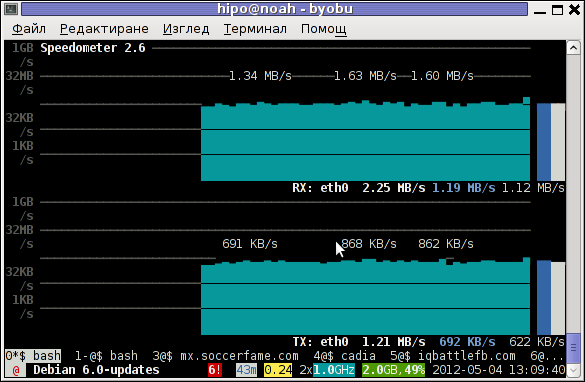
Speedometer ascii traffic track server network business screenshot in byobu screen like virtual terminal emulator

1. Installing speedometer on Debian / Ubuntu and Debian derivatives

For Debian and Ubuntu server administrators speedometer is already packaged as a deb so its installation is as simple as:

debian:~# apt-get --yes install speedometer
....

2. Installing speedometer from source for other Linux distributions CentOS, Fedora, SuSE etc.

Speedometer is written in python programming language, so in order to install and use on other OS Linux platforms, it is necessery to have installed (preferably) an up2date python programming language interpreter (python ver. 2.6 or higher)..
Besides that it is necessary to have installed the urwid -( console user interface library for Python) available for download via excess.org/urwid/


Hence to install speedometer on RedHat based Linux distributions one has to follow these steps:

a) Download & Install python urwid library

[root@centos ~]# cd /usr/local/src
[root@centos src]# wget -q http://excess.org/urwid/urwid-1.0.1.tar.gz
[root@centos src]# tar -zxvvf urwid-1.0.1.tar.gz
....
[root@centos src]# cd urwid-1.0.1
[root@centos urwid-1.0.1]# python setup.py install
running install
running build
running build_py
creating build
creating build/lib.linux-i686-2.4
creating build/lib.linux-i686-2.4/urwid
copying urwid/tests.py -> build/lib.linux-i686-2.4/urwid
copying urwid/command_map.py -> build/lib.linux-i686-2.4/urwid
copying urwid/graphics.py -> build/lib.linux-i686-2.4/urwid
copying urwid/vterm_test.py -> build/lib.linux-i686-2.4/urwid
copying urwid/curses_display.py -> build/lib.linux-i686-2.4/urwid
copying urwid/display_common.py -> build/lib.linux-i686-2.4/urwid
....

b) Download and install python-setuptools

python-setuptools is one other requirement of speedometer, happily on CentOS and Fedora the rpm package is already there and installable with yum:

[root@centos ~]# yum -y install python-setuptools
....

c) Download and install Speedometer

[root@centos urwid-1.0.1]# cd /usr/local/src/
[root@centos src]# wget -q http://excess.org/speedometer/speedometer-2.8.tar.gz
[root@centos src]# tar -zxvvf speedometer-2.8.tar.gz
.....
[root@centos src]# cd speedometer-2.8
[root@centos speedometer-2.8]# python setup.py install
Traceback (most recent call last):
File "setup.py", line 26, in ?
import speedometer
File "/usr/local/src/speedometer-2.8/speedometer.py", line 112
n = n * granularity + (granularity if r else 0)
^

While running the CentOS 5.6 installation of speedometer-2.8, I hit the
"n = n * granularity + (granularity if r else 0)
error.

After consultation with some people in #python (irc.freenode.net), I've figured out this error is caused due the outdated version of python interpreter installed by default on CentOS Linux 5.6. On CentOS 5.6 the python version is:

[root@centos ~]# python -V
Python 2.4.3

As I priorly said speedometer 2.8's minimum requirement for a python to be at v. 2.6. Happily there is quick way to update python 2.4 to python 2.6 on CentOS 5.6, as there is an RPM repository maintained by Chris Lea which contains RPM binary of python 2.6.

To update python 2.4 to python 2.6:

[root@centos speedometer-2.8]# rpm -Uvh http://yum.chrislea.com/centos/5/i386/chl-release-5-3.noarch.rpm[root@centos speedometer-2.8]# rpm --import /etc/pki/rpm-gpg/RPM-GPG-KEY-CHL[root@centos speedometer-2.8]# yum install python26

Now the newly installed python 2.6 is executable under the binary name python26, hence to install speedometer:

[root@centos speedometer-2.8]# python26 setup.py install
[root@centos speedometer-2.8]# chown root:root /usr/local/bin/speedometer
[root@centos speedometer-2.8]# chmod +x /usr/local/bin/speedometer

[root@centos speedometer-2.8]# python26 speedometer -i 1 -tx eth0

The -i will instruct speedometer to refresh the screen graphs once a second.

3. Using speedometer to keep an eye on send / received traffic network congestion

To observe, the amount of only sent traffic via a network interface eth0 with speedometer use:

debian:~# speedometer -tx eth0

To only keep an eye on received traffic through eth0 use:

debian:~# speedometer -rx eth0

To watch over both TX and RX (Transmitted and Received) network traffic:

debian:~# speedometer -tx eth0 -rx eth0

If you want to watch in separate windows TX and RX traffic while  running speedometer you can run in separate xterm windows speedometer -tx eth0 and speedometer -rx eth0, like in below screenshot:
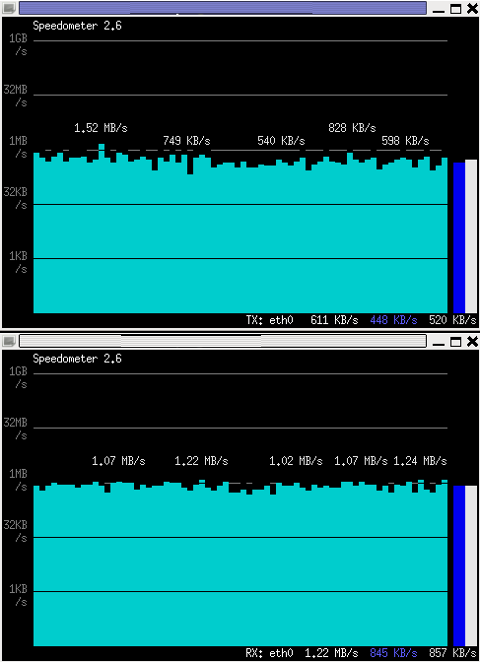
Monitor Received and Transmitted server Network traffic in two separate xterm windows with speedometer ascii graphs

4. Using speedometer to test network maximum possible transfer speed between server (host A) and server (host B)

The speedometer manual suggests few examples one of which is:

How fast is this LAN?

host-a$ cat /dev/zero | nc -l -p 12345
host-b$ nc host-a 12345 > /dev/null
host-b$ speedometer -rx eth0

When I red this example in speedometer's manual, it wasn't completely clear to me what the author really meant, but a bit after when I thought over the example I got his point.

The idea behind this example is that a constant stream of zeros taken from /dev/zero will be streamed over via a pipe (|) to nc which will bind a port number 12345, anyone connecting from another host machine, lets say a server with host host-b to port 12345 on machine host-a will start receiving the /dev/zero streamed content.

Then to finally measure the streamed traffic between host-a and host-b machines a speedometer is started to visualize the received traffic on network interface eth0, thus measuring the amount of traffic flowing from host-a to host-b

I give a try to the exmpls, using for 2 test nodes my home Desktop PC, Linux running  arcane version of Ubuntu and my Debian Linux notebook.

First on the Ubuntu PC I issued
 

hipo@hip0-desktop:~$ cat /dev/zero | nc -l -p 12345
 

Note that I have previously had installed the netcat, as nc is not installed by default on Ubuntu and Debian. If you, don't have nc installed yet, install it with:

apt-get –yes install netcat

"cat /dev/zero | nc -l -p 12345" will not produce any output, but will display just a blank line.

Then on my notebook I ran the second command example, given in the speedometer manual:
 

hipo@noah:~$ nc 192.168.0.2 12345 > /dev/null

Here the 192.168.0.2 is actually the local network IP address of my Desktop PC. My Desktop PC is connected via a normal 100Mbit switch to my routing machine and receives its internet via  NAT. The second test machine (my laptop), gets its internet through a WI-FI connection received by a Wireless Router connected via a UTP cable to the same switch to which my Desktop PC is connected.

Finally to test / get my network maximum thoroughput I had to use:

hipo@noah:~$ speedometer -rx wlan0

Here, I  monitor my wlan0 interface, as this is my (laptop) wireless card interface over which I have connectivity to my local network and via which through the the WI-FI router I get connected to the internet.

Below is a snapshot captured showing approximately what is the max network thoroughput from:

Desktop PC -> to my Thinkpad R61 laptop
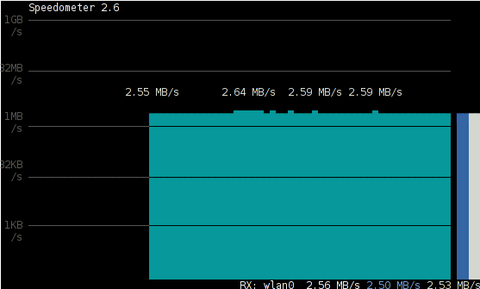
Using Speedometer to test network thorougput between two network server hosts screenshot Debian Squeeze Linux

As you can see in the shot approximately the maximum network thoroughput is in between:
2.55MB/s min and 2.59MB/S max, the speed is quite low for a 100 MBit local network, but this is normal as most laptop wireless adapters hardly transfer traffic in more than 10 to 20 MBits per sec.

If the same nework thoroughput test is conducted between two machines both connected to a same 100 M/bit switch, the traffic should be at least a 8 MB/sec.

There is something, else to take in consideration that probably makes the provided example network thoroughput measuring a bit inaccurate. The fact that the /dev/zero content is stremed over is slowing down the zeroes sent over network because of the  pipe ( | ) use slows down the stream.

5. Using speedometer to visualize maximum writting speed to a local hard drive on Linux

In the speedometer manual, I've noticed another interesting application of this nifty tool.

speedometer can be used to track and visualize the maximum writing speed a hard disk drive or hard drive partition can support on Linux OS:

A copy paster from the manual text is as follows:

How fast can I write data to my filesystem? (with at least 1GB free)
dd bs=1000000 count=1000 if=/dev/zero of=bigfile &
speedometer bigfile

However, when I tried copy/pasting the example in terminal, to test the maximum writing speed to an external USB hard drive, only dd command was started and speedometer failed to initialize and display graphs of the file creation speed.

I've found a little "hack" that makes the man example work by adding a 3 secs sleep like so:

debian:/media/Expansion Drive# dd bs=1000000 count=1000 if=/dev/zero of=bigfile & sleep 3; speedometer bigfile

Here is a screenshot of the bigfile created by dd and tracked "in real time" by speedometer:
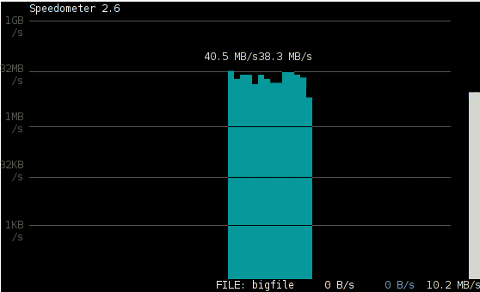
How fast is writting data to local USB expandable hard disk Debian Linux speedometer screenshot

Actually the returned results from this external USB drive are, quite high, the possible reason for that is it is connected to my laptop over an USB protocol verion 3.

6. Using Speedometer to keep an eye on file download in progress

This application of speedometer is mostly useless especially on Linux where it is used as a Desktop.

However in some occasions if files are transferred over ssh or in non interactive FTP / Samba file transfers between Linux servers it can come handy.

To visualize the download and writing speed of lets say FTP transferred .AVI movie (during the actual file transfer) on the download host issue:

# speedometer Download-Folder/What-goes-around-comes-around.avi

7. Estimating approximate time for file transfer

There is another section in the speedometer manual pointing of the program use to calculate the time remaining for a file transfer.

The (man speedometer) provided example text is:

How long it will take for my 38MB transfer to finish?
speedometer favorite_episode.rm $((38*1024*1024))

At first glimpse it hard to understand (like the other manual example). A bit of reasoning and I comprehend what the man author meant by the obscure calculation:

$((38*1024*1024))

This is a formula used in which 38 has to be substituted with the exact file size amount of the transferred file. The author manual used a 38MB file so this is why he put $((38* … in the formula.

I give it a try – (just for the sake to see how it works) with a file with a size of 2500MB, in below two screenshot pictures I show my preparation to copy the file and the actual copying / "real time" transfer tracking with speedometer's status percentage completion bar.
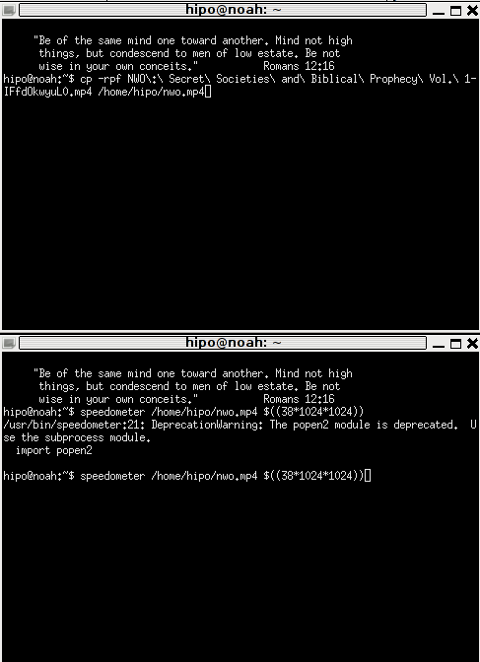
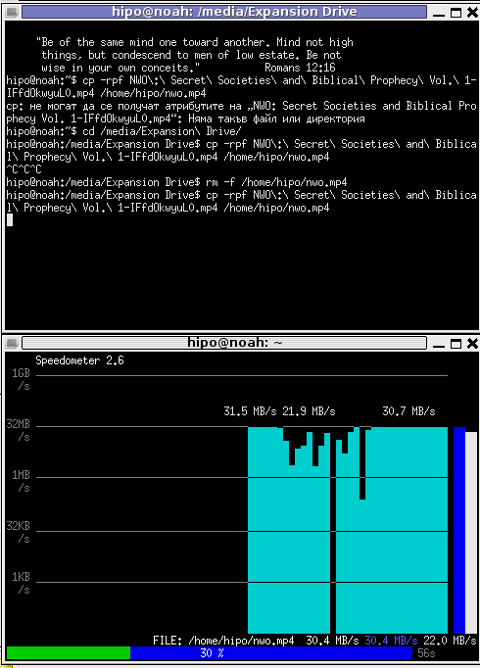
xterm terminal copy file and estimate file copying operation speed on linux with speedometer preparation

Two xterm terminals one is copying a file the other one uses speedometer to estimate the time remaining to complete the file transfer from expansion USB hard drive to my laptop harddrive

Share this on

How to make screenshot in /dev/tty console on GNU / Linux – Taking picture JPEG / PNG snapshot of text console in systems without graphical environment

Monday, April 30th, 2012

I'm used to making picture screenshots in GNOME desktop environment. As I've said in my prior posts, I'm starting to return to my old habits of using console ttys for regular daily jobs in order to increase my work efficiency. In that manner of thoughts sometimes I need to take a screenshot of what I'm seeing in my physical (TTY consoles) to be able to later reuse this. I did some experimenting and this is how this article got born.

In this post, I will shortly explain how a picture of a command running in console or terminal in GNU / Linux can be made

Before proceeding to the core of the article, I will say few words on ttys as I believe they might be helpful someone.
The abbreviation of tty comes after TeleTYpewritter phrase and is dating back somewhere near the 1960s. The TTY was invented to help people with impaired eyesight or hearing to use a telephone like typing interface.

In Unix / Linux / BSD ttys are the physical consoles, where one logs in (typing in his user/password). There are physical ttys and virtual vtys in today *nixes. Today ttys, are used everywhere in a modern Unixes or Unix like operating system with or without graphical environments.
Various Linux distributions have different number of physical consoles (TTYs) (terminals connected to standard output) and this depends mostly on the distro major contributors, developers or surrounding OS community philosophy.
Most modern Linux distributions have at least 5 to 7 physical ttys. Some Linux distributions like Debian for instance as of time of writting this, had 7 active by default physical consoles.
Adding 3 more ttys in Debian / Ubuntu Linux is done by adding the following lines in /etc/inittab:
 

7:23:respawn:/sbin/getty 38400 tty7
8:23:respawn:/sbin/getty 38400 tty8
9:23:respawn:/sbin/getty 38400 tty9

On some Linux distributions like Fedora version 9 and newer ones, new ttys can no longer be added via /etc/inittab,as the RedHat guys changed it for some weird reason, but I guess this is too broad issue to discuss ….

In graphical environments ttys are called methaphorically "virtual". For instance in gnome-terminal or while connecting to a remote SSH server, a common tty naming would be /dev/pts/8 etc.

tty command in Linux and BSDs can be used to learn which tty, one is operating in.

Here is output from my tty command, issued on 3rd TTY (ALT+F3) on my notebook:
 

noah:~# tty
/dev/tty3

A tty cmd output from mlterm GUI terminal is like so:
 

hipo@noah:~$ tty/dev/pts/9

Now as mentioned few basic things on ttys I will proceed further to explain how I managed to:

a) Take screenshot of a plain text tty screen into .txt file format
b) take a (picture) JPG / PNG screenshot of my Linux TTY consoles content

1. Take screenshot of plain text tty screen into a plain (ASCII) .txt file:

To take a screenshot of tty1, tty2 and tty3 text consoles in a txt plain text format, cat + a standard UNIX redirect is all necessery:
 

noah:~# cat /dev/vcs1 > /home/hipo/tty1_text_screenshot.txt
noah:~# cat /dev/vcs2 > /home/hipo/tty2_text_screenshot.txt
noah:~# cat /dev/vcs3 > /home/hipo/tty3_text_screenshot.txt

This will dump the text content of the console into the respective files, if however you try to dump an ncurses library like text interactive interfaces you will end up with a bunch of unreadable mess.
In order to read the produced text 'shots' onwards less command can be used …
 

noah:~# less /home/hipo/tty1_text_screenshot.txt
noah:~# less /home/hipo/tty2_text_screenshot.txt
noah:~# less /home/hipo/tty3_text_screenshot.txt

2. Take picture JPG / PNG snapshot of Linux TTY console content

To take a screenshot of my notebook tty consoles I had to first install a "third party program" snapscreenshot . There is no deb / rpm package available as of time of writting this post for the 4 major desktop linux distributions Ubuntu, Debian, Fedora and Slackware.
Hence to install snapscreenshot,I had to manually download the latest program tar ball source and compile e.g.:
 

noah:~# cd /usr/local/src
noah:/usr/local/src# wget -q http://bisqwit.iki.fi/src/arch/snapscreenshot-1.0.14.3.tar.bz2
noah:/usr/local/src# tar -jxvvvf snapscreenshot-1.0.14.3.tar.bz2

noah:/usr/local/src# cd snapscreenshot-1.0.14.3
noah:/usr/local/src/snapscreenshot-1.0.14# ./configure && make && make install
Configuring…
Fine. Done. make.
make: Nothing to be done for `all'.
if [ ! "/usr/local/bin" = "" ]; then mkdir –parents /usr/local/bin 2>/dev/null; mkdir /usr/local/bin 2>/dev/null; \
for s in snapscreenshot ""; do if [ ! "$s" = "" ]; then \
install -c -s -o bin -g bin -m 755 "$s" /usr/local/bin/"$s";fi;\
done; \
fi; \
if [ ! "/usr/local/man" = "" ]; then mkdir –parents /usr/local/man 2>/dev/null; mkdir /usr/local/man 2>/dev/null; \
for s in snapscreenshot.1 ""; do if [ ! "$s" = "" ]; then \
install -m 644 "$s" /usr/local/man/man"`echo "$s"|sed 's/.*\.//'`"/"$s";fi;\
done; \
fi

By default snapscreenshot command is made to take screenshot in a tga image format, this format is readable by most picture viewing programs available today, however it is not too common and not so standartized for the web as the JPEG and PNG.
Therefore to make the text console tty snapshot taken in PNG or JPEG one needs to use ImageMagick's convert tool. The convert example is also shown in snapscreenshot manual page Example section.

To take a .png image format screenshot of lets say Midnight Commander interactive console file manager running in console tty1, I used the command:
 

noah:/home/hipo# snapscreenshot -c1 -x1 > ~/console-screenshot.tga && convert ~/console-screenshot.tga console-screenshot.png

Linux text console tty mc screenshot with snapscreenshot terminal / console snapshotting program

Note that you need to have read/write permissions to the /dev/vcs* otherwise the snapscreenshot will be unable to read the tty and produce an error:
 

hipo@noah:~/Desktop$ snapscreenshot -c2 -x1 > snap.tga && convert snap.tga snap.pngGeometry will be: 1x2Reading font…/dev/console: Permission denied

To take simultaneous picture screenshot of everything contained in all text consoles, ranging from tty1 to tty5, issue:
 

noah:/home/hipo# snapscreenshot -c5 -x1 > ~/console-screenshot.tga && convert ~/console-screenshot.tga console-screenshot.png

Here is a resized 480×320 pixels version of the original screenshot the command produces:

All text Consoles tty1 to tty5 merged screenshot png image with snapscreenshot taken on Debian GNU / Linux

Storing a picture shot of the text (console) screen in JPEG (JPG) format is done analogously just the convert command output extension has to be changed to jpeg i.e.:
 

noah:/home/hipo# snapscreenshot -c5 -x1 > ~/console-screenshot.tga && convert ~/console-screenshot.tga console-screenshot.jpeg

I've also written a tiny wrapper shell script, to facilitate myself picture picture taking as I didn't like to type each time I want to take a screenshot of a tty the above long line.

Here is the wrapper script I wrote:
 

#!/bin/sh
### Config
# .tga produced file name
output_f_name='console-screenshot.tga';
# gets current date
cur_date=$(date +%d_%m_%Y|sed -e 's/^ *//');
# png output f name
png_f_name="console-screenshot-$cur_date.png";
### END Config
snapscreenshot -c$arg1 -x1 > $output_f_name && convert $output_f_name $png_f_name;
echo "Output png screenshot from tty1 console produced in";
echo "$PWD/$png_f_name";
/bin/rm -f $output_f_name;

You can also download my console-screenshot.sh snapscreenshot wrapper script here

The script is quite simplistic to use, it takes just one argument which is the number of the tty you would like to screenshot.
To use my script download it in /usr/local/bin and set it executable flag:
 

noah:~# cd /usr/local/bin
noah:/usr/local/bin# wget -q http://www.pc-freak.net/~bshscr/console-screenshot.sh
noah:/usr/local/bin# chmod +x console-screenshot.sh

Onwards to use the script to snapshot console terminal (tty1) type:
 

noan:~# console-screenshot.sh

I've made also mirror of latest version of snapscreenshot-1.0.14.3.tar.bz2 here just in case this nice little program disappears from the net in future times.


Share this on