Play Midis on Linux or Make Linux MIDI Ready for the Future – Enable embedded MIDI music to play in a Browser, Play MIDIs with VLC and howto enjoy Midis in Text Console HOWTO
Playing MIDI has been quite a lot of fun historically,
if you grow up in the days when personal computers were still young and the Sound Blaster was a luxury, before the raise of Mp3 music format, you have certainly enjoyed the beeping of PC Speaker and later on during 386 and 486 / 586 computers the enjoyment of playing tracked music such as S3M and MOD,
in that good days playing MIDI music was the only alternative for PC maniacs who doesn't own a CD Drive (which itself) was another luxury and even thouse who had a CD ROM device, were mainly playing music in CD audio format (.CDA).
Anyhow MIDI was a cheap and a CPU unintensive way to listen to equivalent of favourite popular Audio Songs and for those who still remember many of the songs were recreated in MIDI format, just with a number of synthesized instruments without any voice (as MIDI is usually).
The same was true also for the good old days of raise of Mobile Phones, when polyphonic was a standard as CPU power was low MIDI was a perfect substitute for the CPU heavy Encoded MP3s / OGG and other formats that required a modern for that time Intel CPU running in 50+ Mhz usually 100 / 166Mhz was perfect for the days to play Mp3 but still even on that PCs we listened to Midi songs.
Therefore if you're one of those people like me who still enjoy to play some Midi Music in the year 2017 and feel a bit like Back into the Future movie and a Free Software fan and user, especially if you're a novice GNU / Linux Free Software user, you will be unpleasently surprised that most today's default Linux distributions doesn't have an easy way to play Midi music format out of the box right after install.
Hence below article aims to give you an understanding on
How you can play Midi Music on GNU / Linux Operating System
First, lets Prepare to load necessery Linux kernel modules to make sure MIDI can be played by soundcard:
In /etc/modules make sure you have the following list of modules loaded:
linux-desktop:~# cat /etc/modules
3c59x
snd-emu10k1
snd-pcm-oss
snd-mixer-oss
snd-seq-oss
!Note the modules are working as of time of writting and in time can change to some other modules, depending on how the development of ALSA (Advanced Linux Sound Architecture) goes, and if the developers decide to rename the upmentioned modules
If you just have added the modules to /etc/modules with vim / nano to reload modules into the Linux kernel run:
linux-desktop:~# modprobe -a
Secondly, Installing a whole bunch of MIDI music related program tools can be achieved in Debian by installing the multimedia-midi package, e.g.:
linux-desktop:~# apt-get install –yes multimedia-midi
1. Playing Midi in Graphical environment with a double click using VLC
How to make MIDI easy listanable in Linux graphical environment like GNOME / KDE / XFCE desktop ?
If you want to make Midi music execution sa easy as just clicking on the .MIDI file format on Linux you can do that with a midi extension available for VLC (Video Lan Client) Universal Multi Platform Media Player player
To install it on Debian Ubuntu GNU / Linux
# apt-get install –yes vlc-plugin-fluidsynth
Необходимо е да се изтеглят 6754 B архиви.
След тази операция ще бъде използвано 35,8 kB допълнително дисково пространство.
Изт:1 http://deb.debian.org/debian stretch/main amd64 vlc-plugin-fluidsynth amd64 2.2.6-1~deb9u1 [6754 B]
Изтеглени 6754 B за 0с (33,6 kB/сек)
Selecting previously unselected package vlc-plugin-fluidsynth:amd64.
(Reading database … 382976 files and directories currently installed.)
Preparing to unpack …/vlc-plugin-fluidsynth_2.2.6-1~deb9u1_amd64.deb …
Unpacking vlc-plugin-fluidsynth:amd64 (2.2.6-1~deb9u1) …
Setting up vlc-plugin-fluidsynth:amd64 (2.2.6-1~deb9u1) …
Processing triggers for libvlc-bin:amd64 (2.2.6-1~deb9u1) …
Besides making your MIDI play on the GUI environment easy as a a point and click VLC will also be able to play MIDIs on GNU / Linux from your favourite browser (nomatter Firefox / Chrome or Opera), even though the player would play in a new PopUP Window it is easy to select once MIDI file from a random website for example – here is a directory listing of Webserver with Doom II Soundtrack in MIDI format , click over any file from list and Choose option for VLC to always remember that MIDI files has to be opened with VLC player.
2. Enable Firefox / IceWeasel browser to Support Website embedded MIDI files
So VLC could make you listen the downloadable MIDIs from Web pages but,
What if you have stumbled on an old website which was configured with very OLD HTML Code to play some nice music (or even different MIDI songs) for each part of the website (for each webpage) and you want to have the Websites created with embedded MIDIs to automatically play on Linux oncce you visit the site?
Sadly default support in Browser for MIDI across all GNU / Linux, I've used so far never worked out of the box, not that still anyone is developing modern websites with MIDIs, but still for the sake of backward compitability and for sake of interactivity it is worthy to enable embedded MIDI support in Linux
But with a couple of tunings as usual GNU / Linux can do almost everything, so here is how to enable embedded browser support for Midi on Linux (That should work with minor modifications not only on Debian / Ubuntu / ArchLinux but also on Fedoras, CentOS etc.
If you try it on any of this distributions, please drop a short comment and tell me in few lines how you made embedded midi worked on that distros.
apt-get install –yes timidity mozplugger
Next do restart firefox
Sometimes in order to work you might need to delete /home/[YOUR_USERNAME]/.mozilla/pluginreg.dat and restart firefox again, e.g. make a backup and give it a try:
cp -rpf /home/hipo/.mozilla/pluginreg.dat /home/hipo/.mozilla/pluginreg.dat.bak
rm -f /home/hipo/.mozilla/pluginreg.dat
Another good tip as talking for embedding MIDI support is to embed XPDF to render PDF pages inside the Browser, by default this is done by GNOME's Evince PDF reader but as it is sometimes buggy and might crash it is generally a good idea to switch to xpdf instead, if for some reason PDF is not directly displaying in browser or suddenly stopped working after some distro uipgrade, you might want to do below as well:
apt-get install xpdf
vim /etc/mozpluggerrc
Fin d and Comment out the line starting with:
It should look like this afterwards:
Repeat Swallow ….
text/x-pdf: pdf: PDF file
# repeat swallow(documentShell) fill: acroread -geometry +9000+9000 +useFrontEndProgram "$file"
repeat noisy swallow(Xpdf) fill: xpdf -g +9000+9000 "$file"
repeat noisy swallow(gv) fill: gv –safer –quiet –antialias -geometry +9000+9000 "$file"
3. Play Midi music in Linux text console / terminal
There is a console tool that historically has been like the Linux standard for playing midis over the years as I remember, its called timidity
To install timidity on .Deb based Linux:
linux-desktop:~$ su root
Password:
linux-desktop:~# apt-get install –yes timidity
Необходимо е да се изтеглят 0 B/580 kB архиви.
След тази операция ще бъде използвано 0 B допълнително дисково пространство.
(Reading database … 382981 files and directories currently installed.)
Preparing to unpack …/timidity_2.13.2-40.5_amd64.deb …
Unpacking timidity (2.13.2-40.5) over (2.13.2-40.5) …
Processing triggers for menu (2.1.47+b1) …
Processing triggers for man-db (2.7.6.1-2) …
Setting up timidity (2.13.2-40.5) …
Processing triggers for menu (2.1.47+b1) …
To test your new MIDI Synthesizer tool and make the enjoyment full you can download Doom 2 extracted MIDI Soundtrack from here
Once you have downloaded above Metal MIDI DOOM old school arcade soundtrack and untarred it into your home directory be it ~/doom-midis
A remark to make here is timidity is quite CPU intensive, but on modern Dual and Quad-Core PC Notebooks, the CPU load is not of a big concern.
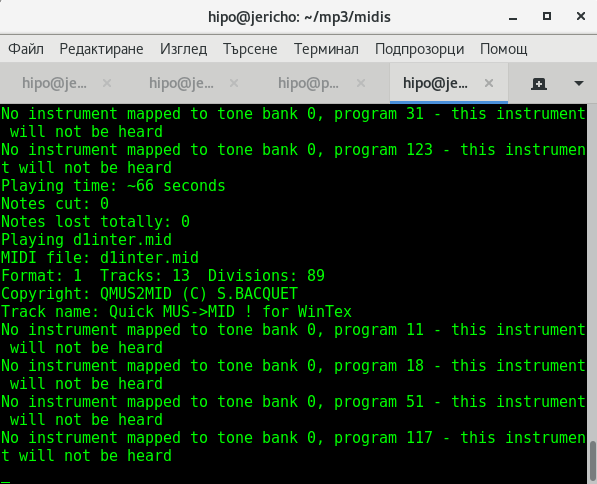
To test and play with timidity:
linux-desktop~$ timidity ~/mp3/midis/*
hipo@jericho:~/mp3/midis$ aplaymidi -l
Port Client name Port name
14:0 Midi Through Midi Through Port-0
128:0 TiMidity TiMidity port 0
128:1 TiMidity TiMidity port 1
128:2 TiMidity TiMidity port 2
128:3 TiMidity TiMidity port 3
We have also the playmidi (simple midi text console terminal player), which historically was working quite decent and I use it to in the past on my RedHat 6.0 and RedHat 7.0 to listen to my .MID format files but unfortunately as of time of writting something is wrong with it, so when I try to play MIDIs with it instead of timidity I get this erro:
$ playmidi *.mid
Playmidi 2.4 Copyright (C) 1994-1997 Nathan I. Laredo, AWE32 by Takashi Iwai
This is free software with ABSOLUTELY NO WARRANTY.
For details please see the file COPYING.
open /dev/sequencer: No such file or directory
Even though I tried hard to resolve that error by loading various midi related MIDI modules and following a lot of the suggestions online on how to make /dev/sequencer work again it was all no luck.
Some people back in the distant year 2005, reported the problem was solved by simply loading snd-seq
But as of time of writting:
# modprobe snd-seq
Some people said in archlinux's Forum
/dev/sequencer sequencer: No such file or directory
is solved by loading snd-seq-oss kernel module, but on my Debian Linux 9.1 Stretch, this ain't work as well :
root@jericho:/home/hipo/mp3/midis# modprobe snd-seq-oss
modprobe: FATAL: Module snd-seq-oss not found in directory /lib/modules/4.9.0-3-amd64
root@jericho:/home/hipo/mp3/midis# uname -a;
Linux jericho 4.9.0-3-amd64 #1 SMP Debian 4.9.30-2+deb9u5 (2017-09-19) x86_64 GNU/Linux
Another invention of mine was to try to also link /dev/snd/seq to /dev/sequencer but this produced no positive result either:
# ln -sf /dev/snd/seq /dev/sequencer
# ls -al /dev/sequencer
lrwxrwxrwx 1 root root 12 окт 4 16:48 /dev/sequencer -> /dev/snd/seq
Note that after lining in that way I got following error with my attempt to play MIDIs with playmidi
# playmidi *.mid
Playmidi 2.4 Copyright (C) 1994-1997 Nathan I. Laredo, AWE32 by Takashi Iwai
This is free software with ABSOLUTELY NO WARRANTY.
For details please see the file COPYING.
there is no soundcard
Anyhow on some other Linux distributions (especially with Older Kernel versions), some of the above 3 suggested Fix might work perfectly fine so if you have some time give it a try please and drop me a comment on how it went, you will help the GNU / Linux community out there that way.
Well never mind the bollocks, so
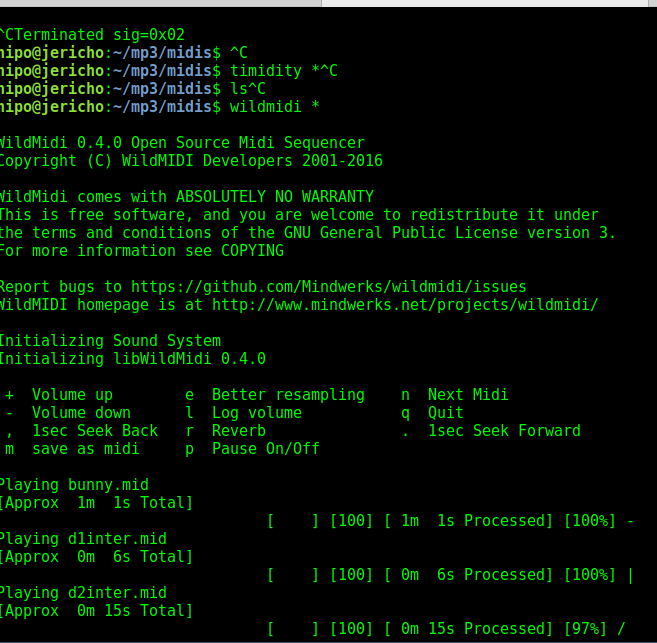
Now back to where I started timidity even though it will play fine it will not give any indication on the lenght of the midi song (precious information such as how much time is left until the end is over).
Hence if you prefer a player that gives you an indicator on how much is left towards the end length of each of the played MIDI file you can give a try to wildmidi:
linux-desktop:~$ apt-cache show wildmidi|grep -i description -A 2
Description-en: software MIDI player
Minimal MIDI player implementation based on the wildmidi library that
can either dump to WAV or playback over ALSA. It is intended to
—
Description-md5: b4b34070ae88e73e3289b751230cfc89
Homepage: http://www.mindwerks.net/projects/wildmidi/
Tag: implemented-in::c, role::program, sound::midi, sound::player,
—
Description: software MIDI player
Description-md5: 4673a7051f104675c73eb344bb045607
Homepage: http://wildmidi.sourceforge.net/
Bugs: https://bugs.launchpad.net/ubuntu/+filebug
If yet not installed install it after becoming admin user:
linux-desktop:~$ su root
Password:
linux-desktop:~# apt-get install –yes wildmidi
wildmidi is much less CPU intensive (it uses gstreamer to play (Gstreamer – open source multimedia framework)
And next give it a try by running:
linux-desktop:~$ wildmidi ~/mp3/midis/*
4. Editting MIDI files with Free Software and Proprietary MIDI Editor Programs
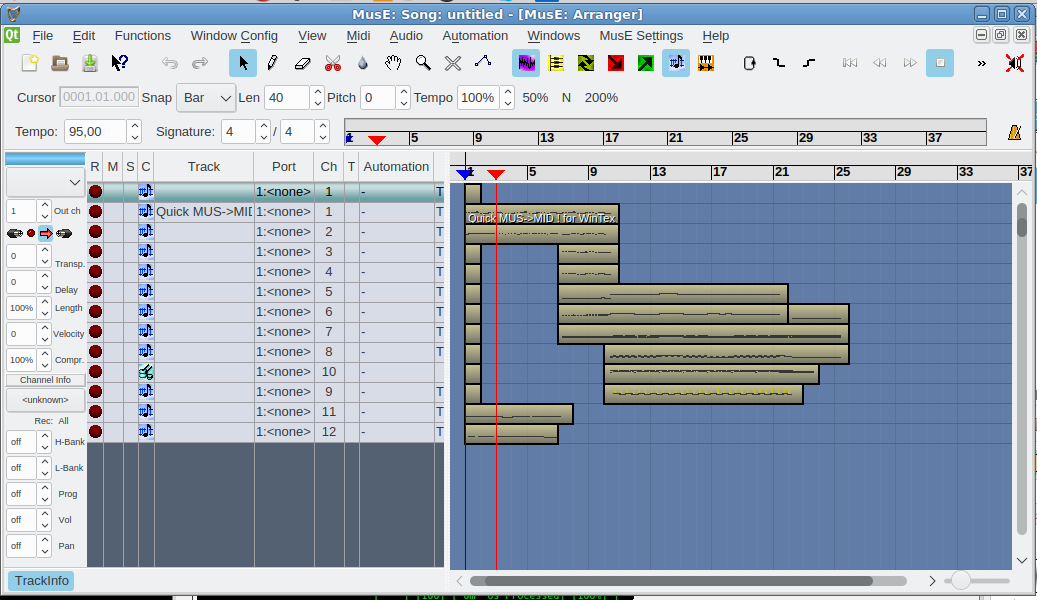
If you want a professional software that can play Midi in a fuzzy interactive GUI way and have some extra possibilities to edit MIDIs and other format give a try to Muse Sequencer:
linux-desktop:~$ sudo apt-get install –yes muse
The following NEW packages will be installed:
muse
0 upgraded, 1 newly installed, 0 to remove and 38 not upgraded.
Need to get 5814 kB of archives.
After this operation, 21.0 MB of additional disk space will be used.
Get:1 http://deb.debian.org/debian stretch/main amd64 muse amd64 2.1.2-3+b1 [5814 kB]
Fetched 5814 kB in 2s (2205 kB/s)
are supported and installed on your system.
Preconfiguring packages …
Selecting previously unselected package muse.
(Reading database … 382981 files and directories currently installed.)
Preparing to unpack …/muse_2.1.2-3+b1_amd64.deb …
Unpacking muse (2.1.2-3+b1) …
Processing triggers for mime-support (3.60) …
Processing triggers for desktop-file-utils (0.23-1) …
Processing triggers for doc-base (0.10.7) …
Processing 1 added doc-base file…
Registering documents with scrollkeeper…
Processing triggers for man-db (2.7.6.1-2) …
Processing triggers for shared-mime-info (1.8-1) …
Unknown media type in type 'all/all'
Unknown media type in type 'all/allfiles'
Processing triggers for gnome-menus (3.13.3-9) …
Setting up muse (2.1.2-3+b1) …
Processing triggers for hicolor-icon-theme (0.15-1) …
Below is short description what Muse can do for you:
MusE is a MIDI/audio sequencer with recording and editing capabilities.
Some Highlights:
* Standard midifile (smf) import-/export.
* Organizes songs in tracks and parts which you can arrange with
the part editor.
* MIDI editors: pianoroll, drum, list, controller.
* Score editor with high quality postscript printer output.
* Realtime: editing while playing.
* Unlimited number of open editors.
* Unlimited undo/redo.
* Realtime and step-recording.
* Multiple MIDI devices.
* Unlimited number of tracks.
* Sync to external devices: MTC/MMC, Midi Clock, Master/Slave.
* Audio tracks, LADSPA host for master effects.
* Multithreaded.
* Uses raw MIDI devices.
* XML project file.
* Project file contains complete app state (session data).
* Application spanning Cut/Paste Drag/Drop.
linux-desktop~:$ muse
Below is another non-free program that you might, try if MusE doesn't fit your needs (is not rich enough for editting capabilities is bitwig (though I don't recommend since it is not free software)
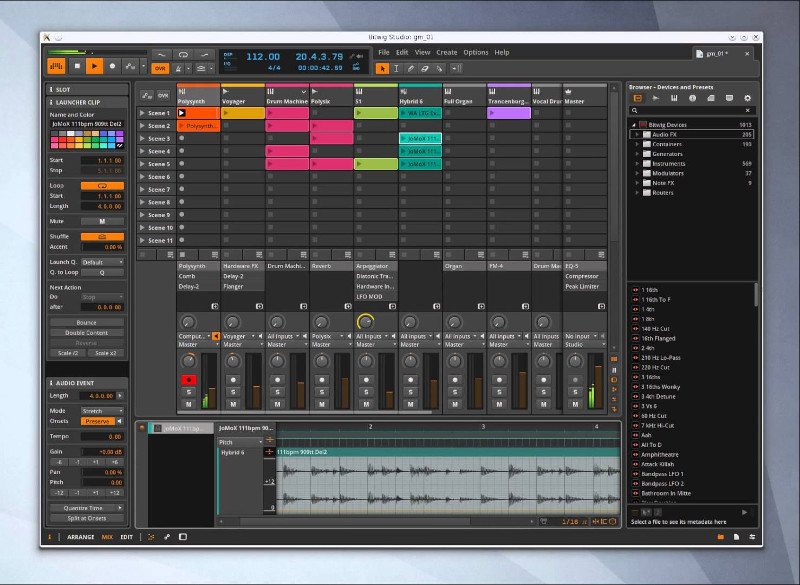
5. Some examples for Text editing and MIDI Conversion to CSV and ABC file formats There is pretty much more
For the MIDI Extremists who or people that create MIDIs and want to learn how a MIDI is made (the content of it etc.), I suggest you take a look at these 3 command line MIDI editing / conversion tools
- midi2abc – A little tool to create MIDI formats to ABC format
- midi2csv – Conver tour Favourite MIDI files to CSV for educational purposes so see what Channels, Tracks and Time Intervals is a MIDI song mad
- midicopy – Copy selected, track, channel, time interval of MIDI file to another MIDI file3
Well, that's all folks now enjoy your MIDIs and don't forget to donate, as I'm jobless at the moment and the only profit I make is just a few bucks out of advertisement on this blog.