Posts Tagged ‘Files’

How to list Files in a directory and generate web URLS with PHP

Tuesday, April 10th, 2012

I needed a short PHP script that reads all, my .html files in a directory and then generates html a hrefs links pointing to each of the html files stored in the directory.

Here is the short code I come up:

$directory_to_open=”my-dir/”;
$max_files=100;
$i=0;
if ($handle = opendir(“$directory_to_open”)) {
while (false !== ($file = readdir($handle)) && $i <= $max_files)
{
$i=$i+1;
if ($file != “.” && $file != “..”)
{
$thelist .= ‘| ‘.str_replace(“.html”,”",$file).’ |’;
echo “$thelist”; }
}
closedir($handle);
}

In my case the directories with html were planned to contain, less than 100 files a directory, so in order to show links to only the first 100 files in the directory, I used the $max_files=100 and a check if value is reached in the while loop. For anyone who want to build html you see in above while if $max_files is reached then the while loop exits.

Because by default the files returned contained the naming format file_name.html, whether I wanted to show only the file name without the .html extensions used str_replace(); to get rid of file extensions string.

Share this on

How to print simple text pages on Linux in console with old LPR parallel port attached printer

Tuesday, February 7th, 2012

LPT parallel port pinout diagram with explanations

Many younger people, might not know lpr command, historically it was heavily used for printing in the early GNU / Linux days.
lpr ships the text to be printed to the printer which is physically attached on LPT (Line Print Terminal) parallel port . Those who lived the DOS era surely know in those "ancient" days, everyone who wanted to print has to use the LPT parallel port

Present time, everyone knows there is almost no modern printer that is attached to the PC via LPT port but rather the USB port is used for communication between the printer the computer.
Nevertheless The USB printers on Linux are managed by CUPS, the lpr command is still functional shipping the text to be printed via CUPS (cups-lpd daemon).
Before cups-lpd was introduced the service managing the print jobs was lpd
Hence lpr is still functional.

To print a plain text file of one page with lpr on Linux:

linux:~# cat text-file-to-print.txt | lpr

For multiple printers to switch between multiple printers there is the PRINTER shell variable:

linux:~# export PRINTER=printer-Name-and-Type

To print a really long text file (a book in TXT) the pr command comes handy. As you can read in the cmd manual pr converts text files for printing

Lets say you would like to have a 60 lines of text per printed page, the cmd to issue is:

linux:~# pr -l60 text-file-to-print.txt | lrp

All queued printing jobs can be reviewed with the lpq, if you have a printer attached try:

linux:~# lpq
lp is ready and printing
Rank Owner Job Files Total Size
active hipo 1 text-file-to-print.txt 62045 bytes

Since some years it is pretty rare for people to use lpq, since most of the parallel printing is managed by CUPS server, what most people use nowdays to check the printer queue is lpstat : e.g.

linux:~# lpstat
...

Printing status and all things related to queued jobs for printing gets logged in /var/log/lpr.log

There is even more simplistic way to print directly to the printer (if the printer is attached via a LPT port) through the kernel /dev/lp, for example:

linux:~# cat text-file-to-print.txt >> /dev/lp

For more than one printer attached the naming of /dev/lp, might probably be /dev/lp0, /dev/lp1 etc.
The lprm command also exists in case if you would like to cancel a printjob in the queue. Lets say I want to cancel a job in the queue with Job ID 5:

linux:~# lrpm 5
...

To cancel a current running job in the middle the /usr/bin/cancel command exists.

An interesting historic fact is that nowdays opening lpr, lpq or any of the other tools for simple text mode printing one sees on top of the page Apple Inc.

Lets clear this up CUPS (Common Unix Printing System) (open source) printing platform is not owned by Apple, since it is licensed under GPL2 and LGPL. The reason why the Apple Inc. shows up in man pages is because in year 2007, the founder of CUPS printing server Michael Sweet hired him to work for Apple Inc. "purchasing" the CUPS source. However as we know they did not really purchased the code, because the code was already belonging to the community (licensed under GPL2). Apple however as a marketing trick used the fact that Sweet worked for them and as probably as a matter of marketing asked him to place the Apple Inc. in the copyright source and manual areas. Obviously this is not true, since Apple Inc. does not hold copyright for CUPS as CUPS can be copied by anyone (its open source) ;)

Most of the people will never print using this commands, since printing is now, ages ahead, anyways for simple people (like me), who just need to print a text with no special fonts or graphics text printing is just great.

Text printing is also a good learning experience for Linux novices and is good to be known just as a piece of UNIX history.

Share this on

How to mount ISO image files in Graphical Environment (GUI) on Ubuntu and Debian GNU/Linux

Saturday, January 14th, 2012

Mounting ISO files in Linux is easy with mount cmd, however remembering the exact command one has to issue is a hard task because mounting ISO files is not a common task.

Mounting ISO files directly by clicking on the ISO file is very nice, especially for lazy people uninitiated with the command line ;)

Besides that I'm sure many Windows users are curious if there is an equivallent program to DaemonTools for Linux / BSD*?

The answer to this question is YES!
There are two major programs which can be used as a DaemonTools substitute on Linux:

These are FuriousISOMount and AcetoneISO
AcetoneISO is more known and I've used it some long time ago and if I'm correct it used to be one of the first ISO Mount GUI programs for Linux. There is a project called GMount-ISO / (GMountISO) which of the time of writting this article seems to be dead (at least I couldn't find the source code).

Luckily FuriousISOMount and AcetoneISO are pretty easy to install and either one of the two is nowdays existing in most Linux distributions.
Probably the programs can also be easily run on BSD platform also quite easily using bsd linux emulation.
If someone has tried something to mount GUIs in Free/Net/OpenBSD, I'll be interesting to hear how?

1. Mount ISO files GUI in GNOME with Furius ISO Mount

FuriousISOMount is a simple Gtk+ interface to mount -t iso9660 -o loop command.

To start using the program on Debian / Ubuntu install with apt;

debian:~# apt-get install furiusisomount
The following extra packages will be installed:
fuseiso fuseiso9660 libumlib0
The following NEW packages will be installed:
furiusisomount fuseiso fuseiso9660 libumlib0

To access the program in GNOME after install use;

Applications -> Accessories -> Furious ISO Mount

Screenshot ISO Mount Tool Debian GNU/Linux Screenshot
 

When mounting it is important to choose Loop option to mount the iso instead of Fuse

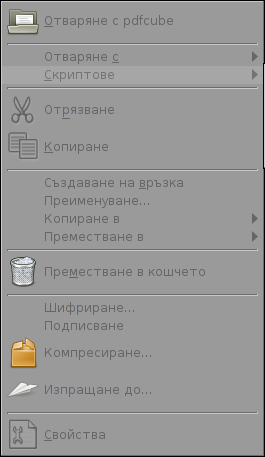
After the program is installed to associate the (.iso) ISO files, to permanently be opened with furiusisomount roll over the .iso file and choose Open With -> Other Application -> (Use a custom command) -> furiusisomount

GNOME Open with menu Debian GNU / Linux

2. Mount ISO Files in KDE Graphical Environment with AcetoneISO

AcetoneISO is build on top of KDE's QT library and isway more feature rich than furiousisomount.
Installing AcetoneISO Ubuntu and Debian is done with:

debian:~# apt-get install acetoneiso
The following NEW packages will be installed:
acetoneiso gnupg-agent gnupg2 libksba8 pinentry-gtk2 pinentry-qt4
0 upgraded, 6 newly installed, 0 to remove and 35 not upgraded.
Need to get 3,963 kB of archives.
After this operation, 8,974 kB of additional disk space will be used.
...

Screenshot Furius ISO Mount Tool Debian GNU/Linux ScreenShot

AcetoneISO supports:
 

  • conversion between different ISO formats
  • burn images to disc
  • split ISO image volumes
  • encrypt images
  • extract password protected files

Complete list of the rich functionality AcetoneISO offers is to be found on http://www.acetoneteam.org/viewpage.php?page_id=6
To start the program via the GNOME menus use;

Applications -> Accessories -> Sound & Video -> AcetoneISO

I personally don't like AcetoneISO as I'm not a KDE user and I see the functionality this program offers as to rich and mostly unnecessery for the simple purpose of mounting an ISO.

3. Mount ISO image files using the mount command

If you're a console guy and still prefer mounting ISO with the mount command instead of using fancy gui stuff use:

# mount -t iso9660 -o loop /home/binary/someiso.iso /home/username/Iso_Directory_Name


Share this on

How to set up Path to .exe GNUWin32 binary files in Windows XP / Vista / 2003 / 2008 (Setting PATH to executables on Windows)

Tuesday, August 23rd, 2011

I’ve been working on a servers running Windows 2003 and Windows 2008 these days.
As I wanted to be more flexible on what I can do from the command line I decided to install GNUwin (provides port of GNU tools), most of which are common part of any Linux distribution).
Having most of the command line flexibility on a Windows server is a great thing, so I would strongly recommend GNUWin to any Windows server adminsitrator out there.

Actually it’s a wonderful thing that most of the popular Linux tools can easily be installed and used on Windows for more check GnuWin32 on sourceforge

One of the reasons I installed Gnuwin was my intention to use the good old Linux tail command to keep an eye interactive on the IIS server access log files, which by the way for IIS webserver are stored by default in C:\Windows\System32\LogFiles\W3SVC1\*.log

I’ve managed to install the GNUWin following the install instructions, not with too much difficulties. The install takes a bit of time, cause many packs containing different parts of the GNUWin has to be fetched.

To install I downloaded the GNUWin installer available from GNUWin32′s website and instructed to extracted the files into C:\Program Files\Gnuwin
Then I followed the install instructions suggestions, e.g.:

C:\> cd c:\Program Files\GnuWin
C:\Program Files\GnuWin> download.bat
...
C:\Program Files\GnuWin> install c:\gnuwin32
...

After the installation was succesfully completed on the two Windows machines, both of which by the way are running 64 bit Windows, it was necessery to add the newly installed GNU .exe files to my regular cmd.exe PATH variable in order to be able to access the sed, tail and the rest of the gnuwin32 command line tools.

In order to add C:\GnuWin32\bin directory to the windows defined Command line Path , I had to do the following:

a. Select (Properties) for My Computer

Start (button) -> My Computer (choose properties)

b. Select the My Computer Advanced (tab)

Then, from the My Computer pane press on Advanced tab

c. Next press on Environment Variables

Windows environment variables screenshot

You see in above’s screenshot the Environment Variables config dialog, to add the new path location in System Variables sectiom, between the list I had to add the c:\GNUwin32\bin path locatiion. To find I pressed on Edit button scrolled down to find the Variable and hence added at the end of the long list defined paths.
After adding in GNUwin, the Windows path looks like this:

C:\Program Files (x86)\EWANAPI;C:\WINDOWS\system32;C:\WINDOWS;C:\WINDOWS\System32\Wbem;C:\Program Files (x86)\Intel\NGSMS\MPFiles;C:\Program Files (x86)\Microsoft SQL Server\100\Tools\Binn\;C:\Program Files\Microsoft SQL Server\100\Tools\Binn\;C:\Program Files\Microsoft SQL Server\100\DTS\Binn\;C:\Program Files (x86)\Microsoft SQL Server\100\Tools\Binn\VSShell\Common7\IDE\;C:\Program Files (x86)\Microsoft Visual Studio 9.0\Common7\IDE\PrivateAssemblies\;C:\Program Files (x86)\Microsoft SQL Server\100\DTS\Binn\;C:\WINDOWS\system32\WindowsPowerShell\v1.0;C:\gnuwin32\bin

Further on, I launched the tail command to intercatively take an eye on who is accessing the IIS webserver.
Sadly this worked not, trying to use tail with the IIS ex10116.log log;

C:\Windows\System32\Logfiles\W3SVC1> tail -f ex10116.log

Spit an error tail: ex10116.log: Bad file descriptor

Since I couldn’t use tail -f I looked for alternative and a quick search led me to Tail 4 Win32 . Lest the name suggests it is supposed to work on 32 bit arch Windows the version on tailforwin32′s website is working perfectly fine on 64 bit Windows as well.
What it does is to simulate a normal tail -f command inside a very simplistic window interface. You see it in action with opened IIS log on below’s screenshot:

GUI Tail for Windows screenshot

Finally my goal is achieved and I can take an eye interactively on IIS logs. End of the article, hope it wasn’t too boring ;)

Share this on