Posts Tagged ‘amount’

Negative impact of Cell Phones (GSM) use on individual and society

Monday, June 25th, 2012

Negative impact of Cell Phones GSM on individual and society

We all live in an age, where cell-phone communication has become a standard part of our daily lives. As with everything new adopted in basic human life. GSM tool inclusion in our life had a severe impact on both individuals and in summary to whole society groups and nations.

The benefits out of having an instant “channel” for communication to anyone else in the world are indoubtfully numerous. However as present tosicety is learned to mostly thing in one direction, most people didn’t have a clear understanding on the negative impact of this little communicators on our mind body and soul.

1.; Negative impact of mobile phones on body level

Whenever we talk over the phone especially when picking up incoming calls or initiating out-going ones, the GSM device has to connect to the closest network cell “dial up” and wait for initialization of remote or local connection. The levels of radiation waves during the two mobiles connects up is higher. Therefore if one moves the phone near his ear listening for the status of call the amount of radiation that enters our brains is slightly higher. The extra-radiation whether mobiles are connecting is also few times more whether our phone is ringning, hence it is unhealthy to put the phone near our ear before we press the Answer Call button.

2.;; Negative effect of continuous mobile phones use on human brain

Knowing about the increased radiation on connection initialization thanksfully one can protect himself by simply not putting the mobile headset near ear on call initialization. Though this “problem” can be partially solved, next comes the health brain damage (tumours) which according to some researches are higher among people who do frequentlong phone call conversations. In long phone calls the brain is exposed for a longer time to the flowing waves making the peer to peer call possible. According to some medical researches, a long and frequent phone calls could be a reason not only for brain cancers but also other misfunctions or damages in normal brain cells functioning.

3.;;; The bad impact of Cell Phones on nervous system

Another health issue which the daily phone use and the constant exposure to mobile network cells radio frequency radiation affects generally our nervous system.

Unexpected phone calls early in morning or late at night are a cause for increased bodily stress and even the fear sometimes for an incoming phone call are a cause for many types of neurological disorders diagnosed by psychiatrists.
Even when we sleep at night the mobile phone periodically connects to the nearest mobile cell generating some almost undetectable “waves contamination”. This constant waves air flow caused by the mobile network cells positioned all around cities is not usual thing for our bodies. This also has some influence on our nervous system as the nervous sysm tends to be a bit more alert because of the waves constantly passing the body. The natural reaction of our bodies nerves is to try to balance itself. As nervous system of different people is not equal some people’s nervous system is more prone to having difficulties to balance the disbalance created by the increased number of mobile air waves.
The result of this to many people is in increased sleeplessnes and hardships to get asleep (according to research taken place in American Academy of Sleep Medicine.).

4.;;;; Lost of social and ethical behaviour in people

There is lately observed a huge shift from a face to face communication to peer to peer (p2p) on the phone. The cellphones breeds a culture of socially group detached people (the communication over phone is rarely a conference) but rather consists of communication between two persons (peer to peer). The p2p communication is not only a primary mean of communication of people exposed to heavy phone use. p2p Communication is a primary communication in Skype, Google Talk and mostly all modern available communication medias and softwares.

As more and more people spend nowdays more time on the mobile than in real communication, this makes them introverted and isolated and increases the inability to deal with real human f2f interaction. In other words continuous phone use re-trains us to communicate with others via the mobile. Besides that according to numerous researches about 40 to 50% of visual communication whether a phone call is used is lost (this also makes negotiation or expressing over phone harder and at least twice longer than in real communication).

The influence of the decreased social abilities cause of the phone use has also an impact on ethical behaviour of people too. The increased lost of communication abilities makes even daily real communication vague and lacking accepted social norms and ethical values. Next to that comes the huge problem of over-simplification of communication. As the line communication over the phone loose half of the communication as well as sometimes there are quality of voice over the network interferences. People are doing their best to simplify the communication adopting short command like like phrases and talking in a slang.

5.;;;;; Addiction to mobile phone use

The use of mobile phone often has a short beep sounds, whether you work on the keyboard receive a phone call or look for some mobile functionality staring at the screen. We’re wearing the mobile everywhere with us so often we do check the mobile screen quite un-consciously (by addiction). Checking the mobile screen to see what time is it has become almost an instinct and an automated learned behaviour.

The continous use of mobile phones makes many people mobile addicts. There are huge amount of people I’ve observed who speaks everyday for few hours (whether everytime they feel lonely they call someone in order not to feel lonely). The mobile phone addiction in youngsters is slighly higher than in adults. Probably the most mobile dependent addicts are kids who were given a mobile to use since there very early years.
Anyways there are tons of adults nowdays who cannot even think to be able to live without mobile and even cannot understand: how can anyone think that life could be possible without a cell phone. This kind of thinking is a direct trait showing an addiction and dependency on the phone such people have.

Share this on

SWITCH OFF your Mobile Phone and TV at night to save energy!!!

Thursday, June 7th, 2012

TURN OFF YOUR MOBILE PHONE AT NIGHT to SAVE ENERGY and MONEY

We’re constantly being said to reduce energy consupmtion, they sell us new bulbs to save energy, new TVs with energy saving. The newer the computer equipment microwaves or whatever home electrical equipment we buy the more it is said to be saving energy.

So far so good it is true we can reduce energy consumption by producing gadgets which consume less. However there are also another approach to the “green problem” which we never are said about.

It is rather simply instead of saving energy on technology base, we can save energy on physical base. One simple thing to do to save energy with no need to spend money on latest advacement gadgets is to simply make it the old school way.

a -= Learn to switch off your lamps and home equipment whenever its not necessery

If you’re about to go to sleep, you can simply switch off the mobile and use a mechanical clock to wake you up on the morning, this way you have 3 benefits.

1; Less energy will be discharged by the mobile in the time you’re not awake, so you don’t need to charge so frequently the battery and therefore you will draw less energy from the Electrical network hence saving energy.

2; You will not be radiated with a bit less radiation produced by the Mobile phone in order to stay connected to the GSM local located cell.

Though the good this does will not be dramatical it for sure will be better for your health than if the mobile is switched on the whole night.

3; You will not be awakened in morning by some crazy person who just decided to call you early in the morning.
Often this morning unexpected and desired phone calls make you jump off the bed rapidly and hence giving a large dose of stress to your organizm.

-=- Of course switching off the mobile has some disadvantages if you can receive a crucial phone calls during all time of day or night you can’t afford to simply switch off the mobile, this is however not true for most people who work in an OFF-ICE.People working in offices can simply wake up at a scheduled time, get a shower do their morning hygiene and jump to a car or bus to the office so the need for having the mobile switched ON at night is not really needed.

Of course thinking in the same direction, it is logical that switching off the computer earlier when not needed, the wireless home router or the TV is another place from where a huge energy savings can be achieved.

If large amount of people re-learn their energy in-efficient habits to be more energy cautios a HUGE amounts of energy can be saved. This of course can have a positive impact on the monthly energy bills and hence can save you money in monthly expenses.

The TV is surely another big energy draining source, many people have the habit to sleep with a Television switched on. Besides this has a negative impact on the conscious since vast amounts of information are being stored and processed by the conscious and unconscious mind, also the lights emitted from the TV screen prevents the persons body to not have a pieceful rest.

Its rather stupid that companies are constantly ranting on how they improve their products to be energy friendly but they don’t invest even a penny to educate the masses that energy saving does not only depend on how good the technology is produced to save energy but also on how much the people are educated how to use the technology with energy saving in mind.Probably there are plenty of other ways a households can change their habits to save energy. I’ll be glad to hear some other suggestions ,,,

Share this on

Text Monitoring of connection server (traffic RX / TX) business in ASCII graphs with speedometer / Easy Monitor network traffic performance

Friday, May 4th, 2012

While reading some posts online related to MS-Windows TcpViewnetwork traffic analyzing tool. I've came across very nice tool for tracking connection speed for Linux (Speedometer). If I have to compare it, speedometer is somehow similar to nethogs and iftop bandwidth network measuring utilities .

What differentiates speedometer from iftop / nethogs / iptraf is it is more suitable for visualizing a network file or data transfers.
The graphs speedometer draws are way easier to understand, than iftop graphs.

Even complete newbies can understand it with no need for extraordinary knowledge in networking. This makes Speedometer, a top tool to visually see the amount of traffic flowing through server network interface (eth0) … (eth1) etc.

What speedometer shows is similar to the Midnight Commander's (mc) file transfer status bar, except the statistics are not only for a certain file transfer but can show overall statistics over server passing network traffic amount (though according to its manual it can be used to also track individual file transfers).

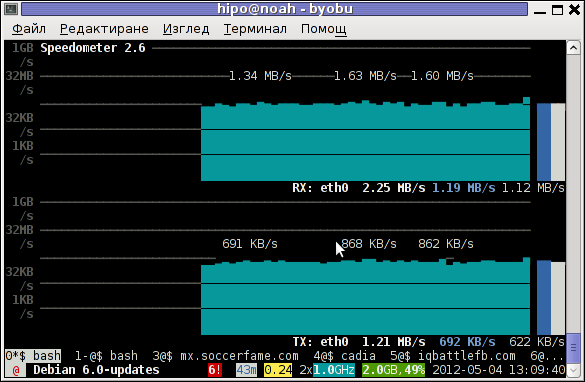
The simplicity for basic use makes speedometer nice tool to track for network congestion issues on Linux. Therefore it is a  must have outfit for every server admin. Below you see a screenshot of my terminal running speedometer on a remote server.

Speedometer ascii traffic track server network business screenshot in byobu screen like virtual terminal emulator

1. Installing speedometer on Debian / Ubuntu and Debian derivatives

For Debian and Ubuntu server administrators speedometer is already packaged as a deb so its installation is as simple as:

debian:~# apt-get --yes install speedometer
....

2. Installing speedometer from source for other Linux distributions CentOS, Fedora, SuSE etc.

Speedometer is written in python programming language, so in order to install and use on other OS Linux platforms, it is necessery to have installed (preferably) an up2date python programming language interpreter (python ver. 2.6 or higher)..
Besides that it is necessary to have installed the urwid -( console user interface library for Python) available for download via excess.org/urwid/


Hence to install speedometer on RedHat based Linux distributions one has to follow these steps:

a) Download & Install python urwid library

[root@centos ~]# cd /usr/local/src
[root@centos src]# wget -q http://excess.org/urwid/urwid-1.0.1.tar.gz
[root@centos src]# tar -zxvvf urwid-1.0.1.tar.gz
....
[root@centos src]# cd urwid-1.0.1
[root@centos urwid-1.0.1]# python setup.py install
running install
running build
running build_py
creating build
creating build/lib.linux-i686-2.4
creating build/lib.linux-i686-2.4/urwid
copying urwid/tests.py -> build/lib.linux-i686-2.4/urwid
copying urwid/command_map.py -> build/lib.linux-i686-2.4/urwid
copying urwid/graphics.py -> build/lib.linux-i686-2.4/urwid
copying urwid/vterm_test.py -> build/lib.linux-i686-2.4/urwid
copying urwid/curses_display.py -> build/lib.linux-i686-2.4/urwid
copying urwid/display_common.py -> build/lib.linux-i686-2.4/urwid
....

b) Download and install python-setuptools

python-setuptools is one other requirement of speedometer, happily on CentOS and Fedora the rpm package is already there and installable with yum:

[root@centos ~]# yum -y install python-setuptools
....

c) Download and install Speedometer

[root@centos urwid-1.0.1]# cd /usr/local/src/
[root@centos src]# wget -q http://excess.org/speedometer/speedometer-2.8.tar.gz
[root@centos src]# tar -zxvvf speedometer-2.8.tar.gz
.....
[root@centos src]# cd speedometer-2.8
[root@centos speedometer-2.8]# python setup.py install
Traceback (most recent call last):
File "setup.py", line 26, in ?
import speedometer
File "/usr/local/src/speedometer-2.8/speedometer.py", line 112
n = n * granularity + (granularity if r else 0)
^

While running the CentOS 5.6 installation of speedometer-2.8, I hit the
"n = n * granularity + (granularity if r else 0)
error.

After consultation with some people in #python (irc.freenode.net), I've figured out this error is caused due the outdated version of python interpreter installed by default on CentOS Linux 5.6. On CentOS 5.6 the python version is:

[root@centos ~]# python -V
Python 2.4.3

As I priorly said speedometer 2.8's minimum requirement for a python to be at v. 2.6. Happily there is quick way to update python 2.4 to python 2.6 on CentOS 5.6, as there is an RPM repository maintained by Chris Lea which contains RPM binary of python 2.6.

To update python 2.4 to python 2.6:

[root@centos speedometer-2.8]# rpm -Uvh http://yum.chrislea.com/centos/5/i386/chl-release-5-3.noarch.rpm[root@centos speedometer-2.8]# rpm --import /etc/pki/rpm-gpg/RPM-GPG-KEY-CHL[root@centos speedometer-2.8]# yum install python26

Now the newly installed python 2.6 is executable under the binary name python26, hence to install speedometer:

[root@centos speedometer-2.8]# python26 setup.py install
[root@centos speedometer-2.8]# chown root:root /usr/local/bin/speedometer
[root@centos speedometer-2.8]# chmod +x /usr/local/bin/speedometer

[root@centos speedometer-2.8]# python26 speedometer -i 1 -tx eth0

The -i will instruct speedometer to refresh the screen graphs once a second.

3. Using speedometer to keep an eye on send / received traffic network congestion

To observe, the amount of only sent traffic via a network interface eth0 with speedometer use:

debian:~# speedometer -tx eth0

To only keep an eye on received traffic through eth0 use:

debian:~# speedometer -rx eth0

To watch over both TX and RX (Transmitted and Received) network traffic:

debian:~# speedometer -tx eth0 -rx eth0

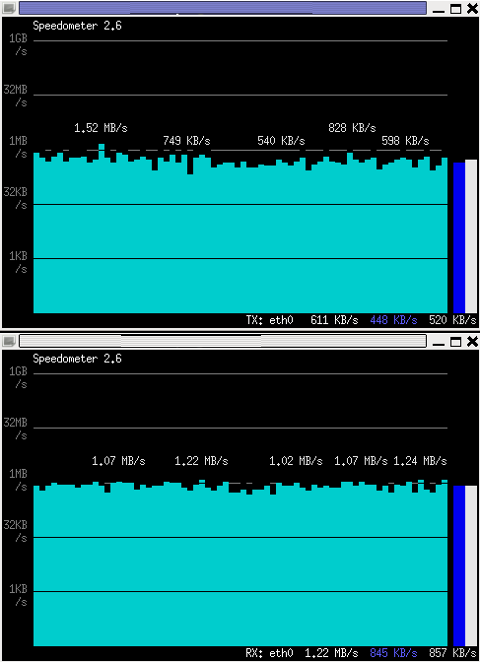
If you want to watch in separate windows TX and RX traffic while  running speedometer you can run in separate xterm windows speedometer -tx eth0 and speedometer -rx eth0, like in below screenshot:

Monitor Received and Transmitted server Network traffic in two separate xterm windows with speedometer ascii graphs

4. Using speedometer to test network maximum possible transfer speed between server (host A) and server (host B)

The speedometer manual suggests few examples one of which is:

How fast is this LAN?

host-a$ cat /dev/zero | nc -l -p 12345
host-b$ nc host-a 12345 > /dev/null
host-b$ speedometer -rx eth0

When I red this example in speedometer's manual, it wasn't completely clear to me what the author really meant, but a bit after when I thought over the example I got his point.

The idea behind this example is that a constant stream of zeros taken from /dev/zero will be streamed over via a pipe (|) to nc which will bind a port number 12345, anyone connecting from another host machine, lets say a server with host host-b to port 12345 on machine host-a will start receiving the /dev/zero streamed content.

Then to finally measure the streamed traffic between host-a and host-b machines a speedometer is started to visualize the received traffic on network interface eth0, thus measuring the amount of traffic flowing from host-a to host-b

I give a try to the exmpls, using for 2 test nodes my home Desktop PC, Linux running  arcane version of Ubuntu and my Debian Linux notebook.

First on the Ubuntu PC I issued
 

hipo@hip0-desktop:~$ cat /dev/zero | nc -l -p 12345
 

Note that I have previously had installed the netcat, as nc is not installed by default on Ubuntu and Debian. If you, don't have nc installed yet, install it with:

apt-get –yes install netcat

"cat /dev/zero | nc -l -p 12345" will not produce any output, but will display just a blank line.

Then on my notebook I ran the second command example, given in the speedometer manual:
 

hipo@noah:~$ nc 192.168.0.2 12345 > /dev/null

Here the 192.168.0.2 is actually the local network IP address of my Desktop PC. My Desktop PC is connected via a normal 100Mbit switch to my routing machine and receives its internet via  NAT. The second test machine (my laptop), gets its internet through a WI-FI connection received by a Wireless Router connected via a UTP cable to the same switch to which my Desktop PC is connected.

Finally to test / get my network maximum thoroughput I had to use:

hipo@noah:~$ speedometer -rx wlan0

Here, I  monitor my wlan0 interface, as this is my (laptop) wireless card interface over which I have connectivity to my local network and via which through the the WI-FI router I get connected to the internet.

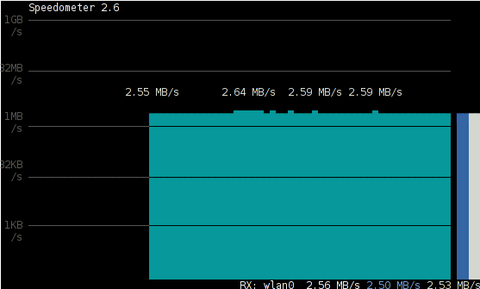
Below is a snapshot captured showing approximately what is the max network thoroughput from:

Desktop PC -> to my Thinkpad R61 laptop

Using Speedometer to test network thorougput between two network server hosts screenshot Debian Squeeze Linux

As you can see in the shot approximately the maximum network thoroughput is in between:
2.55MB/s min and 2.59MB/S max, the speed is quite low for a 100 MBit local network, but this is normal as most laptop wireless adapters hardly transfer traffic in more than 10 to 20 MBits per sec.

If the same nework thoroughput test is conducted between two machines both connected to a same 100 M/bit switch, the traffic should be at least a 8 MB/sec.

There is something, else to take in consideration that probably makes the provided example network thoroughput measuring a bit inaccurate. The fact that the /dev/zero content is stremed over is slowing down the zeroes sent over network because of the  pipe ( | ) use slows down the stream.

5. Using speedometer to visualize maximum writting speed to a local hard drive on Linux

In the speedometer manual, I've noticed another interesting application of this nifty tool.

speedometer can be used to track and visualize the maximum writing speed a hard disk drive or hard drive partition can support on Linux OS:

A copy paster from the manual text is as follows:

How fast can I write data to my filesystem? (with at least 1GB free)
dd bs=1000000 count=1000 if=/dev/zero of=bigfile &
speedometer bigfile

However, when I tried copy/pasting the example in terminal, to test the maximum writing speed to an external USB hard drive, only dd command was started and speedometer failed to initialize and display graphs of the file creation speed.

I've found a little "hack" that makes the man example work by adding a 3 secs sleep like so:

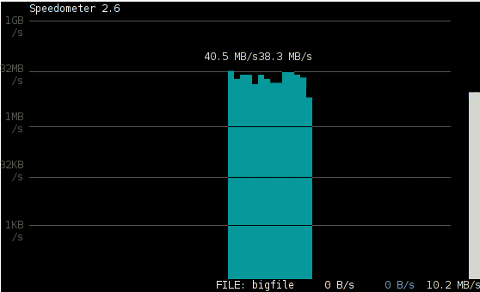
debian:/media/Expansion Drive# dd bs=1000000 count=1000 if=/dev/zero of=bigfile & sleep 3; speedometer bigfile

Here is a screenshot of the bigfile created by dd and tracked "in real time" by speedometer:

How fast is writting data to local USB expandable hard disk Debian Linux speedometer screenshot

Actually the returned results from this external USB drive are, quite high, the possible reason for that is it is connected to my laptop over an USB protocol verion 3.

6. Using Speedometer to keep an eye on file download in progress

This application of speedometer is mostly useless especially on Linux where it is used as a Desktop.

However in some occasions if files are transferred over ssh or in non interactive FTP / Samba file transfers between Linux servers it can come handy.

To visualize the download and writing speed of lets say FTP transferred .AVI movie (during the actual file transfer) on the download host issue:

# speedometer Download-Folder/What-goes-around-comes-around.avi

7. Estimating approximate time for file transfer

There is another section in the speedometer manual pointing of the program use to calculate the time remaining for a file transfer.

The (man speedometer) provided example text is:

How long it will take for my 38MB transfer to finish?
speedometer favorite_episode.rm $((38*1024*1024))

At first glimpse it hard to understand (like the other manual example). A bit of reasoning and I comprehend what the man author meant by the obscure calculation:

$((38*1024*1024))

This is a formula used in which 38 has to be substituted with the exact file size amount of the transferred file. The author manual used a 38MB file so this is why he put $((38* … in the formula.

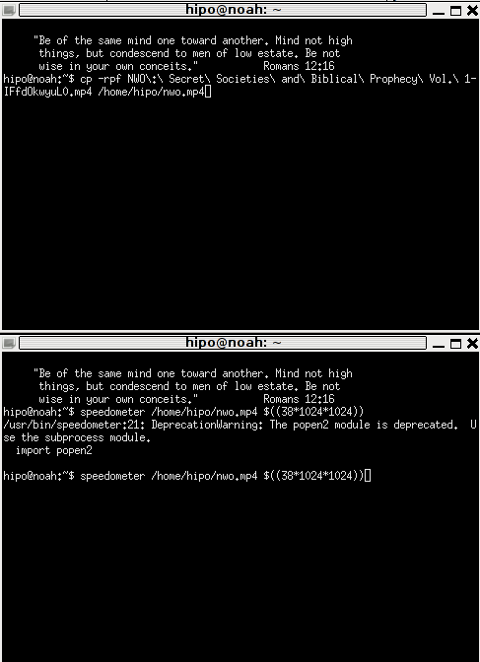
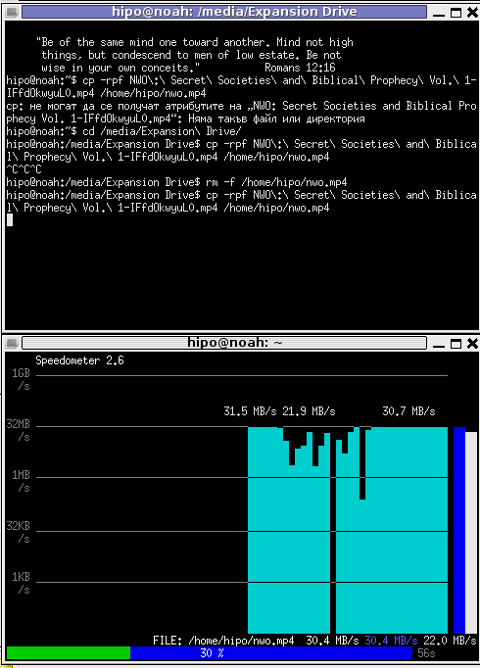
I give it a try – (just for the sake to see how it works) with a file with a size of 2500MB, in below two screenshot pictures I show my preparation to copy the file and the actual copying / "real time" transfer tracking with speedometer's status percentage completion bar.

xterm terminal copy file and estimate file copying operation speed on linux with speedometer preparation

Two xterm terminals one is copying a file the other one uses speedometer to estimate the time remaining to complete the file transfer from expansion USB hard drive to my laptop harddrive

Share this on

Where does Debian GNU / Linux Apache + PHP stores session files?

Tuesday, November 22nd, 2011

In order to debug some PHP session problems on Debian, I needed to check the count of existing session files.
When PHP is compiled from source usually, by default sessions are stored in /tmp directory, however this is not the case on Debian.

Debian's PHP session directory is different, there the sessions are stored in the directory:

/var/lib/php5

I've discovered the session directory location by reading Debian's cron shell script, which delete session files on every 30 minutes.

Here is the file content:

debian~# cat /etc/cron.d/php5
# /etc/cron.d/php5: crontab fragment for php5
# This purges session files older than X, where X is defined in seconds
# as the largest value of session.gc_maxlifetime from all your php.ini
# files, or 24 minutes if not defined. See /usr/lib/php5/maxlifetime

# Look for and purge old sessions every 30 minutes
09,39 * * * * root [ -x /usr/lib/php5/maxlifetime ] && \
[ -d /var/lib/php5 ] && find /var/lib/php5/ -type f -cmin +$(/usr/lib/php5/maxlifetime) -delete

To check the amount of existing PHP opened session files:

debian:~# ls -1 /var/lib/php5|wc -l
14049

Share this on

How to find out all programs bandwidth use with (nethogs) top like utility on Linux

Friday, September 30th, 2011

Just run across across a super nice top like, program for system administrators, its called nethogs and is definitely entering my "l337" admin outfit next to tools like iftop, nettop, ettercap, darkstat htop, iotop etc.

nethogs is ultra easy to use, to get immediately in console statistics about running processes UPLOAD and DOWNLOAD bandwidth consumption just run it:

linux:~# nethogs

Nethogs screenshot on Linux Server with Nginx
Nethogs running on Debian GNU/Linux serving static web content with Nginx

If you need to check what program is using what amount of network bandwidth, you will definitely love this tool. Having information of bandwidth consumption is also viewable partially with iftop, however iftop is unable to track the bandwidth consumption to each process using the network thus it seems nethogs is unique at what it does.

Nethogs supports IPv4 and IPv6 as well as supports network traffic over ppp. The tool is available via package repositories for Debian GNU/Lenny 5 and Debian Squeeze 6.

To install Nethogs on CentOS and Fedora distributions, you will have to install it from source. On CentOS 5.7, latest nethogs which as of time of writting this article is 0.8.0 compiles and installs fine with make && make install commands.

In the manner of thoughts of network bandwidth monitoring, another very handy tool to add extra understanding on what kind of traffic is crossing over a Linux server is jnettop
jnettop shows which hosts/ports is taking up the most network traffic.
It is available for install via apt in Debian 5/6).

Here is a screenshot on jnettop in action:

Jnettop check network traffic in console

To install jnettop on latest Fedoras / CentOS / Slackware Linux it has to be download and compiled from source via jnettop's official wiki page
I've tested jnettop install from source on CentOS release 5.7 and it seems to compile just fine using the usual compile commands:

[root@prizebg jnettop-0.13.0]# ./configure
...
[root@prizebg jnettop-0.13.0]# make
...
[root@prizebg jnettop-0.13.0]# make install

If you need to have an idea on the network traffic passing by your Linux server distringuished by tcp/udp/icmp network protocols and services like ssh / ftp / apache, then you will definitely want to take a look at nettop (if of course not familiar with it yet).
Nettop is not provided as a deb package in Debian and Ubuntu, where it is included as rpm for CentOS and presumably Fedora?
Here is a screenshot on nettop network utility in action:

Nettop server traffic division by protocol screenshot
FreeBSD users should be happy to find out that jnettop and nettop are part of the ports tree and the two can be installed straight, however nethogs would not work on FreeBSD, I searched for a utility capable of what Nethogs can, but couldn't find such.
It seems the only way on FreeBSD to track bandwidth back and from originating process is using a combination of iftop and sockstat utilities. Probably there are other tools which people use to track network traffic to the processes running on a hos and do general network monitoringt, if anyone knows some good tools, please share with me.

Share this on

How to harden Linux Security and imprpove network efficiency on Kernel sysctl Level

Friday, July 8th, 2011

Power up Linux and protect against DDoS with sysctl var optimization

Some long time ago I've written an article Optimizing Linux tcp/ip networking

In the article I've examined a number of Linux kernel sysctl variables, which significantly improve the way TCP/IP networking is handled by a non router Linux based servers.

As the time progresses I've been continuing to read materials on blogs and internet sites on various tips and anti Denial of Service rules which one could apply on newly installed hosting (Apache/MySql/Qmail/Proxy) server to improve webserver responce times and tighten the overall security level.

In my quest for sysctl ;) I found a few more handy sysctl variables apart from the old ones I incorporate on every Linux server I adminstrate.
The sysctl variables improves the overall network handling efficiency and protects about common SYN/ACK Denial of service attacks.

Here are the extra sysctl variables I started incorporating just recently:

############ IPv4 Sysctl Settings ################
#Enable ExecShield protection (randomize virtual assigned space to protect against many exploits)
kernel.randomize_va_space = 1
#Increase the number of PIDs processes could assign this is very needed especially on more powerful servers
kernel.pid_max = 65536
# Prevent against the common 'syn flood attack'
net.ipv4.tcp_syncookies = 1
# Controls the use of TCP syncookies two is generally a better idea, though you might experiment
#net.ipv4.tcp_syncookies = 1
net.ipv4.tcp_synack_retries = 2
##################################################
#
############## IPv6 Sysctl Settings ################
# Number of Router Solicitations to send until assuming no routers are present.
net.ipv6.conf.default.router_solicitations = 0
# Accept Router Preference in RA? Again not necessery if the server is not a router
net.ipv6.conf.default.accept_ra_rtr_pref = 0
# Learn Prefix Information in Router Advertisement (Unnecessery) for non-routers
net.ipv6.conf.default.accept_ra_pinfo = 0
# disable accept of hop limit settings from other routers (could be used for DoS)
net.ipv6.conf.default.accept_ra_defrtr = 0
# disable ipv6 global unicasts server assignments
net.ipv6.conf.default.autoconf = 0
# neighbor solicitations to send out per address (better if disabled)
net.ipv6.conf.default.dad_transmits = 0
# disable assigning more than 1 address per network interface
net.ipv6.conf.default.max_addresses = 1
#####################################################

To use this settings paste the above sysctl variables in /etc/sysctl.conf and ask sysctl command to read and apply the newly added conf settings:

server:~# sysctl -p
...

Hopefully you should not get errors while applying the sysctl settings, if you get some errors, it's possible some of the variable is differently named (depending on the Linux kernel version) or the Linux distribution on which sysctl's are implemented.

For some convenience I've created unified sysctl variables /etc/sysct.conf containing the newly variables I started implementing to servers with the ones I already exlpained in my previous post Optimizing Linux TCP/IP Networking

Here is the optimized / hardened sysctl.conf file for download

I use this exact sysctl.conf these days on both Linux hosting / VPS / Mail servers etc. as well as on my personal notebook ;)

Here is also the the complete content of above's sysctl.conf file, just in case if somebody wants to directly copy/paste it in his /etc/sysctl.conf

# Sysctl kernel variables to improve network performance and protect against common Denial of Service attacks
# It's possible that not all of the variables are working on all Linux distributions, test to make sure
# Some of the variables might need a slight modification to match server hardware, however in most cases it should be fine
# variables list compiled by hip0
### http://www.pc-freak.net
#### date 08.07.2011
############ IPv4 Sysctl Kernel Settings ################
net.ipv4.ip_forward = 0
# ( Turn off IP Forwarding )
net.ipv4.conf.default.rp_filter = 1
# ( Control Source route verification )
net.ipv4.conf.default.accept_redirects = 0
# ( Disable ICMP redirects )
net.ipv4.conf.all.accept_redirects = 0
# ( same as above )
net.ipv4.conf.default.accept_source_route = 0
# ( Disable IP source routing )
net.ipv4.conf.all.accept_source_route = 0
# ( - || - )net.ipv4.tcp_fin_timeout = 40
# ( Decrease FIN timeout ) - Useful on busy/high load server
net.ipv4.tcp_keepalive_time = 4000
# ( keepalive tcp timeout )
net.core.rmem_default = 786426
# Receive memory stack size ( a good idea to increase it if your server receives big files )
##net.ipv4.tcp_rmem = "4096 87380 4194304"
net.core.wmem_default = 8388608
#( Reserved Memory per connection )
net.core.wmem_max = 8388608
net.core.optmem_max = 40960
# ( maximum amount of option memory buffers )
# tcp reordering, increase max buckets, increase the amount of backlost
net.ipv4.tcp_max_tw_buckets = 360000
net.ipv4.tcp_reordering = 5
##net.core.hot_list_length = 256
net.core.netdev_max_backlog = 1024
#Enable ExecShield protection (randomize virtual assigned space to protect against many exploits)
kernel.randomize_va_space = 1
#Increase the number of PIDs processes could assign this is very needed especially on more powerful servers
kernel.pid_max = 65536
# Prevent against the common 'syn flood attack'net.ipv4.tcp_syncookies = 1
# Controls the use of TCP syncookies two is generally a better idea, though you might experiment
#net.ipv4.tcp_syncookies = 1
net.ipv4.tcp_synack_retries = 2
###################################################
############## IPv6 Sysctl Settings ################
# Number of Router Solicitations to send until assuming no routers are present.
net.ipv6.conf.default.router_solicitations = 0
# Accept Router Preference in RA? Again not necessery if the server is not a router
net.ipv6.conf.default.accept_ra_rtr_pref = 0
# Learn Prefix Information in Router Advertisement (Unnecessery) for non-routersnet.
ipv6.conf.default.accept_ra_pinfo = 0
# disable accept of hop limit settings from other routers (could be used for DoS)
net.ipv6.conf.default.accept_ra_defrtr = 0
# disable ipv6 global unicasts server assignmentsnet.
ipv6.conf.default.autoconf = 0
# neighbor solicitations to send out per address (better if disabled)
net.ipv6.conf.default.dad_transmits = 0
# disable assigning more than 1 address per network interfacenet.
ipv6.conf.default.max_addresses = 1
#####################################################
# Reboot if kernel panic
kernel.panic = 20

These sysctl settings will tweaken the Linux kernel default network settings performance and you will notice the improvements in website responsiveness immediately in some cases implementing this kernel level goodies will make the server perform better and the system load might decrease even ;)

This optimizations on a kernel level are not only handy for servers, their implementation on Linux Desktop should also have a positive influence on the way the network behaves and could improve significantly the responce times of opening pages in Firefox/Opera/Epiphany Torrent downloads etc.

Hope this kernel tweakenings are helpful to someone.
Cheers ;)

Share this on

How to easy add Joomla 1.5 donate Paypal capabilities with Joomla PAYPAL DONATION MODULE

Wednesday, June 15th, 2011

PayPal donation Module Joomla Screenshot

Many joomla CMS installations are for Non-profit organizations or Non Government organizations. These are organizations which are not officially making profit and therefore this instituations are interested into donations to support their activities.

In this occasions adding Joomla paypal capabilities is very essential. There are plenty of modules which enables Joomla to support paypal monetary payments, however many of them are either paid or requires registration and thus it's quite time consuming to set up a decent PayPal supporting module for Joomla.
After a bit of investigation thanks God, I've come across a module that is free of charge, easily downloadable (wihtout registration) and is also relatively easy to configure, these module is called PAYPAL DONATION MODULE
I've mirored the module to my server, just in case if the module disappears in the future.

Here are a very brief explanation on how the module can be downloaded installed and configured:

First Download (mod_ojdonation_pp) Paypal Donation Module here

Install it as joomla module via:

Extensions -> Install/Uninstall

menu

Afterwards, go to:

Extensions -> Module Manager

In the list of modules you will notice the Donate module which will be disabled. Use the Enable button to enable it.

Next by clicking on the Donate Module Name, one can configure the module, where the most essential configuration values that needs to be filled in are:

1. Title: – The title of the donation form:
2. Donation Title: – Title of donation picture to show in the webpage
3. Donation Amount: – Default donation amount user will donate with paypal by clicking on Donate button
4. Currency – Default currency the donators will use to donate to configured paypal account
5. Paypal ID: – The email address of paypal account your donators will donate to (This was a bit hard to understand since Paypal ID is not a number ID but the email address configured as an username in PayPal).
6. Donation Description: – Description text to appear before the Donate button
7. Donation Footer: – Text to appear after the Donate button

There are two ways one could add the donation module to show the donation form, on the joomla website:
a. One is to enable the donation button on every joomla webpage (I don't like this kind of behaviour).

To use this kind of donate button display approach, you will have to select from the Donation module, conf options:
– Show on FrontPage: and Show Title:

Also make sure the Enabled: option is set to Yes

b. Second approach is to set the PayPal Donation form only to appear on a single menu, to do so:

While in Paypal Donation Module configuration in Menu Assignment section, select:

Select Menu Item(s) from the List
instead of the default All value set for Menus.

The last setting to be choosen is the paypal donation form page location (where exactly on the selected pages the form will appear).

The form location is set from the Position: dropdown menu, the option which I found to be the best one for me was the bottom option. However just play with the Position setting and choose the one that will be best for you.

Then scroll on in the Menu Selection: and choose only the menus where you want a paypal donation form to appear.

Finally to save all the recent made settings, click on Apply and refreshing in a new page should show you paypal's money donation form in joomla

If all is configured fine with Joomla's – Paypal Donation Module you should get on your webpage:

PayPal donation Module in Joomla Screenshot
 

Share this on

How to configure and enable Xen Linux dedicated server’s Virtual machines Internet to work / Enable multipe real IPs and one MAC only in (SolusVM) through NAT routed and iptables

Saturday, June 4th, 2011

Xen Linux Virtual Machine Logo

I’ve been hired as a consultant recently to solve a small task on a newly bought Xen based dedicated server.
The server had installed on itself SolusVM

The server was a good hard-iron machine running with CentOS Linux with enabled Xen virtualization support.
The Data Center (DC) has provided the client with 4 IP public addresses, whether the machine was assigned to possess only one MAC address!

The original idea was the dedicated server is supposed to use 4 of the IP addresses assigned by the DC whether only one of the IPs has an external internet connected ethernet interface with assigned MAC address.

In that case using Xen’s bridging capabilities was pretty much impossible and therefore Xen’s routing mode has to be used, plus an Iptables Network Address Translation or an IP MASQUERADE .

In overall the server would have contained 3 virtual machines inside the Xen installed with 3 copies of:

  • Microsoft Windows 2008

The scenario I had to deal with is pretty much explained in Xen’s Networking wiki Two Way Routed Network

In this article I will describe as thoroughfully as I can how I configured the server to be able to use the 3 qemu virtual machines (running inside the Xen) with their respective real interner visible public IP addresses.

1. Enable Proxyarp for the eth0 interface

To enable proxyarp for eth0 on boot time and in real time on the server issue the commands:

[root@centos ~]# echo 1 > /proc/sys/net/ipv4/conf/eth0/proxy_arp[root@centos ~]# echo 'net.ipv4.conf.all.proxy_arp = 1' >> /etc/sysctl.conf

2. Enable IP packet forwarding for eth interfaces

This is important pre-requirement in order to make the iptables NAT to work.

[root@centos ~]# echo 'net.ipv4.ip_forward = 1' >> /etc/sysctl.conf
[root@centos ~]# echo 'net.ipv6.conf.all.forwarding=1' >> /etc/sysctl.conf

If you get errors during execution of /etc/init.d/xendomains , like for example:

[root@centos ~]# /etc/init.d/xendomains restart
/etc/xen/scripts/network-route: line 29: /proc/sys/net/ipv4/conf/eth0/proxy_arp: No such file or directory
/etc/xen/scripts/network-route: line 29: /proc/sys/net/ipv6/conf/eth0/proxy_arp: No such file or directory

in order to get rid of the message you will have to edit /etc/xen/scripts/network-route and comment out the lines:

echo 1 >/proc/sys/net/ipv4/conf/${netdev}/proxy_arp
echo 1 > /proc/sys/net/ipv6/conf/eth0/proxy_arp
e.g.
#echo 1 >/proc/sys/net/ipv4/conf/${netdev}/proxy_arp
#echo 1 > /proc/sys/net/ipv6/conf/eth0/proxy_arp

3. Edit /etc/xen/xend-config.sxp, disable ethernet bridging and enable eth0 routing (route mode) and NAT for Xen’s routed mode

Make absolutely sure that in /etc/xen/xend-config.sxp the lines related to bridging are commented.
The lines you need to comment out are:

(network-script network-bridge)
(vif-script vif-bridge)

make them look like:

#(network-script network-bridge)
#(vif-script vif-bridge)br />

Now as bridging is disabled let’s enable Xen routed network traffic as an bridged networking alternative.

Find the commented (network-script network-route) and (vif-script vif-route) lines and uncomment them:

#(network-script network-route)
#(vif-script vif-route)

The above commented lines should become:

(network-script network-route)
(vif-script vif-route)

Next step is to enable NAT for routed traffic in Xen (necessery to make routed mode work).
Below commented two lines in /etc/xen/xend-config.sxp, should be uncommented e.g.:

#(network-script network-nat)
#(vif-script vif-nat)

Should become:

(network-script network-nat)
(vif-script vif-nat)

4. Restart Xen control daemon and reload installed Xen’s Virtual Machines installed domains

To do so invoke the commands:

[root@centos ~]# /etc/init.d/xend
[root@centos ~]# /etc/init.d/xendomains restart

This two commands will probably take about 7 to 10 minutes (at least they took this serious amount of time in my case).
If you think this time is too much to speed-up the procedure of restarting Xen and qemu attached virtual machines, restart the whole Linux server, e.g.:

[root@centos ~]# restart

5. Configure iptables NAT rules on the CentOS host

After the server boots up, you will have to initiate the following ifconfig & iptables rules in order to make the Iptables NAT to work out:

echo > > /proc/sys/net/ipv4/conf/tap1.0/proxy_arp
/sbin/ifconfig eth0:1 11.22.33.44 netmask 255.255.252.0
/sbin/ifconfig eth0:2 22.33.44.55 netmask 255.255.252.0
/sbin/ifconfig eth0:3 33.44.55.66 netmask 255.255.252.0

/sbin/iptables -t nat -A PREROUTING -d 11.22.33.44 -i eth0 -j DNAT --to-destination 192.168.1.2
/sbin/iptables -t nat -A PREROUTING -d 22.33.44.55 -i eth0 -j DNAT --to-destination 192.168.1.3
/sbin/iptables -t nat -A PREROUTING -d 33.44.55.66 -i eth0 -j DNAT --to-destination 192.168.1.4
/sbin/iptables -t nat -A POSTROUTING -s 192.168.1.2 -o eth0 -j SNAT --to-source 11.22.33.44
/sbin/iptables -t nat -A POSTROUTING -s 192.168.1.3 -o eth0 -j SNAT --to-source 22.33.44.55
/sbin/iptables -t nat -A POSTROUTING -s 192.168.1.4 -o eth0 -j SNAT --to-source 33.44.55.66

In the above ifconfig and iptables rules the IP addresses:

11.22.33.44, 22.33.44.55, 33.44.55.66 are real IP addresses visible from the Internet.
In the above rules eth0:1, eth0:2 and eth0:3 are virtual ips assigned to the main eth0 interface.

This ifconfig and iptables setup assumes that the 3 Windows virtual machines running inside the Xen dedicated server will be configured to use (local) private network IP addresses:

192.168.1.2, 192.168.1.3 and 192.168.1.4

You will have also to substitute the 11.22.33.44, 22.33.44.55 and 33.44.55.66 with your real IP addreses.

To store the iptables rules permanently on the fedora you can use the iptables-save command:

[root@centos ~]# /sbin/iptables-save

However I personally did not use this approach to save my inserserted iptable rules for later boots but I use my small script set_ips.sh to add virtual interfaces and iptables rules via the /etc/rc.local invokation:

If you like the way I have integrated my virtual eths initiation and iptables kernel firewall inclusion, download my script and set it to run in /etc/rc.local, like so:

[root@centos ~]# cd /usr/sbin
[root@centos sbin]# wget http://www.pc-freak.net/bshscr/set_ips.sh
...
[root@centos ~]# chmod +x /usr/sbin/set_ips.sh
[root@centos ~]# mv set_ips.sh /usr/sbin
[root@centos ~]# echo '/usr/sbin/set_ips.sh' >> /etc/rc.local

Note that you will have to modify my set_ips.sh script to substitute the 11.22.33.44, 22.33.44.55 and 33.44.55.66 with your real IP address.

So far so good, one might think that all this should be enough for the Virtual Machines Windows hosts to be able to connect to the Internet and Internet requests to the virtual machines to arrive, but no it’s not!!

6. Debugging Limited Connectivity Windows LAN troubles on the Xen dedicated server

Even though the iptables rules were correct and the vif route and vif nat was enabled inside the Xen node, as well as everything was correctly configured in the Windows 2008 host Virtual machines, the virtual machines’s LAN cards were not able to connect properly to connect to the internet and the Windows LAN interface kept constantly showing Limited Connectivity! , neither a ping was available to the gateway configured for the Windows VM host (which in my case was: 192.168.1.1).

You see the error with Limited connectivity inside the Windows on below’s screenshot:

Limited Connectivty Windows error Lan Interface, status screenshot

Here is also a screenshot of my VNC connection to the Virtual machine with the correct IP settings – (TCP/IPv4) Properties Window:

Windows Xen Network Connections Windows VNC TCP/IPv4 Properties Window

This kind of Limited Connectivity VM Windows error was really strange and hard to diagnose, thus I started investigating what is wrong with this whole situation and why is not able the Virtualized Windows to connect properly to the Internet, through the Iptables NAT inbound and outbound traffic redirection.

To diagnose the problem, I started up with listing the exact network interfaces showing to be on the Xen Dedicated server:


[root@centos ~]# /sbin/ifconfig |grep -i 'Link encap' -A 1
eth0 Link encap:Ethernet HWaddr 00:19:99:9C:08:3A
inet addr:111.22.33.55 Bcast:111.22.33.255
Mask:255.255.252.0
--
eth0:1 Link encap:Ethernet HWaddr 00:19:99:9C:08:3A
inet addr:11.22.33.44 Bcast:11.22.33.255
Mask:255.255.252.0
--
eth0:2 Link encap:Ethernet HWaddr 00:19:99:9C:08:3A
inet addr:22.33.44.55 Bcast:22.33.44.255
Mask:255.255.252.0
--
eth0:3 Link encap:Ethernet HWaddr 00:19:99:9C:08:3A
inet addr:33.44.55.66 Bcast:33.44.55.255
Mask:255.255.252.0
--
lo Link encap:Local Loopback
inet addr:127.0.0.1 Mask:255.0.0.0
--
tap1.0 Link encap:Ethernet HWaddr FA:07:EF:CA:13:31
--
vifvm101.0 Link encap:Ethernet HWaddr FE:FF:FF:FF:FF:FF
inet addr:111.22.33.55 Bcast:111.22.33.55
Mask:255.255.255.255

I started debugging the issue, using the expelling logic.
In the output concerning my interfaces via ifconfig on eth0, I have my primary server IP address 111.22.33.55 , this one is working for sure as I was currently connected to the server through it.

The other virtual IP addresses assigned on the virtual network interfaces eth0:1, eth0:2 and eth0:3 were also assigned correctly as I was able to ping this ips from my Desktop machine from the Internet.

The lo , interface was also properly configured as I could ping without a problem the loopback ip – 127.0.0.1

The rest of the interfaces displayed by my ifconfig output were: tap1.0, vifvm101.0

After a bit of ressearch, I’ve figured out that they’re virtual interfaces and they belong to the Xen domains which are running qemu virtual machines with the Windows host.

I used tcpdump to debug what kind of traffic does flow through the tap1.0 and vifvm101.0 interfaces, like so

[root@centos ~]# tcpdump -i vifvm101.0
tcpdump: verbose output suppressed, use -v or -vv for full protocol decode
listening on vifvm101.0, link-type EN10MB (Ethernet), capture size 96 bytes
^C
0 packets captured
0 packets received by filter
0 packets dropped by kernel
[root@centos ~]# tcpdump -i tap1.0
cpdump: verbose output suppressed, use -v or -vv for full protocol decode
listening on tap1.0, link-type EN10MB (Ethernet), capture size 96 bytes
^C
08:55:52.490249 IP 229.197.34.95.customer.cdi.no.15685 > 192.168.1.2.12857: UDP, length 42

I’ve figured out as it’s also observable in above’s two tcpdump commands output, that nothing flows through the vifvm101.0 interface, and that there was some traffic passing by tap1.0 interface.

7. Solving the Limited Connectivy Windows Internet network connection problems

As below’s ifconfig output reveals, there is no IP address assigned to tap1.0 interface, using some guidelines and suggestions from guys in irc.freenode.net’s #netfilter irc channel, I’ve decided to give a go to set up an IP address of 192.168.1.1 to tap1.0 .

I choose for a reason as this IP address is configured to be my Gateway’s IP Address inside the Emulated Windows 2008 hosts

To assign the 192.168.1.1 to tap1.0, I issued:

[root@centos ~]# /sbin/ifconfig tap1.0 192.168.1.1 netmask 255.255.255.0
To test if there is difference I logged in to the Virtual Machine host with gtkvncviewer (which by the way is a very nice VNC client for Gnome) and noticed there was an established connection to the internet inside the Virtual Machine ;)

I issued a ping to google which was also returned and opened a browser to really test if everything is fine with the Internet.
Thanks God! I could browse and everything was fine ;)

8. Making tap1.0 192.168.1.1 (VM hosts gateway to be set automatically, each time server reboots)

After rebooting the server the tap1.0 assignmend of 192.168.1.1 disappeared thus I had to make the 192.168.1.1, be assigned automatically each time the CentoS server boots.

To give it a try, I decided to place /sbin/ifconfig tap1.0 192.168.1.1 netmask 255.255.255.0 into /etc/rc.local, but this worked not as the tap1.0 interface got initialized a while after all the xendomains gets initialized.

I tried few times to set some kind of sleep time interval with the sleep , right before the /sbin/ifconfig tap1.0 … ip initialization but this did not worked out, so I finally completely abandoned this methodology and make the tap1.0 get initialized with an IP through a cron daemon.
For that purpose I’ve created a script to be invoked, every two minutes via cron which checked if the tap1.0 interface is up and if not issues the ifconfig command to initialize the interface and assign the 192.168.1.1 IP to it.

Here is my set_tap_1_iface.sh shell script

To set it up on your host in /usr/sbin issue:

[root@centos ~]# cd /usr/sbin/
[root@centos sbin]# wget http://www.pc-freak.net/bshscr/set_tap_1_iface.sh
...
In order to set it on cron to make the tap1.0 initialization automatically every two minutes use the cmd:

[root@centos ~]# crontab -u root -e

After the cronedit opens up, place the set_tap_1_iface.sh cron invokation rules:

*/2 * * * * /usr/sbin/set_tap_1_iface.sh >/dev/null 2>&1

and save.

That’s all now your Xen dedicated and the installed virtual machines with their public internet IPs will work ;)
If this article helped you to configure your NAT routing in Xen drop me a thanks message, buy me a beer or hire me! Cheers ;)

Share this on

Computers Technology use, Internet, Mobile Phones and all kind of technical screen based equipment alters negatively the human brain

Tuesday, April 26th, 2011

Computers Internet and Technology evil terminator picture

According to latest scientific research conducted in Stanford University USA .

People who actively use computers and internet has been the object of the research in 2009.

Social Networks, Tablets Smartphones etc. provides more and more possibilities for us to access information.

Most of modern people today tend to loose approximately between 8 and 10 hours a day either using Internet, a PC, Word-excel, their mobile phone or some kind of other mobile gadget like let’s say IPAD.

Most of today’s technologic goods we use to make our lives easier are multitasking.
The brain itself is not adjusted to work in such a multi-tasking mode as a direct consequence of being in contact with this multi-tasking for a long periods of time it gets altered.
Suddenly it starts being multitasking, or in other words starts processing information in parallel.

As the amount of information is constantly increasing online and we’re in contact with more and more information and moreover the altered way of our brains which starts working in multi-tasking the brain-overflows or (information brain overlow) is starting being more and more occuring event.

The consequence of this complexity is starting to impact us seriously as we tend to get addicted to technology usage and day by day it seems that the amount of information our brains are able to process is decreasing.

Logically enough the long-term consequence of a an internet addiction or any kind of technology addiction, plus the tremendous amounts of information we do think over daily is starting to show up the negative consequences on our psyche and (soul)

The brain starts changing the way it gets information as it adapts itself to “not remember”, as the information to be processed daily is so much that it couldn’t really comprehend it.

A good example for multi-tasking which if not all most of the users on the Internet today use daily is one of terriblest things ever created facebook, in my of my previous articles I’ve blogged about why social networks are big evil read it here and it seems this new information about brain altering caused bhy multi-tasking is just another supporting reason on why it’s better not to use social networks like facebook and twitter.

The endless amount of information according to the Stanford University research has prooven that the endless amount of information is pernicioufor our (brains) minds and is in many ways similar to the excessive amount of sugar in the body.

The scientiests which conducted the research does recommend to heavy computer and tech users (like me), to self-control themselves and be on a tech-diet (e.g. not use technology completely for at least 1 or 2 days every week).

Another serious damage which was prooven according to Stanford’s scientiests research was that people’s brains who have a severe exposure to internet or phone usage tend to have very serious problems with contentration and are very easily distracted.
This in a long term surely leads to a chaotic way of living obviously.
Suddenly it seems technology to be slowly becoming even more deadly and destructive than drugs.

Many people would say this kind of research is not true, but I can confirm that for instance many of the proven facts are things I have experiences myself in my daily life, so I believe what the research has prooven is mostly true.

This research was just another one after a month before other scientiests has prooven that Mobile Phone use leads to alteration of the brain chemistry
Apart from all the said negative consequences of use of technology for human brain is the problem with technology today heavily used as a way to spy on personal privacy I wonder be glad to hear in the comments section for other people like me who have problems with concentration and have a very short time memory (I myself have serious problem with that one).

Share this on