Archive for the ‘Wordpress’ Category

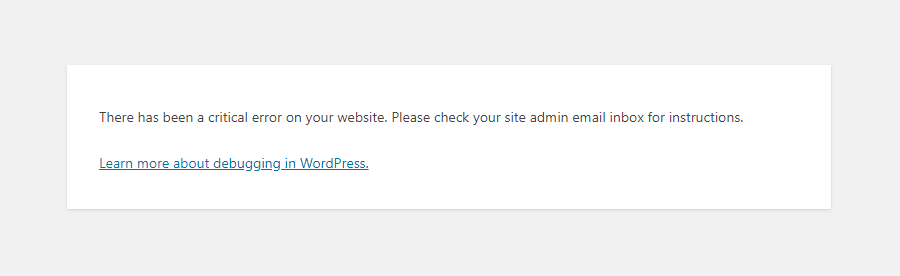
Fixing common WordPress empty page error

Thursday, May 2nd, 2013

A very common error for  wordpress based blog / site  whenever you modified
something inside pluginsis to receive empty page screen on user visit.

This error often is because of any installed WordPress caching plugins like
WP SUPER CACHE

or

W3 TOTAL CACHE.

One way to solve it is to delete from wp-config/plugins/ Folder whatever plugin is
causing the troubles.

If this doesn't fix the error and you need to Debug what is causing the odd
Empty pages.
Open wp-config.php and somewhere near beginning of file include:
 

error_reporting(E_ALL); ini_set('display_errors', 1);
define( 'WP_DEBUG', true);

After saving wp-config.php and refreshing WP size in Browser
(after cleaning browser cache)

if you get an error like:

Fatal error: Allowed memory size of 8388608 bytes exhausted
(tried to allocate 252212 bytes) in
/var/www/blog/wp-includes/cache.php on line 4


This is due to set maximum System Wide memory Limit of PHP Scripts to 8MB.
To solve that raise the PHP Limit to lets say 64M from wp-config.php by adding
in it line:

define('WP_MEMORY_LIMIT', '64M');

That's all WordPress should be working normal again.

Enjoy :)

Share this on

Fixing (NULL unable to write in comments box) error. / Solving unable to write more than 2 nested (threaded) comments in WordPress blog

Thursday, December 20th, 2012


Earlier I've blogged how to fix NULL error appearing in comments box, when someone tries to comment in WordPress (Comments) section. As you can read from my previous post the whole issue, was caused by wordpress-threaded-comments plugin which as of time of writing this post is incompatible with modern WordPress versions.

Recently one of my blog readers Jem, reported the same NULL comments issue happens again in my WordPress (thanks for that Jem).

 Over the last 2-3 months I didn't added or removed plugins from my wp blog, so I excluded the possibility that the error, might be due to Enabling new plugins.
Since I only blogged in those 2-3 months it was completely, incomprehensible for me why this NULL comments err happens again?

I've remembered, that few months ago along with the last changes I made to my blog, was enabling FCKEditor, for comments to aid Comments with possibility to change easily, font size, add color or make bold and italic their comments, ie. – for those who didn't tried yet FCKEditor yet I warmly recommend you this plugin, below is a screenshot of FCKEditor from 1 of my comments:

fckeditor comments bold italic set style and font wordpress comments

As I supposed, the problem might be caused by FCKEditor (advanced comment editor) wp plugin. I tried disabling the plugin, to see if this will solve the issue. Contrary to my expectations, the same NULL error kept hanging in the comment. However as the html form for default WordPress Comments is simplistic instead of displaying the NULL in comments box, Comments form was blank, with no ability for the user to type in anything. Here is the screenshot of it:

wordpress nested threaded comments showing blank message box null wp error


I pushed forward, to look for what is causing, the strange occurance since it is not directly caused by some conflict with my installed FCKEditor (latest stable version). Checked if I can find something on the internet, but for my amazement the first result I found in Google was actually, my own previous article on Fixing NULL Comments box error :) The rest of the threads, I've saw were not so helpful. So finally I've got the idea to check in the Source Code (CTRL + U) of the returned page with the empty form box. Guess what I found there, a reference to TinyMCE Advanced WordPress editor. I've remembered some, very long time ago. When I started experimenting with WordPress plugins and still was new to wordpress, I've used TinyMCE instead of FCKEDitor which later started using as a substitute for TinyMCE, cause finding it to be more advanced and hence more useful.
Back in the time when I was still using TinyMCE, I found a little TinyMCE addon plugin  called TinyMCEComments, the function of TinyMCEComments, was to add the TinyMCEComments originally available inside snf only to wordpress logged in Administrator user to the non-registered subscribed users (e.g. beautify user comments box with allowing them to easily make comments text bold and Italic etc.).
It seems, even though I switched on to FCKEditor at some point in time and hence switched off TinyMCE plugin from Administrator's

Dashboard -> Plugins -> TinyMCE Editor

Forgot to disable the little extension plugin TinyMCEComments addon to TinyMCE editor!!

Therefore, the NULL box problem occurs cause of conflict between TimeMCEComments Javascript with WordPress default comment engine.


Henceforth, the NULL fix is to Deactivate MCEComments.

mcecomments disabled activate screenshot

Share this on

Automating size tailoring of Youtube Embedded Videos and Inserted Images in WordPress blogs

Wednesday, December 5th, 2012

I regularly embed Youtube videos in my blog posts just like most bloggers do. With the grow of video materials, embedding a video along with your shorty study is very handy. Whoever has embedded videos in WordPress knows it is as simple as copy pasting the embed code provided by youtube's Share button (located little below the video Window).

youtube example for random video embed code screenshot with selector

Often the video provided by youtube is varying in sizing making the embedded video on my blog (and probably on others) override a content placed on the right as BlogRoll links, Recent Posts, Twitter of Facebook (Follow / Share) buttons etc.

As with every piece of nice free software, wordpress is quickly developing becoming better and better, every next day; One of the recent developments WordPress developers did is adding it a capability for limiting an Embedded Media Settings size. Doing so makes wordpress to automatically tailor the size of embedded videos, so you don't have every time when embedding a new video to bother changing inside the generated youtube embed code, but wordpress does this auto for you while pressing the Post Publish button.

Enabling automatic video size tailoring in WordPress is done like so:
 

1. Login to Wordress with admin user (http://www.wordpress-site.com/wp-admin or whatever WP admin URL is)

2. On the left menu you will see the Settings menu, use sub-menu Media, i.e.

Settings -> Media

wordpress blog wp admin administrator settings media menu location screenshot

Like you see on below screenshot, besides being able to automatically adjust Embedded codes (videos objects) wordpress is capable of automatically pass article images options to set every inserted image to certain pre-defined size.

wordpress blog change embed image media settingsscreenshot - auto tailoring youtube videos in wordpress

Setting a Custom Image size along with Custom Embed desired size is very handy and saves a lot of time. So far everytime when I write a new post on my blog and included a picture in it, I loose time to adjust the picture to 480×315 pixels (a good picture sizing looking good on screen resolutions from 1024 and higher).

Thus in future this little trick will save me up to few minutes whether I write an article with plenty of pictures or videos ;)

The process of embedding becomes even more easier if you are using already some Advanced functionality WordPress Article editor like FCKEDITOR for wordpress plugin
If you have fckeditor, you can straight embed the automatically shrinked to your set size by using FCKEDITOR's flash button instead of loosing each time when copying the embed code by pressing below the youtube video Share and Embed buttons.

Actually just about an year ago, the default wordpress editor TinyMCE used to have native support for Embedding youtube videos through a button called Insert / Edit Embedded Media, but due to copyright protections it was removed from wordpress. There is also one other wp plugin called Embedded Video Plugin but as long as I tested this one in the past it never used to work for me (though nowadays it might be working fine with embedding youtube videos)

soulfly embed video share and embed code- buttons screenshot

Well that's all folks. Hope my little post helps someone :)

Share this on

Installing Usual PHP Apache needed modules for new Debian GNU / Linux servers

Tuesday, September 18th, 2012

Almost evertime whether install a new Debian Linux server to host some websites, use the popular small and mid-sized hosting solution combination:

  • Apache webserver
  • PHP module to interpret the PHP programming code
  • MySQL to store the DB Backend

Installing the basis for on Debian is easy:


# apt-get install --yes apache2 apache2-mpm-prefork libapache2-mod-php \
mysql-server php5 php5-mysql mysql-client mysql-common phpmyadmin
....

This of course is in case, if necessery to run websites which are written to usephp code which is not thread safety (Use Apache child prefork technology to manage processes); For websites writen to be thread safety (not use some forking php functions like: php – exec(); fork(); etc. – I install apache2-mpm-prefork for better Webserver performance and speed.

This minimum collection of packages is good only for basic, websites and most Joomla, WordPress, Drupal or whatever custom PHP websites has to be hosted usually require much more PHP functions which are not part of this basic bundle. Hence as I said prior on almost all new Linux debian / ubuntu deb package based servers need to install following list of extra PHP deb packages:


# apt-get install --yes php-apc php-auth-ssl php-mail \
php-http php-net-smtp php-net-socket php-pear php5-cli php5-curl \
php5-gd php5-imagick php5-mapscript php5-mcrypt php5-odbc php5-sybase \
php5-xsl
...,

After installing this standard bundle of modules PHP is extended to support somenice functionalities like Image editting / convertion / resizing … various graphic editting functions as supported by infamous ImageMagick and GDlib, PEAR support (PHP Extension and Application Repository) bundle providing number of useful PHP classes.
php5-xInstalling Usual PHP Apache needed modules for new Debian GNU / Linux serverssl is usually necessery for websites which pass data in XSL format (a specific formatted XML data). php5-xsl is usually necessery for websites containing flash animationsPresentation, videos, games etc.

That is mostly it, hope this helps some sys admin like me who need configure new Debian based hosting server :)

Share this on

Script to Automatically change current MySQL server in wp-config.php to another MySQL host to minimize WordPress and Joomla downtimes

Friday, July 20th, 2012

I'm running a two servers for a couple of home hosted websites. One of the servers is serving as Apache host1 and has configured MySQL running on it and the second is used just for database host2 – (has another MySQL configured on it).
The MySQL servers are not configured to run as a MySQL MASTER and MySQL SLAVE (no mysql replication), however periodically (daily), I have a tiny shell script that is actualizing the data from the active SQL host2 server to host1.

Sometimes due to electricity problems or CPU overheats the active MySQL host at host2 gets stoned and stops working causing the 2 WordPress based websites and One joomla site inaccessible.
Until I manually get to the machine and restart host2 the 3 sites are down from the net and as you can imagine this has a very negative impact on the existing website indexing (PageRank) in Google.

When I'm at home, this is not a problem as I have physical access to the servers and if somethings gets messy I fix it quickly. The problem comes, whether I'm travelling or in another city far from home and there is no-one at home to give the hanged host hard reboot ….

Lately the problems with hang-ups of host2 happaned 3 times or so for 2 weeks, as a result the websites were inaccessible for hours and since there is nobody to reboot the server for hours; the websites keep hanging until the DB host is restarted ;;;;

To work-around this I came with the idea to write a tiny shell script to check if host2 is ping-able in order to assure the Database host is not down and then if script determines host2 (mysql) host is down it changes wp-config.php (set to use host2) to a wp-config.php (which I have beforehand configured to use) host1.

Using the script is a temporary solution, since I have to actually find the real hang-up causing troubles, but at least it saves me long downtimes. Here is a download link to the script I called change_blog_db.sh .
I've configured the script to be run on the Apache node (host1) via a crontab calling the script every 10 minutes, here is the crontab:
 

*/10 * * * * /usr/sbin/change_blog_db.sh > /dev/null 2>&1

The script is written in a way so if it determins host2 is reachable a copy of wp-config.php and Joomla's configuration.php tuned to use host2 is copied over the file config originals. In order to use the script one has to configured the head variables script section, e.g.:

host_to_ping='192.168.0.2';
blog_dir='/var/www/blog';
blog_dir2='/var/www/blog1';blog_dir3='/var/www/joomla';
notify_mail='hipo@pc-freak.net';
wp_config_orig='wp-config.php';
wp_config_localhost='wp-config-localhost.php';
wp_config_other_host='wp-config-192.168.0.2.php';
joomla_config_orig='configuration.php';
joomla_config_other_host='configuration-192.168.0.2.php';

You will have to manually prepare;;;

wp-config-localhost.php, wp-config-192.168.0.2.php ,configuration-192.168.0.2.php, wp-config-localhost.php to be existing files configured to with proper host1 and host2 IP addresses.
Hope the script will be useful to others, experiencing database downtimes with WordPress or Joomla installs.
 

Share this on

How to fix bug with WordPress domain extra trailing slash (Double wordpress trailing slash)

Monday, July 9th, 2012

How to fix bug with wordpress extra slash, domain double slash issue pic

2 of the wordpress installations, I take care for had been reported an annoying bug today by some colleagues.
The bug consisted in double trailing slash at the end of the domain url e.g.;

http://our-company-domainname.com//

As a result in the urls everywhere there was the double trailing slash appearing i.e.::

http://our-company-domainname.com//countact-us/
http://our-company-domainname.com//languages/

etc.

The bug was reported to happen in the multiolingual version of the wordpress based sites, as the Qtranslate plugin is used on this installations to achieve multiple languages it seemed at first logical that the double slash domain and url wordpress issues are caused for some reason by qTranslate.

Therefore, I initially looked for the cause of the problem, within the wordpress admin settings for qTranslate plugin. After not finding any clue pointing the bug to be related to qTranslate, I've then checked the settings for each individual wordpress Page and Post (There in posts usually one can manually set the exact url pointing to each post and page).
The double slash appeared also in each Post and Page and it wasn't possible to edit the complete URL address to remove the double trailin slashes. My next assumption was the cause for the double slash appearing on each site link is because of something wrong with the sites .htaccess, therefore I checked in the wp main sites directory .htaccess
Strangely .htacces seemed OKAY and there was any rule that somehow might lead to double slashes in URL. WP-sites .htaccess looked like so:
 

server:/home/wp-site1/www# cat .htaccess
RewriteEngine On
RewriteBase /

# Rewrite rules for new content and scripts folder
RewriteRule ^jscripts/(.*)$ wp-includes/js/$1
RewriteRule ^gallery/(.*)$ wp-content/uploads/$1
RewriteRule ^modules/(.*)$ wp-content/plugins/$1
RewriteRule ^gui/(.*)/(.*)$ wp-content/themes/$1/$2 [L]

# Disable direct acceees to wp files if referer is not valid
#RewriteCond %{THE_REQUEST} .wp-*
#RewriteCond %{REQUEST_URI} .wp-*
#RewriteCond %{REQUEST_URI} !.*media-upload.php.*
#RewriteCond %{HTTP_REFERER} !.*cadia.*
#RewriteRule . /error404 [L]

# Standard WordPress rewrite
RewriteCond %{REQUEST_FILENAME} !-f
RewriteCond %{REQUEST_FILENAME} !-d
RewriteRule . /index.php [L]

Onwards, I thought a possible way to fix bug by adding mod_rewrite rules in .htaccess which would do a redirect all requests to http://www.our-company-domainname.com//contact-us/ to http://www.our-company-domainname.com//contact-us/ etc. like so:

RewriteRule ^/(.*)$ /$1

This for unknown reasons to me didn't worked either, finally thanks God I remembered to check the variables in wp-config.php (some month ago or so I added there some variables in order to improve the wordpress websites opening times).

I've figured out I did a mistake in one of the variables by adding an ending slash to the URL. The variable added was:

define('WP_HOME','http://our-company-domainname.com/');

whether instead it should be without the ending trailing slash like so:

define('WP_HOME','http://our-company-domainname.com');

By removing the ending trailing slash:

define('WP_HOME','http://our-company-domainname.com/');

to:

define('WP_HOME','http://our-company-domainname.com');
fixed the issue.
Cheers ;)

Share this on

Fix Null error in WordPress comment reply with wordpress-threaded-comments plugin enabled

Friday, April 6th, 2012

I'm running WordPress for already 3 years or so now. Since some very long time. The first wordpress install, I can hardly remember but it something like wordpress 2.5 or wordpress 2.4

Since quite a long time my wordpress blog is powered by a number of plugins, which I regularly update, whenever new plugins pops up …
I haven't noticed most of the time problems during major WordPress platform updates or the update of the installed extensions. However, today while I tried to reply back to one of my blog comments, I've been shocked that, I couldn't.
Pointing at the the Comment Reply box and typing inside was impossible and a null message was stayed filled in the form:

To catch what was causing this weird misbehaving with the reply comments functionality, I grepped through my /var/www/blog/wp-content/plugins/* for the movecfm(null,0,1,null):

# cd /var/www/blog/wp-content/plugins
# grep -rli 'movecfm(null,0,1,null)' */*.php
wordpress-thread-comment/wp-thread-comment.php

I've taken the string movecfm(null,0,1,null) from the browser page source in in my Firefox by pressing – Ctrl+U).

Once I knew of the problem, I first tried commenting the occurances of the null fields in wp-thread-comment.php, but as there, were other troubles in commenting this and I was lazy to read the whole code, checked online if some other fellows experienced the same shitty null void javascript error and already someone pointed at a solution. In the few minutes search I was unable to find anyone who reported for this bug, but what I found is some user threads on wordpress.org mentioning since WordPress 2.7+ the wordpress-threaded-comments is obsolete and the functionality provided by the plugin is already provided by default in newer WPinstalls.

Hence in order to enable the threaded comments WordPress (embedded) reply functionality from within the wp-admin panel used:

Settings -> Discussions -> Enable Threaded (nested) comments (Tick)

Enable Nested Comments WordPress default wp comments enable reply functionality screenshot

You see there is also an option to define how many nested comments subcomments, can be placed per comment, the default was 5, but I thought 5 is a bit low so increased it to 10 comments reply possible per comment.

Finally, to prevent the default threaded comments to interfere with the WordPress Threaded Comments plugin, disabled the plugin through menus:

Plugins -> Active -> WordPress Thread Comments (Deactivate)

This solved the weird javascript null "bug" caused by wordpress-threaded-comments once and for all.
Hopefully onwards, my blog readers will not have issues with threaded Reply Comments.

Share this on

How to resolve (fix) WordPress wp-cron.php errors like “POST /wp-cron.php?doing_wp_cron HTTP/1.0″ 404″ / What is wp-cron.php and what it does

Monday, March 12th, 2012

fix wordpress wp-cron.php 404 HTTP error, what is wp-cron.php schedule logo

One of the WordPress websites hosted on our dedicated server produces all the time a wp-cron.php 404 error messages like:

xxx.xxx.xxx.xxx - - [15/Apr/2010:06:32:12 -0600] "POST /wp-cron.php?doing_wp_cron HTTP/1.0

I did not know until recently, whatwp-cron.php does, so I checked in google and red a bit. Many of the places, I've red are aa bit unclear and doesn't give good exlanation on what exactly wp-cron.php does. I wrote this post in hope it will shed some more light on wp-config.php and how this major 404 issue is solved..
So

what is wp-cron.php doing?


  • wp-cron.php is acting like a cron scheduler for WordPress.
  • wp-cron.php is a wp file that controls routine actions for particular WordPress install.
  • Updates the data in SQL database on every, request, every day or every hour etc. – (depending on how it's set up.).
  • wp-cron.php executes automatically by default after EVERY PAGE LOAD!
  • Checks all pending comments for spam with Akismet (if akismet or anti-spam plugin alike is installed)
  • Sends all scheduled emails (e.g. sent a commentor email when someone comments on his comment functionality, sent newsletter subscribed persons emails etc.)
  • Post online scheduled articles for a day and time of particular day

Suppose you're writting a new post and you want to take advantage of WordPress functionality to schedule a post to appear Online at specific time:

What is wordpress wp-cron.php, Scheduling wordpress post screenshot

The Publish Immediately, field execution is being issued on the scheduled time thanks to the wp-cron.php periodic invocation.

Another example for wp-cron.php operation is in handling flushing of WP old HTML Caches generated by some wordpress caching plugin like W3 Total Cache
wp-cron.php takes care for dozens of other stuff silently in the background. That's why many wordpress plugins are depending heavily on wp-cron.php proper periodic execution. Therefore if something is wrong with wp-config.php, this makes wordpress based blog or website partially working or not working at all.
 

Our company wp-cron.php errors case

In our case the:
212.235.185.131 – - [15/Apr/2010:06:32:12 -0600] "POST /wp-cron.php?doing_wp_cron HTTP/1.0" 404
is occuring in Apache access.log (after each unique vistor request to wordpress!.), this is cause wp-cron.php is invoked on each new site visitor site request.
This puts a "vain load" on the Apache Server, attempting constatly to invoke the script … always returning not found 404 err.

As a consequence, the WP website experiences "weird" problems all the time. An illustration of a problem caused by the impoper wp-cron.php execution is when we are adding new plugins to WP.

Lets say a new wordpress extension is download, installed and enabled in order to add new useful functioanlity to the site.

Most of the time this new plugin would be malfunctioning if for example it is prepared to add some kind of new html form or change something on some or all the wordpress HTML generated pages.
This troubles are result of wp-config.php's inability to update settings in wp SQL database, after each new user request to our site.
So the newly added plugin website functionality is not showing up at all, until WP cache directory is manually deleted with rm -rf /var/www/blog/wp-content/cache/

I don't know how thi whole wp-config.php mess occured, however my guess is whoever installed this wordpress has messed something in the install procedure.

Anyways, as I researched thoroughfully, I red many people complaining of having experienced same wp-config.php 404 errs. As I red, most of the people troubles were caused by their shared hosting prohibiting the wp-cron.php execution.
It appears many shared hostings providers choose, to disable the wordpress default wp-cron.php execution. The reason is probably the script puts heavy load on shared hosting servers and makes troubles with server overloads.

Anyhow, since our company server is adedicated server I can tell for sure in our case wordpress had no restrictions for how and when wp-cron.php is invoked.
I've seen also some posts online claiming, the wp-cron.php issues are caused of improper localhost records in /etc/hosts, after a thorough examination I did not found any hosts problems:

hipo@debian:~$ grep -i 127.0.0.1 /etc/hosts
127.0.0.1 localhost.localdomain localhost

You see from below paste, our server, /etc/hosts has perfectly correct 127.0.0.1 records.

Changing default way wp-cron.php is executed

As I've learned it is generally a good idea for WordPress based websites which contain tens of thousands of visitors, to alter the default way wp-cron.php is handled. Doing so will achieve some efficiency and improve server hardware utilization.
Invoking the script, after each visitor request can put a heavy "useless" burden on the server CPU. In most wordpress based websites, the script did not need to make frequent changes in the DB, as new comments in posts did not happen often. In most wordpress installs out there, big changes in the wordpress are not common.

Therefore, a good frequency to exec wp-cron.php, for wordpress blogs getting only a couple of user comments per hour is, half an hour cron routine.

To disable automatic invocation of wp-cron.php, after each visitor request open /var/www/blog/wp-config.php and nearby the line 30 or 40, put:

define('DISABLE_WP_CRON', true);

An important note to make here is that it makes sense the position in wp-config.php, where define('DISABLE_WP_CRON', true); is placed. If for instance you put it at the end of file or near the end of the file, this setting will not take affect.
With that said be sure to put the variable define, somewhere along the file initial defines or it will not work.

Next, with Apache non-root privileged user lets say www-data, httpd, www depending on the Linux distribution or BSD Unix type add a php CLI line to invoke wp-cron.php every half an hour:

linux:~# crontab -u www-data -e

0,30 * * * * cd /var/www/blog; /usr/bin/php /var/www/blog/wp-cron.php 2>&1 >/dev/null

To assure, the php CLI (Command Language Interface) interpreter is capable of properly interpreting the wp-cron.php, check wp-cron.php for syntax errors with cmd:

linux:~# php -l /var/www/blog/wp-cron.php
No syntax errors detected in /var/www/blog/wp-cron.php

That's all, 404 wp-cron.php error messages will not appear anymore in access.log! :)

Just for those who can find the root of the /wp-cron.php?doing_wp_cron HTTP/1.0" 404 and fix the issue in some other way (I'll be glad to know how?), there is also another external way to invoke wp-cron.php with a request directly to the webserver with short cron invocation via wget or lynx text browser.

- Here is how to call wp-cron.php every half an hour with lynxPut inside any non-privileged user, something like:
01,30 * * * * /usr/bin/lynx -dump "http://www.your-domain-url.com/wp-cron.php?doing_wp_cron" 2>&1 >/dev/null

- Call wp-cron.php every 30 mins with wget:

01,30 * * * * /usr/bin/wget -q "http://www.your-domain-url.com/wp-cron.php?doing_wp_cron"

Invoke the wp-cron.php less frequently, saves the server from processing the wp-cron.php thousands of useless times.

Altering the way wp-cron.php works should be seen immediately as the reduced server load should drop a bit.
Consider you might need to play with the script exec frequency until you get, best fit cron timing. For my company case there are only up to 3 new article posted a week, hence too high frequence of wp-cron.php invocations is useless.

With blog where new posts occur once a day a script schedule frequency of 6 up to 12 hours should be ok.


Share this on

How to show country flag, web browser type and Operating System in WordPress Comments

Wednesday, February 15th, 2012

I've come across a nice WordPress plugin that displays country flag, operating system and web browser used in each of posted comments blog comments.
Its really nice plugin, since it adds some transperancy and colorfulness to each of blog comments ;)
here is a screenshot of my blog with Comments Info Detector "in action":

Example of Comments Info Detector in Action on wordpress blog comments

Comments Info Detector as of time of writting is at stable ver 1.0.5.
The plugin installation and configuration is very easy as with most other WP plugins. To install the plugin;

1. Download and unzip Comments Info Detector

linux:/var/www/blog:# cd wp-content/plugins
linux:/var/www/blog/wp-content/plugins:# wget http://downloads.wordpress.org/plugin/comment-info-detector.zip
...
linux:/var/www/blog/wp-content/plugins:# unzip comment-info-detector.zip
...

Just for the sake of preservation of history, I've made a mirror of comments-info-detector 1.0.5 wp plugin for download here
2. Activate Comment-Info-Detector

To enable the plugin Navigate to;
Plugins -> Inactive -> Comment Info Detector (Activate)

After having enabled the plugin as a last 3rd step it has to be configured.

3. Configure comment-info-detector wp plugin

By default the plugin is disabled. To change it to enabled (configure it) by navigating to:

Settings -> Comments Info Detector

Next a a page will appear with variout fields and web forms, where stuff can be changed. Here almost all of it should be left as it is the only change should be in the drop down menus near the end of the page:

Display Country Flags Automatically (Change No to Yes)
Display Web Browsers and OS Automatically (Change No to Yes

Comments Info Detector WordPress plugin configuration Screenshot

After the two menus are set to "Yes" and pressing on Save Changes the plugin is enabled it will immediately start showing information inside each comment the GeoIP country location flag of the person who commented as well as OS type and Web Browser :)

Share this on