Archive for the ‘Linux Audio & Video’ Category

Get more peaceful night sleep on Ubuntu, Mint and Xubuntu Linux using gtk-redshift

Monday, March 11th, 2013

gtk redshift Xubuntu Linux screenshot sleep peacefully when using computer at late

If you want to have more peaceful night sleep when working on Ubuntu or other Debian based Linux distro, be sure to have gtk-redshift installed.
It is a little program that simply changes the color gamma of screen and makes your screen look more reddish at night. According to many scientific research done on how we humans react, whether using computer late at night. It is concluded that less bright colors and especially reddish color gamma relaxes our eye strain and thus makes it easier for us to get a sleep quickly once in bed. gtk-redshift is available in latest Ubuntu 12.04 as well as on other Ubuntu derivatives (Xubuntu, Mint Linux) etc.

Easiest way to install it is via respective GUI Package Manager or via good old Synaptic (GUI aptitude frontend).
I personally prefer to always install Synaptic on new Desktop Linux PCs, use it as package GUI frontend, for the simple reason it offers one very similar "unified" package Installer outlook across different Linux distros.

The quickest way to use GUI version of Redshift is to install with apt:

root@xubuntu:~# apt-get install --yes gtk-redshift
....

To further use it it needs one time to be run with color gamma paraments, launch it first time via terminal with:
user@xubuntu:~$ gtk-redshift  -l 52.5:13.4

It is a good idea to make a tiny shell script wrapper with good settings for gtk-redshift and later use this shell wrapper as launcher :

root@xubuntu:~# echo '#!/bin/sh' >> /usr/local/bin/gtk-redshift
root@xubuntu:~# echo 'gtk-redshift' >> /usr/local/bin/gtk-redshift
root@xubuntu:~# chmod +x /usr/local/bin/gtk-redshift

From then on, to launch it you can directly open it via terminal

user@xubuntu:~$ /usr/local/bin/gtk-redshift

To make the program permanently work, make it run via respective GUI environment startup . In GNOME add it start-up from:

user@xubuntu:~$ gnome-session-manager

Important note to make about gtk-redshift is that on some older monitor screens, very early in morning the screen becomes too red, making screen look like displaying on very old long time used CRT monitors. For people working in fields like; Web Design, Architecture, or any drawing twisted colors effect will be annoying and will probably interfere with your perception of colors. However for programmers, system administrators and people who use computer mainly for typing and reading gtk-redshift is huge blessing.

Enjoy ! :)
 

Share this on

How to configure old ISA sound card on Debian / Ubuntu / Xubuntu Linux

Tuesday, March 5th, 2013

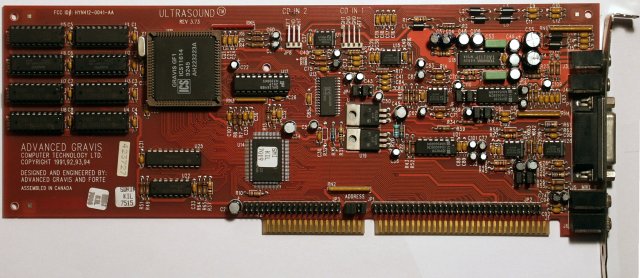
isa old soundcard make work on Debian Ubuntu Xubuntu Fedora GNU / Linux
If you happen to install a modern GNU / Linux distribution to a relatively old computer hardware with an ISA non-PNP (Plug and Play) soundcard it will be not visible neither among PCI devices list with (lspci) command nor in USBs list (lsusb). Thus with ISA cards, the way to configure a 16 bit SoundBlaster is via a special kernel modules snd-es18xx and snd-sb16 which thanksfully is still existent even on latest Linux distros. Without this two modules enabled in the kernel trying alsamixer command will be unable to launch the mixer as the soundcard is not detected on run of /etc/init.d/alsa start – ALSA enabling boot script – loaded during the system enters runlevel 2.

For one time test of sound card driver, I tested by running:

manastir-pomorie@manastir-pomorie:~# /sbin/modprobe snd-es18xx
manastir-pomorie@manastir-pomorie:~# /sbin/modprobe snd-sb16
 

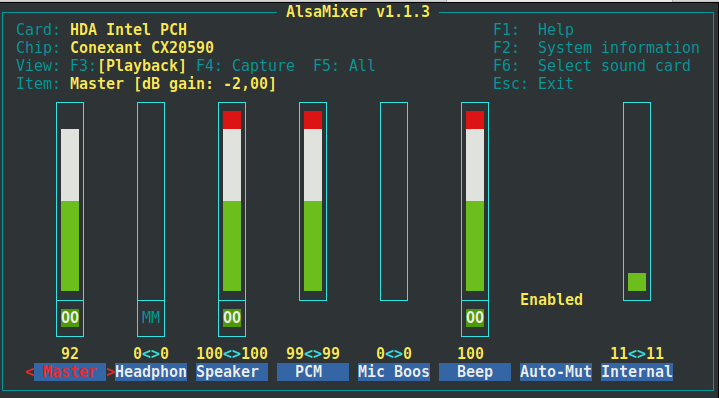
On enabling enabling the sound card via above two drivers on the speakers – volume raised to Loud a kind of beep sound was heard, this led me to thoughts now it might work. Before testing the sound in running Youtube Video with sound in Firefox, I launched alsamixer to see if volume settings for SoundBlaster are not muted. Not surprisingly they were set raised to lowest level as you can see on picture:

alsamixer xubuntu configuring isa old sound card on deb based distro

After raising the volume level for PCM and testing in browser thanksfully soundblaster worked fine.
To make the two kernel modules making the ISA card work, I added the modules to /etc/modules

manastir-pomorie@manastir-pomorie:~# echo 'snd-es18xx' >> /etc/modules
manastir-pomorie@manastir-pomorie:~# echo 'snd-sb16' >> /etc/modules

Even after restarting XUbuntu sound drivers gets loaded. Though I tested this on Xubuntu as Xubuntu is Debian based, same kernel module should be working fine on Ubuntu and Debian. The exact Xubuntu version and kernel on which the ISA card worked is;

manastir-pomorie@manastir-pomorie:~$ cat /etc/issue
Ubuntu 12.04.2 LTS \n \l

manastir-pomorie@manastir-pomorie:~$ uname -a;
Linux manastir-pomorie 3.2.0-38-generic #61-Ubuntu SMP Tue Feb 19 12:20:02 UTC 2013 i686 i686 i386 GNU/Linux

Share this on

How to configure Matrox Graphics MGA G200 AGP on Debian and Ubuntu Linux

Tuesday, March 5th, 2013

I just had to configure a Matrox Graphics MGA G200 AGP on a very old computer installed with Xubuntu 12.04. The Graphic card is not automatically detected and Xorg Linux server automatically runs X without generating any config in /etc/X11/xorg.conf after Xubuntu install. By default Linux uses the VESA driver for running X, the problem with VESA is it is very slow in videos and is only good for text reading and simple browsing. For watching video and Youtube, one needs to install the custom Video card driver on this host the Video card was identifying in lpsci as:

user@oldhost:~$ lspci |grep -i matrox
01:00.0 VGA compatible controller: Matrox Graphics, Inc. MGA G200 AGP (rev 03)

In deb package repositories, there is a special xorg MGA driver suited to run MGA cards, thus to use it I had to first install it with:


user@oldhost:~# apt-get install --yes xserver-xorg-video-mga
....

For allowing card to normally watch movies – you have to have installed a special video driver which is to be lated built from source:

user@oldhost:~#  apt-get -b source mga-vid-source
user@oldhost:~# dpkg -i /usr/src/modules/mga-vid/debian/mga-vid-source_2.6.32-1_i386.deb
....

There is also special program to test if MGA video driver is installed and work correctly mga_vid_test. To have it installed and use it you have to be running on 2.6.x Linux kernel cause it is a bit of old software plus it is necessary to have installed mga-vid-common i.e.:

user@oldhost:~# apt-get install --yes mga-vid-common
.....

I did a quick research online for other people who faced similar problem and found in Ubuntu Forums the following MGA G200 recommended xorg.conf
Below config was little modified by me as by default it was configured to run in 1280×1024 in 24 bit depth color. Usually 24 bit color is high for old cards, plus the resolution of 1280 seemed quite high for this piece of old iron, so I decided to use the better suiting old computers 1024×768 in 16 bit color depth.

Share this on

Improve your night sleep (Insomnia) on Linux with redshift

Friday, February 15th, 2013

sleep better at night while using Linux with redshift command line and gui applet / improve your insomnia while being a linux user
For a while I've been experiencing troubles with getting asleep. As I work in the field of IT already for 10 years and with time it seems the problem is accelerating. I've read on the internet a lot on the topic of getting asleep and how this relates to computers and computer equipment use and came to the conclusion one of the main reasons I have troubles getting asleep is I use computer late at night usually I use PC until 2, 3 o'clock. Then when I go to bed, I cannot fall asleep until its early in the morning usually 6, 7 in the morning. My main operating system on notebook is Linux so almost all of the time I use Linux. I've noticed when I occasionally use Windows, my eyes tend to be less strained afterwards and I sleep better. Thus I suspected there should be some kind of tool in Linux which changes how PC screen displays to make eyes more relaxed. I didn't have the time to research seriously and before some time the little research I've done on this led me to nothing. Just a week ago, I've read one of the articles in Linux Magazine (December) issue, there is a very thorough article in it on how to avoid headaches and eye strain using a tiny tool which changes monitor screen gamma called redshift. In this article will explain in short how to install and use redshift to make your PC work less stressful and improve your sleeping at night. I'm using Debian as a basis Linux distro and thre redshift is available via package, other deb derivatives Ubuntu, Xubuntu etc. aslo have it. For Fedora and most of other Linux distributions redshift is also available from default repositories. For those who use Slackware or some older Linux distributions, redshift has to be installed manually from source but this should be trivial.

1. Install Redshift and Redshift-gtk packages

To install on Debian and Ubuntu:

# apt-get –yes install redshift redshift-gtk

On Fedora install with yum:

# yum -y install redshift

After installed you will have two programs to tune the screen color temperature, one is console based ( redshift ) and the other one is GUI based ( gtk-redshift ).

redshift-gtk is a GUI frontend

Here is a list of redshift tool options:

2. Changing color gamma with redshift

hipo@noah:~$ redshift -h
Usage: redshift -l LAT:LON -t DAY:NIGHT [OPTIONS...]

Set color temperature of display according to time of day.

  -h        Display this help message
  -v        Verbose output

  -g R:G:B    Additional gamma correction to apply
  -l LAT:LON    Your current location
  -m METHOD    Method to use to set color temperature (randr or vidmode)
  -o        One shot mode (do not continously adjust color temperature)
  -r        Disable initial temperature transition
  -s SCREEN    X screen to apply adjustments to
  -t DAY:NIGHT    Color temperature to set at daytime/night

Please report bugs to <https://bugs.launchpad.net/redshift>

To set your screen to Reddish mode which will relax your eye strain and therefore – when you go to sleep you have a better sleep, type:

 hipo@noah:~$ redshift -l -35:-56 -t 5000:3300

Other monitor red-color afternoon or night time gamma to relax your eyes is;

hipo@noah:~$ redshift -l 52.5:13.4

3. Setting redshift to auto change screen gamma via cronjob

If you prefer automatically changing color gamma to reddish at night – will make your eyes (and hence organism) less alert set as a cronjob in lets say 22:00 o'clock at night;

 hipo@noah:~$ crontab -u root -e

00 22 * * * redshift -l -35:-56 -t 5000:3300 2>&1 >/dev/null

4. Controlling manually between standard and reddish color gamma through gtk-redshift

For people who like to control and switch between color gamma using GNOME Applet run gtk-redshift like so:

hipo@noah:~$ gtk-redshift  -l 52.5:13.4

gtk redshift gnome applet screenshot Debian Linux

Clicking on the icon of redshift the color gamma gets changed to red, another toggle reverses back to normal.

There is another tool called F.lux which does the same as redshift. F.lux precedes redshift, actually redshift author write it as attempt to create superior F.lux. Flux works on Windows and Mac OS X – so users who work at night on this platforms might want ot check it. I tried installing f.lux on my Debian Squeeze Linux but had troubles because of requirement for newer python-appindicator :

noah:/home/hipo# apt-get install fluxgui
Reading package lists... Done
Building dependency tree      
Reading state information... Done
Some packages could not be installed. This may mean that you have
requested an impossible situation or if you are using the unstable
distribution that some required packages have not yet been created
or been moved out of Incoming.
The following information may help to resolve the situation:

The following packages have unmet dependencies:
 fluxgui : Depends: python-appindicator (>= 0.0.19) but it is not installable
E: Broken packages


Probably with some tampering I can make f.lux work but I was lazy and since I already had redshift, I decided to quit and just be a happy redshift user.

Share this on

Linphone a good working Skype voice over IP alternative

Monday, February 4th, 2013

If you never tried linphone I warmly recommend it.
2 days ago, with a friend of mine we tested a bunch of Linux softwares to find out what is the situation with possible alternatives to Skype to transmit Voice and Video. I've been interested into Skype Alternative programs since about 2 years, but so far I never found good and easy to set up working Linux alternative.

We first tried Ekiga. Though it is said to be a good Linux SKype alternative, my ekiga client running on Debian Linux stable Squeeze ver. 3.2.7.2 failed to connect to SIP account I've created on ekiga.net. I've tried hard to make ekiga connect to account SIP created from ekiga.net but all time I was getting an error on connect:

Ekiga did not manage to configure your network settings automatically. You can still use it, but you need to configure your network settings manually.

Please see http://wiki.ekiga.org/index.php/Enable_port_forwarding_manually for instructions

ekiga cant login to SIP protocol error enable port forwarding manually - ekiga is not ready to use on Linux

After continously trying to follow instructions from above pointed URL and making proper settings on my DL-524 Wireless Router and all time ending up with the annoying error, we decided to finally completely abondoned it and try some other voice over IP clients.
We  tried Jitsi and few others which prooved to be unworking. Finally we give a try to Linphone which seemed to be promising. We tested it On Linux platform, where both of Linux installed OS-es where tested were running Debian Linux (one stable Debian Squeeze and one unstable Debian Blackstar). Linphone even with different versions on different Debian Linux OS-es worked fine Video conferences were crashing but voice over IP via SIP protocol works okay.

Setting up linphone to do speak (voice over IP) conference calls with friends is easy task, you need to have linphone package installed, i.e. run:

apt-get install –yes linphone

Then once installed launch it from terminal or GNOME menus with:

$ linphone-3

You will have to create account on linphone.org's website via Register a Linphone account. Once registered and confirmed the account, linphone sends you an email with credential info, through e-mail like:
 

Dear Linphone user, your account has been activated.

You can now use your linphone account with these parameters :

sip:hipo@sip.linphone.org
hipo
sip.linphone.org
 

Regards,
The Linphone team.

Then in linphone you should configure new created Linphone account via:

Linphone -> Preferences -> Manager SIP Account

LinPhone Working Linux Skype Alternative Settings Screenshot
 

Once account is added, calls via SIP protocol are ready to go. Probabl,y due to incompitability between versions of Debian stable Linux and unstable the user you will add and about to call is showing as offline, however calling between each other works perfect and voice quality is quite good.

good working skype  inux alternative to proprietary skype voice video chat program - linphone rulez

Linphone has a version for Windows as well as for AppleIphone mobile phone.

LinPhone for Iphone version dialpad picture

For console geeks, there is also a command line tool interface to linphone linbphonec;

$ linphonec
Warning: Could not start UDP transport on port 5060, maybe this port is already used.
Ready
Warning: video is disabled in linphonec, use -V or -C or -D to enable.
linphonec>
linphonec> help
Commands are:
---------------------------
help Print commands help
call Call a SIP uri
chat Chat with a SIP uri
terminate Terminate the current call
answer Answer a call
autoanswer Show/set auto-answer mode
proxy Manage proxies
soundcard Manage soundcards
webcam Manage webcams
staticpic Manage static pictures when nowebcam
ipv6 Use IPV6
refer Refer the current call to the specified destination.
nat Set nat address
stun Set stun server address
firewall Set firewall policy
call-logs Calls history
friend Manage friends
play play from a wav file
record record to a wav file
quit Exit linphonec
register Register in one line to a proxy
unregister Unregister from default proxy
duration Print duration in seconds of the last call.
status Print various status information
ports Network ports configuration
speak Speak a sentence using espeak TTS engine
codec Audio codec configuration
vcodec Video codec configuration
ec Echo cancellation
mute Mute microphone and suspend voice transmission.
unmute Unmute microphone and resume voice
transmission.
nortp-on-a Set the rtp_no_xmit_on_audio_mute
configuration parameter
---------------------------
Type 'help ' for more details.
linphonec> quit

Another great thing about Linphone is it is licensed under free software license GPL2 – meaning source is publicly accessible – thus anyone with skills and desire to port it to any computer architecture can do it. I did not have time to test it throughfully with newer version of linphone to know if Video calls works fine – whether same program versions are used between both peer sides, nevertheless for anyone willing non M$ sniffed channel to do voice calls between Computers linphone is nice.


Share this on

Linux record audio from console / terminal with rec, arecord and ffmpeg

Monday, January 14th, 2013


Recording sound input from microphone linux penguin holding microphone

Recording from microphone input on Linux is possible, through multiple programs.

1. Recording microphone input using SoX's rec

 The classical old-school way is through a little proggie called sox. Back in the day I remember we recorded with sox with a friend from the school years necroleak - mirror of his website is on kenamick.pc-freak.net, trying to make save vox for one of his Tracked Songs. The experiments was not very succesful as both the PC microphone was low quality one, as well as the the state of recording microphone sound streams on Linux was terrible, but at least I learned about sox.

sox is not so popular and mainstream as it used to be back in the day but for anyone willing to investigate into the roots of GNU / Linux sound capturing make sure you have installed sox, alsa-utils and lame package. The package is available across virtually all main stream Linux distributions, depending on the distro to INSTALL sox do:


apt-get install --yes sox alsa-utils lame 
....

 (On Debian, Ubuntu, Arch, Xubuntu … )

yum -y install sox  alsa-utils lame
....

 (on Fedora, CentOS, RHEL …)

 slapt-get install sox ; swaret install sox alsa-utils lame
.....

(on Slackware and derivatives)

Before continuing it is a good idea to check, the microphone is not muted in alsamixer, amixer or aumix

The SoX package provides 4 binaries;

dpkg -L sox|grep -i /usr/bin/
/usr/bin/sox
/usr/bin/rec
/usr/bin/play
/usr/bin/soxi

sox -is tool to apply effects to recorded sound streams

rec – is historically among the first sound recorder tool to make records from microphone (even form the days of OSS – Open Sound System)

play – play is tiny .WAV and some other native classical sounds formats with a beautiful ASCII art (text) equalizer

soxi – gives information on recorded sound stream header (info)

rec -r 8000 -c 1 record_microphone_input.wav

rec is unfortunately made to use the old and now obsolete /dev/dsp sound interface, so on many Linux distributions, recording sound with it might pose problems.

Another problem of rec is it usually records with a lot of noise, thus reducing the noise later with sox cmd is almost necessery, to mitigate the noise you will have to experiment with its options. For some better quality of recording use arg -r 22050.

A little shell script with plenty of example use cases of rec and post sox effect applied as synchronization record_and_normalize_from_mic_with_rec_and_sox_on_linux.sh is here

Generally I mentioned rec for historical reasons, nowadays it is quite obsolete so you probably better stick to the newer alsa native arecord.

2. Recording sound from microphone using alsa-utils arecord

alsa-utils package has bunch of tools to record, play and tune sound;

dpkg -L alsa-utils |grep -i /usr/bin/
/usr/bin/aplaymidi
/usr/bin/aplay
/usr/bin/aconnect
/usr/bin/amixer
/usr/bin/alsamixer
/usr/bin/aseqdump
/usr/bin/arecordmidi
/usr/bin/speaker-test
/usr/bin/iecset
/usr/bin/amidi
/usr/bin/aseqnet
/usr/bin/arecord

One of tools included arecord is able to capture sound from microphone. arecord, can record into .WAV, but as .WAVs are not compressed and most people prefer to save the input to some more wide recognized format as .MP3 it should be invoked in conjunction with lame;

arecord -D plughw:0,0 -f S16_LE -c1 -r22050 -t raw | lame -r -s 22.05 -m m -b 64 - mic-input.mp3


Writting this long and hard to remember command line and arguments is tough, so I created a tiny shell script wrapper which accepts as 1-st argument a file name and saves .WAV and converts it to .MP3. The script linux_record_from_microphone.sh is here

3. Recording from microphone input using ffmpeg

I've earlier blogged on how to use ffmpeg to capture Microphone sound here.

For those lazy to read my previous post the skele syntax is;

ffmpeg -f alsa -ac 2 -i pulse -acodec pcm_s16le -vcodec libx264 -vpre lossless_ultrafast -threads 0 -y myVOICE.wav 

To later convert WAV to MP3 use lame;

 lame -r -s 22.05 -m m -b 64 myVOICE.wav  mic-input.mp3

Share this on

How to record microphone input sound (only) using good old ffmpeg

Tuesday, December 25th, 2012

The good old ffmpeg, along with being able to capture sound and video from your Linux Desktop or a certain Window and Skype whatever WebCamera input is also able to record sound from both camera or embedded laptop microphone. Here is how:

# ffmpeg -f alsa -ac 2 -i pulse   -acodec pcm_s16le -vcodec libx264 -vpre lossless_ultrafast -threads 0  -y  myVOICE.wav

This as you can see from arguments, uses GNOME's pulseaudio (audio service) and ALSA. Sound is first streamed through alsa and then the sound inflow is passed to be processed and multipled in a separate sound channel by pulseaudio. This method though said to be working fine on Ubuntu Linux is not working well on some other Linux distributions like Debian if one is using ALSA configured to use a software sound multiplexor via the so called – alsa dsnoop interface (previously I write how to use it in order to make Skype and other programs use SoundBlaster proper – article is here)

Below is the output warning I got whether trying ffmpeg with -f alsa and -i pulse arguments:

hipo@noah:~/Desktop$ ffmpeg -f alsa -ac 2 -i pulse   -acodec pcm_s16le -vcodec libx264 -vpre lossless_ultrafast -threads 0  -y  myVOICE.wav
FFmpeg version SVN-r25838, Copyright (c) 2000-2010 the FFmpeg developers
  built on Sep 20 2011 17:00:01 with gcc 4.4.5
  configuration: --enable-libdc1394 --prefix=/usr --extra-cflags='-Wall -g ' --cc='ccache cc' --enable-shared --enable-libmp3lame --enable-gpl --enable-libvorbis --enable-pthreads --enable-libfaac --enable-libxvid --enable-postproc --enable-x11grab --enable-libgsm --enable-libtheora --enable-libopencore-amrnb --enable-libopencore-amrwb --enable-libx264 --enable-libspeex --enable-nonfree --disable-stripping --enable-avfilter --enable-libdirac --disable-decoder=libdirac --enable-libschroedinger --disable-encoder=libschroedinger --enable-version3 --enable-libopenjpeg --enable-libvpx --enable-librtmp --extra-libs=-lgcrypt --disable-altivec --disable-armv5te --disable-armv6 --disable-vis
  libavutil     50.33. 0 / 50.43. 0
  libavcore      0.14. 0 /  0.14. 0
  libavcodec    52.97. 2 / 52.97. 2
  libavformat   52.87. 1 / 52.87. 1
  libavdevice   52. 2. 2 / 52. 2. 2
  libavfilter    1.65. 0 /  1.65. 0
  libswscale     0.12. 0 /  0.14. 1
  libpostproc   51. 2. 0 / 51. 2. 0
[alsa @ 0x633160] capture with some ALSA plugins, especially dsnoop, may hang.

where concrete programs, are run which take use of OSS (Open Sound System) – an already obsolete sound architecture. By the way on current Debian / Fedora etc. Linux-es OSS is managed and played only, whether few kernel modules are already  pre-loaded, below are the ones as pasted from my Debian Squeeze:

# lsmod | grep -i oss
snd_pcm_oss            32591  0
snd_mixer_oss          12606  1 snd_pcm_oss
snd_pcm                60487  3 snd_hda_intel,snd_hda_codec,snd_pcm_oss
snd                    46526  15 snd_hda_codec_analog,snd_hda_intel,snd_hda_codec,snd_hwdep,snd_pcm_oss,snd_mixer_oss,snd_pcm,snd_rawmidi,snd_seq,snd_timer,snd_seq_device

The oss processed sound recording from ffmpeg is not working, well on my Linux, cause I have my custom (non-Debian) native binary Firefox downloaded and installed from Firefox's website.The browser is compiled to open automatically /dev/dsp which in practice uses the above-mentioned OSS listed modules, which on their behalf when used break out the sound processed by alsa and respectively pulseaudio (those who use Linux for longer time should remember in the times of OSS only one certain sound stream was possible to be processed / played on Linux historically before ALSA come to scene to be "defacto" standard kernel sound processor. Well ofcourse firefox developers who compiled the Firefox for Linux probably was using Slackware or some other Linux distro which probably used to play sound still via OSS or maybe they compiled it so thinking OSS because of its historical importance is still supported by more Linux distributions than alsa is. I like the custom compiled Firefox to run on my Debian instead of default Debian Squeeze (IceWeasel) cause firefox.org ,Firefox version is much newer and supports better latest HTML5  as well as it includes ability to download and apply automatic updates to the latest version provided by Firefox team. However I fou

Thus for Linux users like me using latest firefox binary from firefox.org (in parallel) with opened Firefox browser to record sound from Webcam or Embedded notebook mic the obsolete OSS has to be used, here is how:

# ffmpeg -f oss -ac 2 -i /dev/dsp   -acodec pcm_s16le -vcodec libx264 -vpre lossless_ultrafast -threads 0  -y  my-recorder-VOICE.wav

Enjoy ;)

Share this on

Linux webcam take pictures from tty console or terminal / How to make pictures of yourself using plain console and web-camera

Saturday, December 15th, 2012

how to take webCAM console / terminal pictures on gnu linux (Debian, Ubuntu, Fedora)

I'm a great command line enthusiast, I share the believe of many other command line geeks thinking keyboard is the quickest way to access a computer. Historically keys were first and mouse second and I think there is definitely a good reason for that. Thus today I was curious if it is possible to take pictures from my external web-camera on my Debian GNU / Linux? I did a quick research and this little article springed out as result.

The answer is YES! It is possible and besides that there are many ways to take a webcamera picture using the console; Lastly it is very easy to achieve even for novice Linux buddies ;) My little research on the topic show me there are 4 straightforward ways one can use to use his extended or embedded WebCam to take pictuers – using (vlc, mplayer, camshot, fswebcam and ffmpeg).

1. Taking a webcam picture using vlc

Invoke vlc with following arguments:

# vlc -I dummy v4l2:///dev/video0 --video-filter scene --no-audio --scene-path /home/hipo --scene-prefix webcam-taken-picture-prefix --scene-format png vlc://quit --run-time=1

I've prepared a little wrapper script, for the sake of simplifying the long and hard to remember vlc options. Below is the script;

#!/bin/sh
# This little script will take picture whilst in gnome-terminal / mlterm or any console tty
# As program uses vlc you need to have vlc properly configured and installed
# as well as the webcam video be properly working (detected by Linux kernel)
# licensed under GPLv2 script modified by hip0 14.12.2012
# Path where to store taken snapshots
STORE_PATH=/home/hipo
# Device locatation of webcam many webcams have default device in /dev/video0
WEBCAM_DEV=/dev/video0
# Stored grabbed picture filename prefix
FILE_NAME_PREF=image_prefix
# gets the current date and adds to set filename prefix
date_cur=$(date +%k_%d_%m_%Y|sed -e 's/^ *//');
vlc -I dummy v4l2://$WEBCAM_DEV --video-filter scene --no-audio --scene-path $STORE_PATH --scene-prefix $FILE_NAME_PREF.$date_cur --scene-format png vlc://quit --run-time=1
echo "WebCam picture taken and stored in $STORE_PATH/$FILE_NAME_PREF.$date_cur*.png";
echo '';
echo "To view picture in Gnome with Eye of GNOME type: eog $STORE_PATH/$FILE_NAME_PREF.$date_cur*.png";

You can also download copy of the webcam_take_picture_from_console.sh script here.

As you see the script uses, vlc's (dummy interface), and –video-filter-scene option to make the snapshot. The script can be stored in let's say /usr/local/bin/webcam_take_picture.sh and aliased through ~/.bashrc with some short alias, i.e.:

alias console-picture='/usr/local/bin/webcam_take_picture.sh'

Then at any time, when you run console-picture you will have a short way to make pictures of your room, your friends or whatever needed. One good application of script is whether you're in coffee with friends and you want to take a snapshot of them without them realizing (assuming, the webcam is embedded) :)

Another great application is whether you want to take a snapshot of the WebCam, from another shell script or little application using dialog ncurses interfaces etc.

Even just for the sake of fun it is so nice to take a picture from webcam, whether in plain tty console bash shell :)

One small note to make here is webcam_take_picture_from_console.sh should be run as non-root user (for security reasons vlc developers made smartly VLC this way), running it as root drops an err:

>VLC is not supposed to be run as root. Sorry.
If you need to use real-time priorities and/or privileged TCP ports
you can use /usr/bin/vlc-wrapper (make sure it is Set-UID root and
cannot be run by non-trusted users first).
 

By default, vlc resolution used is the automatically set to the maximum supported to the camera, with mine this is 640×480 SRGB
The quality of pictures taken is a bit low but my camera is a cheap one and even with some GUI program snapshot taking programs like GNOME's cheese, taken pictures are with low quality (though I think the brightnes of the ones taken with vlc is a bit poorer than the ones done with cheese).

Happily it is possible to correct picture brightness and lightning with v42l-ctl (v42l-ctl is not installed by default and on Debian you will have to install deb pack v4l-utils), e.g.:

apt-get install --yes v4l-utils
....

Further, check out the possible options available with:

v4l2-ctl -L - (list all possible options)

and to set a concrete option do:

v4l2-ctl -c <options>=<value> (set an option)
 

I don't have a BSD (FreeBSD, NetBSD, OpenBSD) at hand, but with a working supported Webcam, correct location to the webcam /dev/  and installed VLC from ports :

vlc -I dummy v4l2:///dev/video0--video-filter scene --no-audio --scene-path $STORE_PATH --scene-prefix $FILE_NAME_PREF.$date_cur --scene-format png vlc://quit --run-time=1

should be working fine as well.
If someone has access to a BSD with a working installed webcam, please test it and drop a comment to confirm if working …

2. Creating pictures from WebCamera using mplayer cmd

Theoretically mplayer, should be able to take snapshots from the Cam with:

mplayer -vo png -frames 1 tv://

There is possibility to pass output webcam picture (resolution) dimensions too:

mplayer tv:// -tv driver=v4l:device=/dev/video0:width=320:height=240:outfmt=rgb24 -frames 1 -vo jpeg


With my "NoName" (Eltron Technology) webcam the produced images were filled up with solid green color  (maybe due to bug of my webcam used driver). Normally it should be working; I've seen many posts around claiming using both of above cmd lines to produce pictures normally, but not for me.

3. Making pictures with WebCamera (camshot) console tool

I've seen around also another tiny tool (camshot) especially written to take pictures from webcam. The tool is available only to be compiled from source (whether source is fetched through Subversion repo (SVN)). I took a minute to test it as well, e.g.:


hipo@noah:~Desktop$ svn checkout http://camshot.googlecode.com/svn/trunk/ camshot-read-only

hipo@noah:~/Desktop/camshot-read-only$ make
....
hipo@noah:~/Desktop/camshot-read-only$ ls
arguments.c  arguments.o  camera.h  camshot  image.h  main.c  Makefile  shmem.h  shmem_test.c
arguments.h  camera.c     camera.o  image.c  image.o  main.o  shmem.c   shmem.o

hipo@noah:~Desktop/camshot-read-only$ ./camshot
Letting the camera automaticaly adjust the picture:..........Done.
Command (h for help): h

Commands:
    x    Capture a picture from camera.
    h    Prints this help.
    q    Quits the program.

Command (h for help): x
Command (h for help): q


Don't know why, but for me camshot did not produce, any output picture from webcam. Maybe my Webcam which is a cheap (all OS) compatible one is not detected fine by the tool? As you see from above help output there are not many options so it is definitely something with webcam detection or just it needs some kind of little "hack" in the source to make it working, I was lazy to further investigate so I leave it.

4. Making pictures from terminal using fswebcam

fswebcam is not so popular as vlc and mplayer, but is existent from default repostiries on both Debian and Ubuntu Linuces. Here is it how it is described when pkg info requested with apt-cache:

apt-cache show fswebcam | grep -i descrip -A 8
Description: Tiny and flexible webcam program
 Fswebcam is a tiny and flexible webcam command-line program for capturing
 images from a V4L1/V4L2 device. It accepts a number of formats, can skip
 the first (possibly bad) frames before performing the actual capture, and
 can perform simple manipulation on the captured image, such as resizing,
 averaging multiple frames or overlaying a caption or an image.
Homepage: http://www.firestorm.cx/fswebcam/
Tag: implemented-in::c, role::program

To use it first install it with apt-get or yum (yes it is available also for RedHat based Linux distros via yum).
Depending whether on Debian or Fedora etc. do:

apt-get install --yes fswebcam
.....

or

yum -y install fswebcam
....

fswebcam's syntax is much easier than all of rest cmd tools available around; to create picture from webcam;

# fswebcam -r 640x480 --jpeg 85 -D 1 web-cam-shot.jpg
--- Opening /dev/video0...
Trying source module v4l2...
/dev/video0 opened.
No input was specified, using the first.
Delaying 1 seconds.
--- Capturing frame...
Captured frame in 0.00 seconds.
--- Processing captured image...
Setting output format to JPEG, quality 85
Unable to load font 'luxisr': Could not find/open font
Disabling the the banner.
Writing JPEG image to 'web-cam-shot.jpg'.

I liked supports, saving in multiple formats, can set resolution and is probably the number 1 choice for anyone looking for high level of customization of cam taken picture.. Saying this I think fswebcam is definitely the tool of choice as it is written with the one and only aim to take webcam pictures from console.

5. Capturing picture from Webcam using ffmpeg

With ffmpeg, there are plenty of things possible;
Just to mention few interesting ones, I've written about earlier, ffmeg is capable of;

- convert .OGG vorbis to MP3 
- convert .FLV to .AVI and .AVI to .FLV
- convert .AVI .MP4 and .FLV to OGG Vorbis (Free Format)
- convert .OGG video to .FLV Video
- extract sounds / music from .FLV to a MP3 / MP4
- Add .SRT and .SUB files subtitles to Flash Videos

Along with all this, interestingly ffmpeg can get content using command line from WebCamera (nomatter if it's a VIDEO stream or just a Picture snapshot).

The syntax to take a picture with it is:

ffmpeg -f video4linux2 -i /dev/v4l/by-id/usb-Etron_Technology__Inc._USB2.0_Camera-video-index0 -vframes 1 output-picture.jpeg

The precise /dev/(v4l – video 4 linux) assigned to different cameras will differ so in order to find what kind of /dev, to use ls it:

# ls -al /dev/v4l/by-id/*

lrwxrwxrwx 1 root root 12 Dec 14 22:40 /dev/v4l/by-id/usb-Etron_Technology__Inc._USB2.0_Camera-video-index0 -> ../../video0

The picture resolution taken on my Eltron Technology Webcam is same like with vlc – the cam optimum 640×480, the quality and brightness gamma is also identical to pics taken using VLC.
 
Therefore if you're wondering if one tool, might make a better pictures from command line than the other the answer, according to my tests is they produce identical quality and all can be customized easily for different set of resolution. It is possible thought, this is not so with other Web Cam models, if you happen to read this post and take the time to try taking pictures with 5 methods and some of the 5 progs is making superior pictures, please drop a comment with the tool you used and the WebCam exact version as detected in dmesg or lsusb

As a sort of Outtro, from purely functional / usability point of view I think fswebcam is probably be the tool of choice for mostly all as it is most simple, easily customizable and especially crafted for creating webcam console shots. That's all Enjoy, taking pics from GUI terminal or console :)  

P.S. – I know there are plenty of people who have written on the topic, so this article is nothing new under the sun, but as I couldn't find a post synthesizing in one all of the 5 methods I've come up with this little article. Feedback is mostly welcome
Happy picturing ;)

Share this on

Convert .doc to .pdf on Linux and BSD using console / Convertion of PDF to DOC inside scripts

Tuesday, November 13th, 2012

how to Convert .doc to .PDF using console / terminal on Linux and FreeBSD

On Linux, there are plenty of ways nowadays to convert Microsoft Word or OpenOffice .DOC documents to Adobe's PDF (Postscript). However most of the ways require a graphical environment. As I'm interested in how convertion is done mainly from console to suit shell scripts and php which has to routinely convert a bunch of .DOC files to .PDF. I've checked today how PDF to DOC is possible on Debian, Ubuntu, Arch Linux  and FreeBSD..

There are few tools one can use from console, that doesn't requiere you to have running Xorg on the convertion host. The quality of the produced converted document, may vary and with some Microsoft Office doc files, there might be some garbage. But generally for simplistic and well written "macros" free documents the quality of PDF is satisfactory with few of the tools.

Here I will list the few tools, one can use for convertion:

  • abiword – you probably know abiword GUI program which is a good substitute for people who doesn't want the huge openoffice on the host. interestingly abiword supports converts with no need for GUI
     
  • wvPDF (you have to have install wv package and usually this converter works well only with very old .DOC (MS Office 97) – I was not impressed with those convert results
     
  • oowriter / swriter (whether LibreOffice installed) or writer (on LibreOffice), on some Ubuntus and derivatives the equivalent cmd is lowriter
     
  • unoconv – this tool produces really good DOC to  PDF converts, it is a python script using openoffice / libreoffice as backend convertion engine so produced PDFs will be identical like the ones produced with oowriter, the pros of the tool is its syntax is very user friendly and along with PDF to DOC it supports easy syntax converting to  bunch of other file formats. Actually unoconv supports same convertions which supported by OpenOffice.org, the advantage is however you can use it within console and even schedule convertion to be processed by a remote host.


1. Convertion of DOC to PDF with abiword

abiword --to=pdf doc_file_to_convert.doc

2. Convert DOC to PDF with wvPDF

apt-get install --yes wv texlive-base texlive-latex-base ghostscript

wvPDF doc-file-to-convert-to-pdf.doc converted-to-pdf.pdf

wvPDF doc-file-to-convert-to-pdf.doc convert-to-pdf.pdf

Current directory: /home/hipo/Desktop
"doc-file-to-convert-to-pdf.eps" exists - skipping...
Some problem running latex.
Check for Errors in steinway.log
Continuing... 


The produced .pdf was not useful most of the text inside was completely missing as well as some weird probably PostScript convertion characters were in the .PDF. Seeing its output I would as of time of writing wvPDF Debian's verion 1.2.4 is crap.


3. Convert DOC to PDF with oowriter / swriter / lowrite

a) convert with oowriter and swriter

I saw posts online claiming DOC to PDF convertion is possible directly with oowriter or swriters with commands:

oowriter -convert-to pdf:writer_pdf_Export input-doc-file-to-convert.doc

or

swriter -convert-to pdf:writer_pdf_Export steinway.doc - as named on some Linux-es
 

As long as I tested it on my Debian Squeeze, neither of the two works
.I saw some suggestions that PDF can be generated by installing and using cups-pdf debian package:

apt-get install cups-pdf oowriter -pt pdf your_word_file.doc b) convert DOC to PDF with lowriter I've seen in Ubuntu documentation and in Ubuntu forums, users saying they had some good results using lowriter, which is a sort of front-end program to ImageMagick's convert. I never tested that but I doubt of any satisfactory results, as I tried converting to PDF earlier using convert and often converts failed. Anyways you try it with:

lowriter --convert-to pdf *.doc


4. Converting PDF to DOC  with unoconv

As of time of writing it seems unoconv is best Linux console tool for converting .doc to .pdf

It produces good readable text, as well as pictures and elements looks exactly as in OpenOffice.

To install it I run:

# apt-get install --yes unoconv
....

To use it:

$ unoconv -fpdf any-file-to-convert.doc

If you don't get errors or it doesn't crash a .doc file with same name any-file-to-convert.doc is created.

What unoconv, does is precisely the same as if using OpenOffice GUI's  to convert to PDF:


  • Open -> Open Office (3.2 in my case)
  • Open Document to export
  • File->Export as PDF
  • Click: Export
  • Choose file namefor output PDF


An interesting feature of unoconv is its possibility to run and convert as a port listening server. I never used this but noticed it mentioned in manual EXAMPLE section:


EXAMPLES
       You can use unoconv in standalone mode, this means that in absence of an OpenOffice listener, it will starts its own:

       unoconv -f pdf some-document.odt
       One can use unoconv as a listener (by default localhost:2002) to let other unoconv instances connect to it:

       unoconv --listener &
       unoconv -f pdf some-document.odt
       unoconv -f doc other-document.odt
       unoconv -f jpg some-image.png
       unoconv -f xsl some-spreadsheet.csv
       kill -15 %-
       This also works on a remote host:

       unoconv --listener --server 1.2.3.4 --port 4567
       and then connect another system to convert documents:

       unoconv --server 1.2.3.4 --port 4567

unoconv does not recognize wildcards like ' * ' , so in order to convert multiple DOC to PDF files one has to use the usual shell loop:

for i in *.doc; do unoconv -fpdf $i; done

From all my tests, I think unoconv is preferred tool for Linux and BSD users (good time to mention unoconv is available on FreeBSD too. BSD users can install it via port  /usr/ports/textproc/unoconv)

Share this on

Updating Flash Player on Debian GNU / Linux / Keeping Flash player up-to-date with update-flashplugin-nonfree

Saturday, November 10th, 2012


Update flash player on Debian GNU / Linux update-flashplugin-nonfree macromedia flash logo

Assuming you have previously installed and running Adobe Flash Player – package flashplugin-nonfree i.e.:

debian:~# dpkg -l |grep -i flashplugin-nonfree
ii flashplugin-nonfree 1:2.8.3 Adobe Flash Player - browser plugin

and you want to Update flash player to the latest provided version for Linux, there is an update script part of flashplugin-nonfree, package /usr/sbin/update-flashplugin-nonfree. The script updates flash player to latest Linux version avaiable fetching the version from macromedia's website in a .tar.gz and untarring it substituting the old flash library.

To update your Debian FlashPlayer, launch as superuser:

debian:~# update-flashplugin-nonfree --install
--2012-11-10 00:51:48-- http://fpdownload.macromedia.com/get/flashplayer/pdc/11.2.202.251/install_flash_player_11_linux_x86_64.tar.gz Resolving fpdownload.macromedia.com... 92.123.98.70 Connecting to fpdownload.macromedia.com|92.123.98.70|:80... connected. HTTP request sent, awaiting response... 200 OK Length: 7228964 (6.9M) [application/x-gzip] Saving to: “./install_flash_player_11_linux_x86_64.tar.gz”

0K .......... .......... .......... ..........
.......... 0% 69.5K 1m41s 50K .......... .......... .......... ..........
.......... 1% 91.1K 88s 100K .......... .......... .......... ..........
.......... 2% 70.8K 91s ........
..........

After a while (usually up to a minute), update will be completed. Restart your browser of use IceWeasel, Epiphany, Opera, Chrome etc. and test it with About Flash Player Page and / or youtube. You should be with latest Flash Linux version now.

It might be a good idea to automate future flash player updates via a cron job, I think launching the update script every two weeks is a good timing;

To do so add to root user cron like so:

10,27 * * * * /usr/sbin/update-flashplugin-nonfree –install -q 2>&1 >/dev/null

If you still haven't configured your pulseaudio to play multiple sound streams do that too.

I've seen also on Debian's Wiki FlashPlayer page, mentioning that on some systems after update to Flash Player 11 there might be laggy performance issues, due to disabled hardware acceleration in Flash Player > v. 10. If that's the case with you you might also need to put a mss.cfg like this one to /etc/adobe/mss.cfg

# wget -q http://www.pc-freak.net/files/adobe-flash-player-config-for-hardware-acceleration-mms.cfg
# mv adobe-flash-player-config-for-hardware-acceleration-mms.cfg /etc/adobe/mms.cfg

Finally if you experience, some flash video lagging issues, you could try experimenting with OverrideGPUValidation=true flash setting which in some cases improves Linux flash video performance

Firefox users might be also interested to check out www.mozilla.org/en-US/plugincheck – the URL provides information on essential Firefox video plugins and whether plugins installed are up2date or prone to remote web exploitation vulnerability.

Share this on